App Hosting handles a complex series of background tasks to simplify the
deployment of your app. This page describes key parts of that task flow,
providing information about points where you might want to customize the flow
depending on your app's needs.
## Key terms and definitions
To understand the details of the App Hosting flow, it's helpful to define
some of the terminology very specifically. Here are the fundamental key terms:
- **Backend** : The collection of managed resources that App Hosting creates to build and run your web app.
- **Build** : A specific revision of your app, typically linked to a git commit. The [process of creating a build](https://firebase.google.com/docs/app-hosting/build) has numerous subprocesses, notably the *building* of your app in Cloud Build, and the *deployment* of a revision (initially serving 0% of traffic until it's rolled out) in Cloud Run.
- **Rollout** : The process of setting a build to actively serving traffic. When automatically triggered by a git commit, App Hosting first creates a build using your live branch, then creates a rollout to direct live traffic to it.
- **Live branch**: The branch of your GitHub repository that gets deployed to your live URL. Often, it's the branch into which feature branches or development branches are merged.
## Google Cloud and App Hosting architecture
App Hosting orchestrates a set of Google Cloud products so you can
deploy, serve, and monitor your web app. Apps are built with Cloud Build,
served on Cloud Run, and cached in Cloud CDN. Integrated services like
Cloud Secret Manager keep your API keys safe.
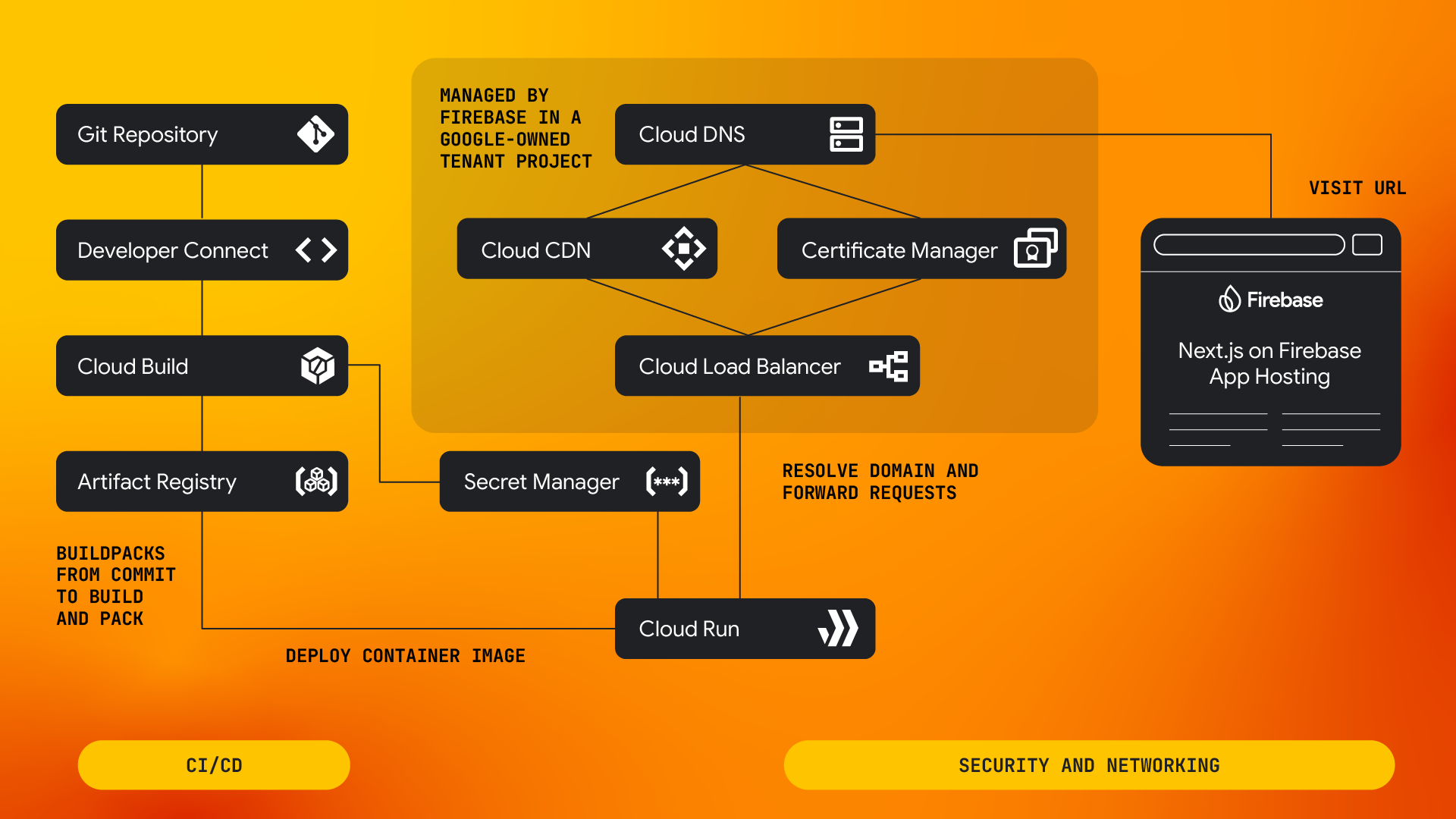
1. When a commit is pushed to your live branch, Google Cloud Developer Connect sends an event to Firebase App Hosting.
2. Responding to this event, Firebase App Hosting creates a new build for the backend connected to the repository.
1. First, Firebase App Hosting creates a new Cloud Build build for your commit. In this job, [Google Cloud buildpacks](https://cloud.google.com/docs/buildpacks/overview) determine which framework is being used in your application to create a container and configuration (including environment variables, secrets, minimum or maximum instances, concurrency, memory, CPU, and VPC configuration) that suits your application. See [the App Hosting build process](https://firebase.google.com/docs/app-hosting/build) for more information.
2. When the Cloud Build job is complete, your container is stored in an Artifact Registry repository dedicated to Firebase App Hosting. Firebase App Hosting then adds a new Cloud Run Revision to a Cloud Run service using your image and configuration.
3. Once your Cloud Run Revision is complete and verified healthy, Firebase App Hosting modifies its traffic configuration to point all new requests to your new Cloud Run Revision. At this point, the rollout is complete.
4. When a request is sent to a website hosted on Firebase App Hosting, the request is served by Google Cloud Load Balancer with Cloud CDN enabled. Uncached requests are sent to your Cloud Run service. See [Cache app content](https://firebase.google.com/docs/app-hosting/optimize-cache) for guidance on how to optimize performance with Cloud CDN.
## Framework integration
App Hosting provides preconfigured build and deploy support for web apps
developed in these frameworks:
- Next.js 13.5.x and higher
- Angular 18.2.x and higher
See the
[support schedules](https://firebase.google.com/docs/app-hosting/frameworks-tooling#next.js-support) for
details on specific versions and levels of support.
In addition to Next.js and Angular, App Hosting also supports any web
framework that is able to provide a build output that matches our [output bundle
specification](https://github.com/firebase/apphosting-adapters#app-hosting-output-bundle).
See [Frameworks and tooling for
App Hosting](https://firebase.google.com/docs/app-hosting/frameworks-tooling) for more information
about frameworks, framework adapters, and related tooling supported by
App Hosting.
## How App Hosting repository integration works
The important connection between your GitHub repository and the App Hosting
backend is handled by
[Developer Connect](https://cloud.google.com/developer-connect/docs/overview),
Google Cloud's connectivity platform
for external DevOps tools. When you set up this connection (typically during
the creation of an App Hosting backend),
Developer Connect's UI workflow guides you through the installation of the
Firebase GitHub app. The key steps in this process are:
1. You grant Developer Connect the [Secret Manager Admin](https://cloud.google.com/secret-manager/docs/access-control#secretmanager.admin) role. This allows the system to store credentials securely as "secrets" in [Cloud Secret Manager](https://cloud.google.com/secret-manager/docs).
2. You authorize the Firebase GitHub app to [access your GitHub repository](https://docs.github.com/en/apps/using-github-apps/installing-a-github-app-from-a-third-party). You may need additional [GitHub permissions](https://docs.github.com/en/apps/using-github-apps/installing-a-github-app-from-github-marketplace-for-your-organizations#requirements-to-install-a-github-app-on-an-organization) in order to access the right repository.
3. Developer Connect stores a dedicated GitHub authorization token in your project's secret manager repository; don't modify or delete this token.
Additionally, App Hosting integrates with the GitHub checks API to provide a
check for rollouts. This check lets you view the status of your rollout in
GitHub and debug the deployment process in case of any errors.
## Integration with Firebase and other Google services
App Hosting sets up both your build and runtime environments so you can
[initialize the Firebase Admin SDK](https://firebase.google.com/docs/admin/setup#initialize-sdk) with
Google Application Default Credentials. That way, your backend can communicate
with other Firebase products at both build and run time. See [Integrate
Firebase SDKs in your web app](https://firebase.google.com/docs/app-hosting/firebase-sdks) for more
information on initializing your app and other Firebase SDK-related topics.
## App Hosting locations
App Hosting creates your backend resources in a specific location, called
your primary region. While App Hosting integrates with a global CDN for fast
delivery, uncached content is served from your app's primary region. This
flexibility in the location of your web app has key advantages:
- Improved performance and reduced latency by bringing the data geographically closer to your users.
- A catastrophic failure for App Hosting in one region wouldn't affect web apps deployed in other regions.
You can choose any of these regions when you create an
App Hosting backend from the Firebase console or the Firebase CLI:
- `us-central1` (Iowa)
- `us-east4` (N. Virginia)
- `us-east5` (Columbus)
- `asia-east1` (Taiwan)
- `asia-southeast1` (Singapore)
- `europe-west4` (Netherlands)
## The App Hosting backend service account
During build and at runtime, your App Hosting backend authenticates with
other Google services with a service account. A default service account for
these purposes is created the first time you enable App Hosting in a
Firebase project:
`firebase-app-hosting-compute@PROJECT ID.iam.gserviceaccount.com`
This service account applies to all backends by default and has a minimal set of
permissions to allow you to build, run, and monitor your app. It also has
permission to
[authenticate the Admin SDK with Application Default Credentials](https://firebase.google.com/docs/admin/setup#initialize-sdk), for
performing operations like loading data from Cloud Firestore. See
[Firebase App Hosting roles](https://firebase.google.com/docs/projects/iam/roles-predefined-product#app-hosting).
If your app needs to interact with additional Google services either at build
time or from a running backend, you can customize the default service account by
adding roles. For example, if your app requires permissions for Vertex AI, you
might need to add
[`roles/aiplatform.user`](https://cloud.google.com/iam/docs/understanding-roles#aiplatform.user)
or some related role.