If you have automatic rollouts enabled, every time you push a new commit to the
live branch in your GitHub repository App Hosting automatically rolls out a
new version of your app. You can check the rollout status in the
Firebase console or in the App Hosting GitHub check.
Additionally, App Hosting supports manually triggered rollouts for
CI/CD integration or any other case where you want to force a rollout.
## View rollouts
The Firebase console provides access to detailed information about all
rollouts of your app.
Navigate to
**Hosting \& Serverless** \> [**App Hosting**](https://console.firebase.google.com/project/_/apphosting),
then select **View** for the backend whose rollouts you'd like to see. The
**Rollouts** tab for the backend displays a table listing a history of all
rollouts for this backend.
Each rollout entry contains links to the Cloud Build job and
the change or commit that triggered the rollout, along with basic information
about the author, creation date, and status of the rollout.
- The Cloud Build job is the build environment where App Hosting runs your app's build command. You can access Cloud Build logs by clicking on the build ID.
- The **Change** is the GitHub commit or other action that triggered the rollout.
## Manually trigger a rollout
If you want to manually trigger a rollout from your GitHub source without
pushing a new commit, you can create a rollout from the Firebase console or
the Firebase CLI. This is useful for cases such as:
- Forcing the regeneration of static content.
- Allowing a CI/CD system to trigger rollouts.
- Limiting production rollouts to specific dates or times.
To trigger a rollout in the Firebase console:
1. In the Firebase console, navigate to **Hosting \& Serverless** \> [**App Hosting**](https://console.firebase.google.com/project/_/apphosting/).
2. Click **View** for the backend you want to create a rollout for.
3. In the backend dashboard summary, select **Create rollout**.
4. Select the branch to deploy.
5. Select the commit to deploy, either the latest commit or an earlier commit specified by its commit ID.
6. Select **Create**. Status and a build number for the rollout is displayed in the rollout history table. When the rollout process is complete, this rollout is displayed as the current rollout.
To trigger a rollout in the Firebase CLI, run the following command and
select the branch for the rollout when prompted:
```console
firebase apphosting:rollouts:create BACKEND_ID
```
Alternatively, you can start a rollout for the latest commit for a specific
branch by using the `--git-branch` option:
```console
firebase apphosting:rollouts:create BACKEND_ID
--git-branch BRANCH_NAME
```
You can also create a rollout with a specific commit using the `--git-commit`
option:
```console
firebase apphosting:rollouts:create BACKEND_ID
--git-commit COMMIT_ID
```
## Restore a previous rollout
App Hosting gives you two options for restoring a previous rollout:
- Roll back instantly without rebuilding
- Rebuild and roll back to a previous version
### Create an instant rollback
At times you might need to quickly revert to an earlier version of your app---for
example, if you've discovered a critical bug in a newly deployed rollout or
you're experiencing a flaky build that's blocking new rollouts. In such cases
you can restore an existing container image of your choice from a previous
rollout. This image isn't rebuilt, but uses the code and environment
configuration from when it was first built.
To create an instant rollback:
1. In the Firebase console, navigate to **Hosting \& Serverless** \> [**App Hosting**](https://console.firebase.google.com/project/_/apphosting/).
2. Click **View** for the backend for which you want to create a rollback.
3. Select the **Rollouts** tab.
4. In the **History** table for the backend, select the three-dot menu for a previous build.
5. Select **Roll back to this build** and confirm.
### Rebuild and roll back
If you want to revert to an older version of your app but still keep current
configuration, you can rebuild the app as part of the rollback process. For
example, if your most recent version updated an API key value in Secret Manager,
rebuilding can ensure that the new key is used in your app after rolling back.
To rebuild and roll back:
1. In the Firebase console, navigate to **Hosting \& Serverless** \> [**App Hosting**](https://console.firebase.google.com/project/_/apphosting/).
2. Click **View dashboard** for the backend you want to create a rollback for.
3. Select the **Rollouts** tab.
4. Select **Create rollout**.
5. In the **Create a rollout** dialog, select **Earlier commit** and then enter the commit ID for the version you want to rebuild and roll back to. The commit ID is part of the "Change details" for each rollout listed in your **Rollout history,** contained in parentheses in the label.
6. Select **Create** to begin the rollback.
## Change rollout settings
You can change the live branch for rollouts and disable or enable automatic
rollouts using controls in the **Settings \> Deployment** view in the dashboard
for a backend.
1. In the Firebase console, navigate to **Hosting \& Serverless** \> [**App Hosting**](https://console.firebase.google.com/project/_/apphosting/).
2. Click **View** for the backend where you want to update rollout settings.
3. In the backend dashboard, select **Settings**. The default view displays information about domains and custom domains.
4. Select the **Deployment** view. In this view, you can change the live branch for rollouts and disable or enable automatic rollouts. Also, there are options to set the app root directory and the environment for the backend (see [Deploy to multiple environments](https://firebase.google.com/docs/app-hosting/multiple-environments.md.txt)).
### Manage automatic rollouts
By default, App Hosting assumes a "required" list of *all* files, meaning
every new commit to your repository triggers a new build and rollout. However,
to save time and prevent unnecessary deployments, you can configure App Hosting
to skip builds based on the specific file paths modified in a commit.
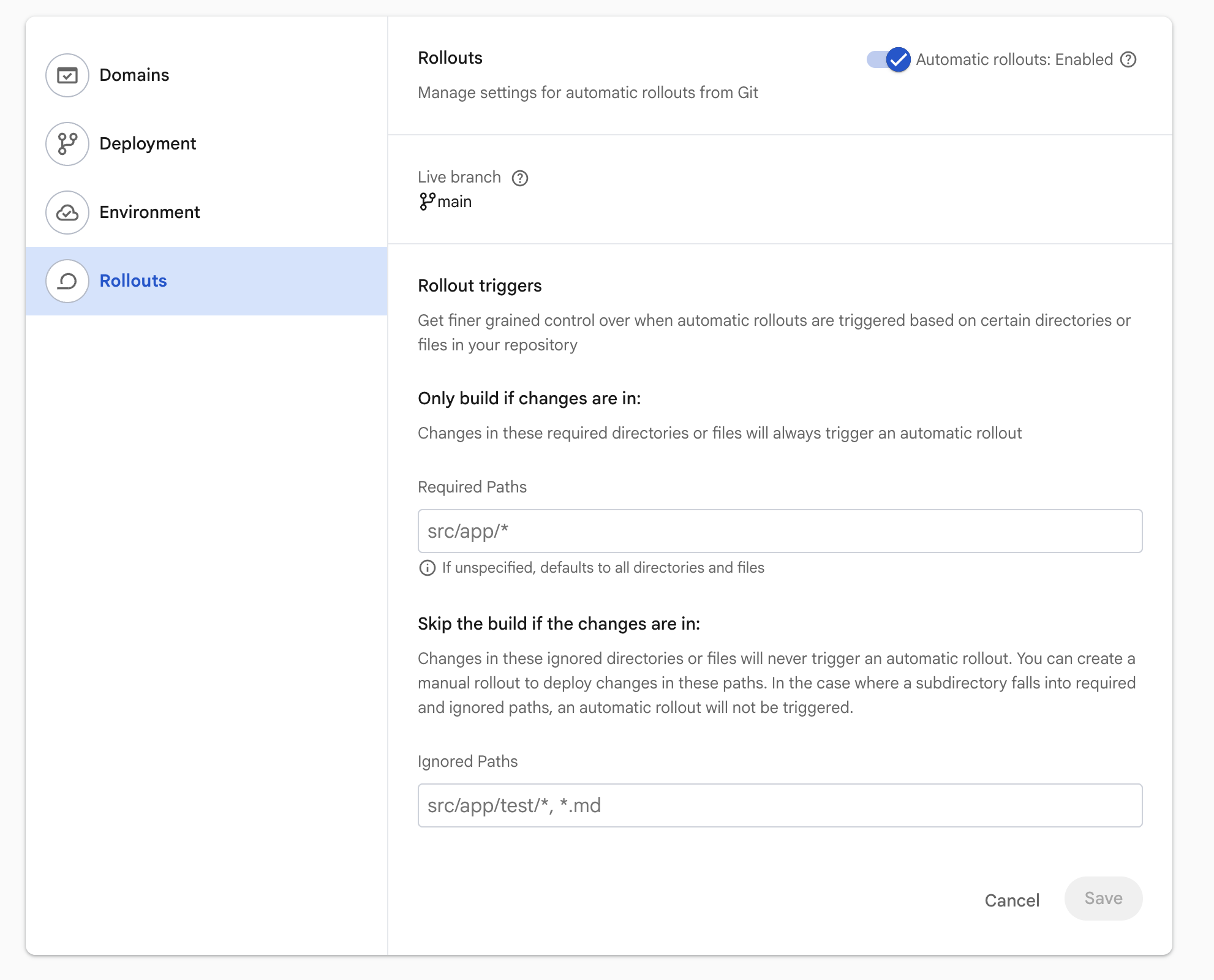
You can configure this under **Settings \> Rollouts \> Rollout triggers** . Here,
you can leave **Required Paths** blank if you want every new commit
to your repository to trigger a new build and rollout, or you can specify
exactly which directories or files should always trigger a rollout. If you do
specify directories, make sure to add *all* paths where changes
should trigger a rollout.
Directories or files you add to **Ignored Paths** will never
trigger an automatic rollout. In cases where a subdirectory falls into both the
required and ignored lists, an automatic rollout *won't be triggered* . If you
populate only the ignored paths list, App Hosting will autopopulate "\*" for
the required paths.
If you push a commit where none of the changed files match your required paths
(or if all changes are explicitly excluded by your ignored paths),
App Hosting will still acknowledge receipt of the GitHub event, but it will
mark the build and rollout states as `SKIPPED`, and no automatic rollout is
triggered.