You can use the managed export and import service to
recover from accidental deletion of data and to export data for offline
processing. You can export all documents or just specific collections. Likewise,
you can import all data from an export or only specific collections. Data
exported from one Cloud Firestore database can be imported into another
Cloud Firestore database. You can also [load
Cloud Firestore exports into BigQuery](https://cloud.google.com/bigquery/docs/loading-data-cloud-firestore).
This page describes how to export and import Cloud Firestore documents using
the managed export and import service and [Cloud Storage](https://cloud.google.com/storage/). The
Cloud Firestore managed export and import service is available through
the [`gcloud`](https://cloud.google.com/sdk/gcloud/)
command-line tool and the Cloud Firestore
API ([REST](https://cloud.google.com/firestore/docs/reference/rest/v1/projects.databases), [RPC](https://cloud.google.com/firestore/docs/reference/rpc/google.firestore.admin.v1)).
> [!CAUTION]
> **Caution:** Exporting data from Cloud Firestore will incur one read operation per document exported. However, these reads will not appear in the usage section of the console. Make sure you understand this before setting up recurring exports to avoid an unexpected bill.
## Before you begin
Before you can use the managed export and import service, you must complete the
following tasks:
1. [Enable
billing for your Google Cloud project.](https://cloud.google.com/billing/docs/how-to/modify-project) Only Google Cloud projects with billing enabled can use the export and import functionality.
2. [Create a
Cloud Storage bucket for your project](https://cloud.google.com/storage/docs/creating-buckets) in a location near [your
Cloud Firestore database location](https://firebase.google.com/docs/firestore/enterprise/locations#project_location_setting). You cannot use a Requester Pays bucket or a [Rapid bucket](https://docs.cloud.google.com/storage/docs/rapid/rapid-bucket) for export and import operations.
3. Make sure your account has the necessary permissions for
Cloud Firestore and Cloud Storage. **If you are the project owner,
your account has the required permissions.** Otherwise, the following
roles grant the necessary permissions for export and import operations and
for access to Cloud Storage:
- [Cloud Firestore roles:](https://firebase.google.com/docs/firestore/enterprise/security/iam.md.txt#roles) `Owner`, `Cloud Datastore Owner`, or `Cloud Datastore Import Export Admin`
> [!NOTE]
> **Note:** These Datastore roles also grant permissions in Cloud Firestore.
- [Cloud Storage roles:](https://cloud.google.com/storage/docs/access-control/iam-roles)
`Owner` or `Storage Admin`
### Service agent permissions
Export and import operations use a Cloud Firestore service agent to
authorize Cloud Storage operations. The Cloud Firestore service agent
uses the following naming convention:
Cloud Firestore service agent
: `service-PROJECT_NUMBER@gcp-sa-firestore.iam.gserviceaccount.com`
To learn more about service agents, see
[Service agents](https://cloud.google.com/iam/docs/service-agents).
> [!NOTE]
> **Note:** Cloud Firestore previously used the App Engine default service account instead of the Cloud Firestore service agent. If your database still uses the App Engine service account to import or export data, we recommend that you [migrate to the service specific Cloud Firestore service agent](https://firebase.google.com/docs/firestore/enterprise/export-import.md.txt#service_agent_migration). You can [view which account your import and export operations use](https://firebase.google.com/docs/firestore/enterprise/export-import.md.txt#view_service_agent_name) in the Google Cloud console.
>
> If you use VPC Service Controls, you must use the service-specific Cloud Firestore service agent to fully protect import and export operations. VPC Service Controls are not compatible with the App Engine service account.
The Cloud Firestore service agent requires access to the
Cloud Storage bucket used in an export or import operation. **If your
Cloud Storage bucket is in the same project as your Cloud Firestore
database, then the Cloud Firestore service agent can access the
bucket by default**.
If the Cloud Storage bucket is in another project, then you
must give the Cloud Firestore service agent access to the Cloud Storage
bucket.
#### Assign roles to the service agent
You can use the [gsutil](https://cloud.google.com/storage/docs/gsutil) command-line tool to
assign one of the roles below. For example, to assign the Storage Admin role
to the Cloud Firestore service agent, run the following:
```bash
gsutil iam ch serviceAccount:service-PROJECT_NUMBER@gcp-sa-firestore.iam.gserviceaccount.com:roles/storage.admin \
gs://[BUCKET_NAME]
```
Replace `PROJECT_NUMBER` with your project number, which
is used to name your Cloud Firestore service agent. To view the
service agent name, see [View service agent name](https://firebase.google.com/docs/firestore/enterprise/export-import.md.txt#view_service_agent_name).
Alternatively, you can
[assign this role using the Google Cloud console](https://cloud.google.com/storage/docs/access-control/using-iam-permissions#bucket-add).
### View service agent name
You can view the account that your import and export operations use to authorize
requests from the **Import/Export** page in the Google Cloud console. You can also
view whether your database uses the Cloud Firestore
service agent or the legacy App Engine service account.
1. View the authorization account next to the **Import/Export jobs run as** label.
The service agent needs the `Storage Admin` role for the Cloud Storage
bucket to be used for the export or import operation.
### Set up `gcloud` for your project
You can initiate import and export operations through the Google Cloud console or
the `gcloud` command-line tool. To use `gcloud`, set up the command-line tool
and connect to your project in one of the following ways:
- Access `gcloud` from the Google Cloud console using [Cloud Shell](https://cloud.google.com/shell/).
[Start Cloud Shell](https://console.cloud.google.com/?cloudshell=true)
Make sure `gcloud` is configured for the correct project:
gcloud config set project [PROJECT_ID]
- [Install and initialize the Google Cloud SDK.](https://cloud.google.com/sdk/docs/quickstarts)
## Import data
Once you have export files in Cloud Storage, you can import documents in those
files back into your project or to another project. Note the following points
about import operations:
- When you import data, the required indexes are updated using your database's
current index definitions. An export does not contain index definitions.
- Imports don't assign new document IDs. Imports use the IDs captured at
the time of the export. As a document is being imported, its ID is reserved
to prevent ID collisions. If a document with the same ID already exists, the
import overwrites the existing document.
- If a document in your database is not affected by an import, it will remain
in your database after the import.
- The `.overall_export_metadata` filename must match the name of its parent
folder:
`gs://BUCKET_NAME/OPTIONAL_NAMESPACE_PATH/PARENT_FOLDER_NAME/PARENT_FOLDER_NAME.overall_export_metadata`
If you move or copy the output files of an export, keep the
PARENT_FOLDER_NAME and `.overall_export_metadata` filename the
same.
- An import to a Cloud Firestore database from an export with
sub-collections fails since sub-collections are not supported in
Cloud Firestore.
- An import to a Firestore Standard edition database from an export with
BSON types fails since BSON types are not supported in Firestore Standard edition.
- An import to a Cloud Firestore database cannot import data from non-default namespaces (Datastore API).
An import to a Cloud Firestore database from data files that contain non-default
namespaces is permitted only if the export operation included a
[`--namespace-ids`](https://cloud.google.com/sdk/gcloud/reference/firestore/export#--namespace-ids)
filter with the default namespace. Only data from the default namespace is imported.
### Import all documents from an export
### Google Cloud Console
1. In the Google Cloud console, go to the **Databases** page.
[Go to Databases](https://console.cloud.google.com/datastore/databases)
2. Select a database from the list of databases.
3. In the navigation menu, click **Import/Export**.
4. Click **Import**.
5. In the **Filename** field, enter the filename of an
`.overall_export_metadata` file from a completed export operation. You can
use the **Browse** button to help you select the file.
6. Click **Import**.
The console returns to the **Import/Export** page. If the operation successfully starts,
the page adds an entry to the recent imports and exports page. On failure,
the page displays an error message.
### gcloud
Use the [`firestore import`](https://cloud.google.com/sdk/gcloud/reference/firestore/import) command to import documents from a
previous export operation.
```
gcloud firestore import gs://[BUCKET_NAME]/[EXPORT_PREFIX]/ --database=[DATABASE]
```
Replace the following:
- `BUCKET_NAME/EXPORT_PREFIX`: location of your
export files.
- `DATABASE`: name of the database.
For example:
```
gcloud firestore import gs://my-bucket/2017-05-25T23:54:39_76544/ --database='cymbal'
```
You can confirm the location of your export files in the
Cloud Storage browser in the Google Cloud console:
[Open Cloud Storage browser](https://console.cloud.google.com/storage/browser)
Once you start an import operation, closing the terminal does not cancel the
operation, see [cancel an operation](https://firebase.google.com/docs/firestore/enterprise/export-import.md.txt#cancel_an_operation).
### Import specific collections
> [!NOTE]
> **Note:** To import specific collections, you must use the output of an export operation where you [exported specific collections](https://firebase.google.com/docs/firestore/enterprise/export-import.md.txt#export_specific_collections).
### Google Cloud Console
You cannot select specific collections in the console. Use `gcloud` instead.
### gcloud
To import specific collections from a set of export files, use the
[`--collection-ids`](https://cloud.google.com/sdk/gcloud/reference/firestore/import#FLAGS) flag. The operation imports
only the collections with the given collection IDs.
Specify the database name using the `--database` flag.
Only an export of specific collections supports an import of specific
collections. You cannot import specific collections from an export of all
documents.
```
gcloud firestore import gs://[BUCKET_NAME]/[EXPORT_PREFIX]/ \
--collection-ids=[COLLECTION_ID_1],[COLLECTION_ID_2] \
--database=[DATABASE]
```
### Import from an export with PITR data
Use the same steps as in [Import all documents](https://firebase.google.com/docs/firestore/enterprise/export-import.md.txt#import_all_documents_from_an_export)
or [Import specific collections](https://firebase.google.com/docs/firestore/enterprise/export-import.md.txt#import_specific_collections) to import
PITR data. If any document already exists in your database, it will be
overwritten.
## Export data
An export operation copies documents in your database to a set of files in a
Cloud Storage bucket. Note that an export is not an exact database snapshot taken
at the export start time. An export may include changes made while the operation
was running.
> [!NOTE]
> **Note:** You must [export specific collections](https://firebase.google.com/docs/firestore/enterprise/export-import.md.txt#export_specific_collections) if you plan to:
>
> - [Import only specific collections](https://firebase.google.com/docs/firestore/enterprise/export-import.md.txt#import_specific_collections)
> - [Load Cloud Firestore
> data into BigQuery](https://cloud.google.com/bigquery/docs/loading-data-cloud-firestore)
### Export all documents
### Google Cloud Console
1. In the Google Cloud console, go to the **Databases** page.
[Go to Databases](https://console.cloud.google.com/datastore/databases)
2. Select the required database from the list of databases.
3. In the navigation menu, click **Import/Export**.
4. Click **Export**.
5. Click the **Export entire database** option.
6. Select **Export current state of database** to export current data.
7. In the **Destination** section, enter the name of a Cloud Storage bucket
or use the **Browse** button to select a bucket.
8. Click **Export**.
The console returns to the **Import/Export** page. If the operation successfully starts,
the page adds an entry to the recent imports and exports page. On failure,
the page displays an error message.
### gcloud
Use the [`firestore export`](https://cloud.google.com/sdk/gcloud/reference/firestore/export) command to export all
the documents in your database, replacing `[BUCKET_NAME]` with the name of your
Cloud Storage bucket. Add the `--async` flag to prevent the `gcloud` tool from
waiting for the operation to complete.
```
gcloud firestore export gs://[BUCKET_NAME] \
--database=[DATABASE]
```
Replace the following:
- `BUCKET_NAME`: organize your exports by adding a file prefix after
the bucket name, for example, `BUCKET_NAME/my-exports-folder/export-name`. If
you don't provide a file prefix, the managed export service
creates one based on the current timestamp.
- `DATABASE`: name of the database from which you want to export
the documents.
Once you start an export operation, closing the terminal does not cancel the
operation, see [cancel an operation](https://firebase.google.com/docs/firestore/enterprise/export-import.md.txt#cancel_an_operation).
### Export specific collections
### Google Cloud Console
1. In the Google Cloud console, go to the **Databases** page.
[Go to Databases](https://console.cloud.google.com/datastore/databases)
2. Select the required database from the list of databases.
3. In the navigation menu, click **Import/Export**.
4. Click **Export**.
5. Click the **Export one or more collection groups** option. Use the drop-down
menu to select one or more collections.
6. Select **Export current state of database** to export current data.
7. In the **Destination** section, enter the name of a Cloud Storage bucket
or use the **Browse** button to select a bucket.
8. Click **Export**.
The console returns to the **Import/Export** page. If the operation successfully starts,
the page adds an entry to the recent imports and exports page. On failure,
the page displays an error message.
### gcloud
To export specific collections, use the
[`--collection-ids`](https://cloud.google.com/sdk/gcloud/reference/firestore/export#FLAGS) flag. The operation exports only
the collections with the given collection IDs.
```
gcloud firestore export gs://[BUCKET_NAME] \
--collection-ids=[COLLECTION_ID_1],[COLLECTION_ID_2] \
--database=[DATABASE]
```
For example, you can design a `restaurants` collection in the `foo` database to include additional collections, such as `ratings`, `reviews`, or `outlets`. To export specific collection `restaurants` and `reviews`, your command looks as
follows:
```
gcloud firestore export gs://[BUCKET_NAME] \
--collection-ids=restaurants,reviews \
--database='cymbal'
```
### Export from a PITR timestamp
You can export your database to Cloud Storage from [PITR data](https://firebase.google.com/docs/firestore/enterprise/pitr.md.txt).
You can export PITR data where the timestamp is a whole minute timestamp within
the past seven days, but not earlier than the `earliestVersionTime`. If data no
longer exists at the specified timestamp, the export operation fails.
The PITR export operation supports all filters, including exporting all
documents and exporting specific collections.
Note the following points before exporting PITR data:
- [Enable PITR](https://firebase.google.com/docs/firestore/enterprise/use-pitr.md.txt#enable) on your database. If PITR is disabled, exporting at a snapshot timestamp fails, even for timestamps within the past hour after `earliestVersionTime`. The export operation returns the `Point-in-Time Recovery must be enabled in order to
execute exports at a snapshot timestamp` error.
- Specify the timestamp in [RFC 3339 format](https://developers.google.com/protocol-buffers/docs/reference/google.protobuf#google.protobuf.Timestamp). For example, `2020-09-01T23:59:30.234233Z`.
- Make sure that the timestamp you specify is a whole minute timestamp within the past seven days, but not earlier than the `earliestVersionTime`. If data no longer exists at the specified timestamp, an error is generated.
- You are not charged for a failed PITR export.
### Console
1. In the Google Cloud console, go to the **Databases** page.
[Go to Databases](https://console.cloud.google.com/firestore/databases)
2. Select a database from the list of databases.
3. In the navigation menu, click **Import/Export**.
4. Click **Export**.
5. Configure the export source to export either the entire database or only specific collections.
6. In the **Choose the state of your database to export** section,
select **Export from an earlier point in time**.
Select a snapshot time to use for the export
7. In the **Destination** section, enter the name of a Cloud Storage bucket or use the **Browse** button to select a bucket.
8. Click **Export**.
The console returns to the **Import/Export** page. If the operation successfully starts,
the page adds an entry to the recent imports and exports page. On failure,
the page displays an error message.
### gcloud
You can export your database to Cloud Storage from
[PITR data](https://firebase.google.com/docs/firestore/enterprise/pitr.md.txt) using the [`gcloud firestore export`](https://cloud.google.com/sdk/gcloud/reference/firestore/export) command.
Export the database, specifying the `snapshot-time` parameter to a recovery timestamp. Run the following command to export the database to your bucket.
```
gcloud firestore export gs://[BUCKET_NAME_PATH] \
--snapshot-time=[PITR_TIMESTAMP]
```
Where `PITR_TIMESTAMP` is a PITR timestamp at the minute granularity, for example, `2023-05-26T10:20:00.00Z`.
Add the [`--collection-ids`](https://cloud.google.com/sdk/gcloud/reference/firestore/export#--collection-ids) flag to export specific collections.
## Manage export and import operations
After you start an export or import operation, Cloud Firestore assigns
the operation a unique name. You can use the operation name to delete,
cancel, or status check the operation.
Operation names are prefixed with `projects/[PROJECT_ID]/databases/[DATABASE_ID]/operations/`,
for example:
```
projects/my-project/databases/my-database/operations/ASA1MTAwNDQxNAgadGx1YWZlZAcSeWx0aGdpbi1zYm9qLW5pbWRhEgopEg
```
However, you can leave out the prefix when specifying an operation name for
the `describe`, `cancel`, and `delete`commands.
### List all export and import operations
### Google Cloud Console
You can view a list of recent export and import operations in the
**Import/Export** page of the Google Cloud console.
1. In the Google Cloud console, go to the **Databases** page.
[Go to Databases](https://console.cloud.google.com/datastore/databases)
2. Select the required database from the list of databases.
3. In the navigation menu, click **Import/Export**.
### gcloud
Use the [`operations list`](https://cloud.google.com/sdk/gcloud/reference/firestore/operations/list) command to see all running and
recently completed export and import operations:
```
gcloud firestore operations list
```
### Check operation status
### Google Cloud Console
You can view the status of a recent export or import operation in the
**Import/Export** page of the Google Cloud console.
1. In the Google Cloud console, go to the **Databases** page.
[Go to Databases](https://console.cloud.google.com/datastore/databases)
2. Select the required database from the list of databases.
3. In the navigation menu, click **Import/Export**.
### gcloud
Use the [`operations describe`](https://cloud.google.com/sdk/gcloud/reference/firestore/operations/describe) command to show the status of an export
or import operation.
```
gcloud firestore operations describe [OPERATION_NAME]
```
#### Estimate the completion time
A request for the status of a long-running operation returns the metrics
`workEstimated` and `workCompleted`. Each of these metrics is returned in both
number of bytes and number of entities:
- `workEstimated` shows the estimated total number of bytes and documents an
operation will process. Cloud Firestore might omit this metric if it
cannot make an estimate.
- `workCompleted` shows the number of bytes and documents processed so far.
After the operation completes, the value shows the total number of
bytes and documents that were actually processed, which might be larger than the
value of `workEstimated`.
Divide `workCompleted` by `workEstimated` for a rough progress estimate. This
estimate might be inaccurate, because it depends on delayed statistics
collection.
### Cancel an operation
### Google Cloud Console
You can cancel a running export or import operation in the
**Import/Export** page of the Google Cloud console.
1. In the Google Cloud console, go to the **Databases** page.
[Go to Databases](https://console.cloud.google.com/datastore/databases)
2. Select the required database from the list of databases.
3. In the navigation menu, click **Import/Export**.
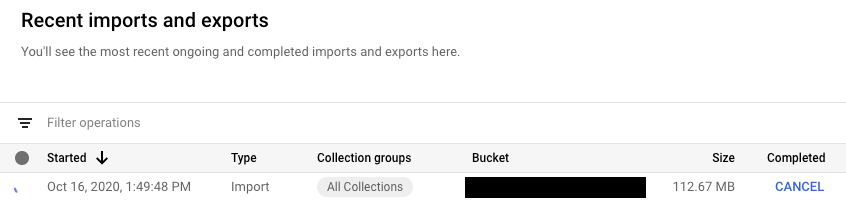
In the *Recent imports and exports* table, currently running
operations include a **Cancel** button in the *Completed* column. Click the
**Cancel** button to stop the operation. The button changes to a *Cancelling*
message and then to *Cancelled* when the operation stops completely.
### gcloud
Use the [`operations cancel`](https://cloud.google.com/sdk/gcloud/reference/firestore/operations/cancel) command to stop an operation in progress:
```
gcloud firestore operations cancel [OPERATION_NAME]
```
Cancelling a running operation does not undo the operation. A cancelled export
operation will leave documents already exported in Cloud Storage, and a cancelled
import operation will leave in place updates already made to your database. You
cannot import a partially completed export.
### Delete an operation
Use the [`gcloud firestore operations delete`](https://cloud.google.com/sdk/gcloud/reference/firestore/operations/delete) command to remove
an operation from the list of recent operations. This command will not delete
export files from Cloud Storage.
```
gcloud firestore operations delete [OPERATION_NAME]
```
## Billing and pricing for export and import operations
You are required to enable billing for your Google Cloud project before you use
the managed export and import service.
Export and import operations are charged
for read units and write units at the rates listed in
[Cloud Firestore pricing](https://firebase.google.com/pricing.md.txt).
Output files stored in Cloud Storage count towards your
[Cloud Storage data storage costs](https://cloud.google.com/storage/pricing).
Export or import operations won't trigger your
[Google Cloud budget](https://cloud.google.com/billing/docs/how-to/budgets) alerts until after completion. Export and import
operations won't affect the usage shown in the usage section of the console.
### Viewing export and import costs
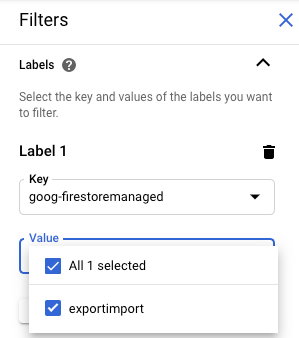
Export and import operations apply the `goog-firestoremanaged:exportimport`
label to billed operations. In the [Cloud Billing reports page](https://cloud.google.com/billing/docs/how-to/reports#getting_started),
you can use this label to view costs related to import and export operations:
> [!NOTE]
> **Note:** Export and import operations executed before September 8th, 2020 did not apply the `goog-firestoremanaged` label.
## Export to BigQuery
You can load data from a Cloud Firestore export into BigQuery,
but only if you specified a `collection-ids` filter. See
[Loading data from Cloud Firestore exports](https://cloud.google.com/bigquery/docs/loading-data-cloud-firestore).
When loading Cloud Firestore data into BigQuery, BSON data types are
represented with the `STRING` data type.
### BigQuery column limit
BigQuery imposes a limit of 10,000 columns per table.
Cloud Firestore export operations generate a BigQuery table
schema for each collection. In this schema, each unique field name within
a collection becomes a schema column.
If a collection's BigQuery schema surpasses 10,000 columns, the
Cloud Firestore export operation attempts to stay under the column limit
by treating map fields as bytes. If this conversion brings the
number of columns below 10,000, you can load the data into
BigQuery, but you cannot query the subfields within the map fields.
If the number of columns still exceeds 10,000, the export operation does not
generate a BigQuery schema for the collection and you cannot load
its data into BigQuery.
## Export format and metadata files
The output of a managed export uses the
[LevelDB log format](https://github.com/google/leveldb/blob/master/doc/log_format.md).
### Metadata files
An export operation creates a metadata file for each collection
you specify. Metadata files are typically named
`ALL_NAMESPACES_KIND_[COLLECTION_GROUP_ID].export_metadata`.
The metadata files are protocol buffers and you can decode them with the
[`protoc` protocol compiler](https://github.com/protocolbuffers/protobuf#readme).
For example, you can decode a metadata file to determine the collections
the export files contain:
```
protoc --decode_raw < export0.export_metadata
```