Cloud Firestore ensures query performance by requiring an index for every
query. The indexes required for the most basic queries are [automatically
created](https://firebase.google.com/docs/firestore/query-data/index-overview#single-field-indexes) for you. As you use and test your app,
Cloud Firestore generates error messages that help you create additional indexes
that your app requires. This page describes how to manage your
[automatic](https://firebase.google.com/docs/firestore/query-data/index-overview.md.txt#single-field-indexes), [manual](https://firebase.google.com/docs/firestore/query-data/index-overview.md.txt#composite_indexes), and [vector](https://firebase.google.com/docs/firestore/vector-search.md.txt#create_and_manage_vector_indexes) indexes.
## Create a missing index through an error message
If you attempt a
compound query with a range clause that doesn't map to an existing index,
you receive an error. The error message includes a direct link to create the
missing index in the Firebase console.
> [!NOTE]
> **Note:** You can manage Cloud Firestore through the Firebase console or the Google Cloud console, but these links will always open in the Firebase console.
Follow the generated link to the Firebase console, review the automatically
populated info, and click **Create**.
> [!NOTE]
> **Note:** For non-array and non-map fields, you must select **ascending** or **descending** ordering, even if you don't need the field for ordering. Your choice doesn't impact the behavior of equalities in the query.
In the case that a vector index is required, the error message will include a
Google Cloud CLI command to create the missing vector index. Run the command to
create the missing index.
## Roles and permissions
Before you can create an index in Cloud Firestore, make sure that you are assigned either of the following roles:
> [!NOTE]
> **Note:** The following roles are managed through Identity and Access Management (IAM). For more information about roles and associated permissions, see [Predefined roles](https://cloud.google.com/firestore/docs/security/iam#predefined_roles).
- `roles/datastore.owner`
- `roles/datastore.indexAdmin`
- `roles/editor`
- `roles/owner`
If you have defined custom roles, assign all of the following permissions to create indexes:
- `datastore.indexes.create`
- `datastore.indexes.delete`
- `datastore.indexes.get`
- `datastore.indexes.list`
- `datastore.indexes.update`
### Use the Firebase console
To manually create a new index from the Firebase console:
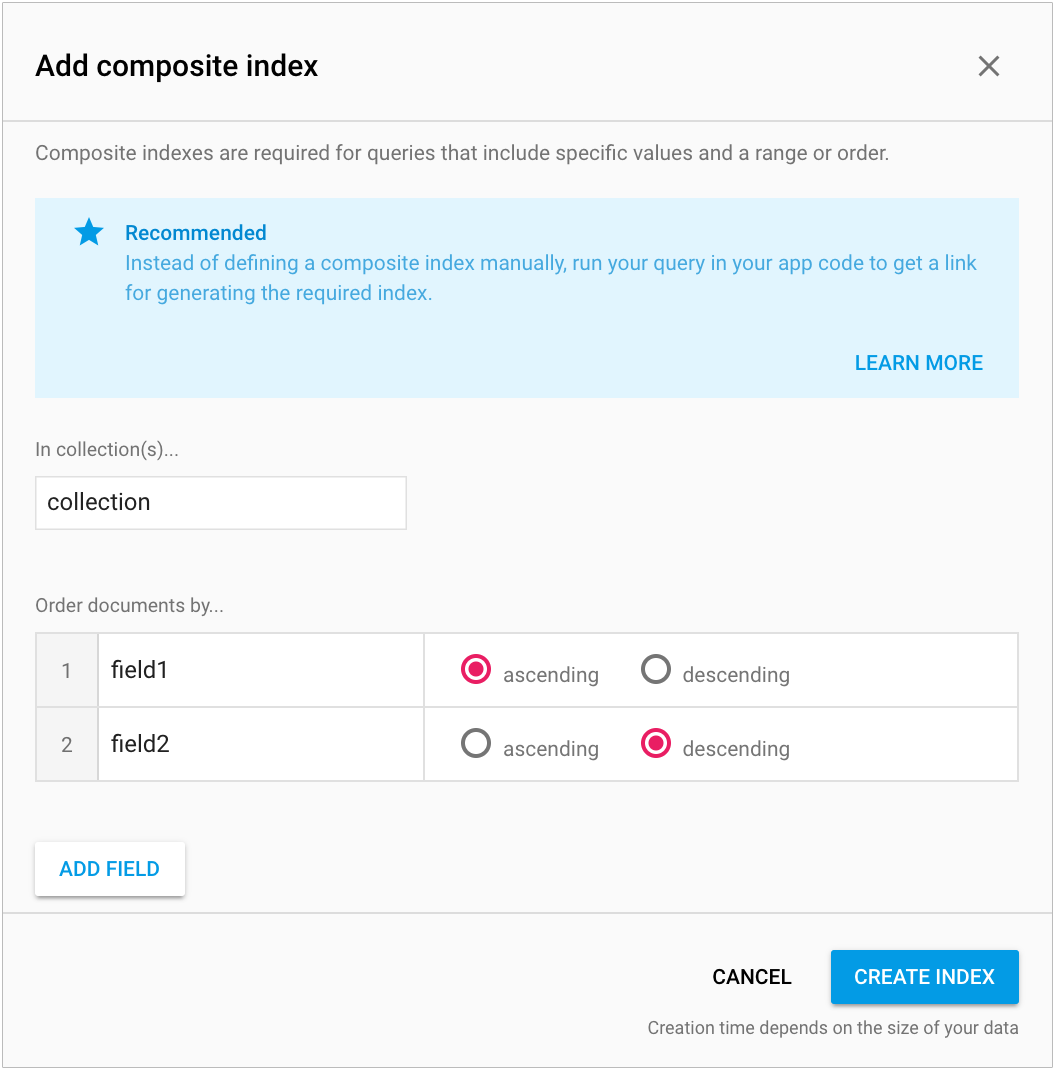
1. In the Firebase console, go to **Databases \& Storage** \> [**Firestore**](https://console.firebase.google.com/project/_/firestore/data).
2. In the **Indexes** tab, click **Add Index**.
3. Enter the collection name and set the fields you want to order the index by.
4. Click **Create**.
Index fields **must** conform to the
[constraints on field paths](https://firebase.google.com/docs/firestore/quotas.md.txt#collections_documents_and_fields).
Indexes can take a few minutes to build, depending on the size of the query.
After you create them, you can see your indexes and their status in the
**Composite Indexes** section. If they're still building, the
Firebase console includes a building status bar.
## Remove indexes
To delete an index:
1. In the Firebase console, go to **Databases \& Storage** \> [**Firestore**](https://console.firebase.google.com/project/_/firestore/data).
2. In the **Indexes** tab, hover over the index you want to delete and select **Delete** from the context menu.
3. Confirm that you want to delete it by clicking **Delete** from the alert.
## Use the Firebase CLI
You can also deploy indexes with the [Firebase CLI](https://firebase.google.com/docs/cli.md.txt).
To get started, run `firebase init firestore` in your project directory.
During setup, the Firebase CLI generates a JSON file with the default
indexes in the correct format. Edit the file to add more indexes and deploy it
with the `firebase deploy` command.
To deploy Cloud Firestore indexes and rules only, add the
`--only firestore` flag.
If you make edits to the indexes using the Firebase console, make
sure you also update your local indexes file. Refer to
the [JSON index definition reference](https://firebase.google.com/docs/reference/firestore/indexes.md.txt).
## Use Terraform
### Creating indexes in the database
Cloud Firestore databases can include both single-field (automatic) and composite (manual) indexes. You can edit the Terraform configuration file to create an index for your database. Automatic and manual indexes use distinct Terraform resource types
([`google_firestore_index`](https://registry.terraform.io/providers/hashicorp/google/latest/docs/resources/firestore_index)
and [`google_firestore_field`](https://registry.terraform.io/providers/hashicorp/google/latest/docs/resources/firestore_field)).
#### Single-field (automatic) index
The following example Terraform configuration file creates a single-field index on the `name` field in the `chatrooms` collection:
**firestore.tf**
```
resource "random_id" "variable"{
byte_length = 8
}
resource "google_firestore_field" "single-index" {
project = "project-id"
database = "database-id"
collection = "chatrooms_${random_id.variable.hex}"
field = "name"
index_config {
indexes {
order = "ASCENDING"
query_scope = "COLLECTION_GROUP"
}
indexes {
array_config = "CONTAINS"
}
}
ttl_config {}
}
```
- Replace project-id with your project ID. Project IDs must be unique.
- Replace database-id with your database ID.
#### Composite (manual) index
The following example Terraform configuration file creates a composite index for a combination of the `name` field and the `description` field in the `chatrooms` collection:
**firestore.tf**
```
resource "google_firestore_index" "composite-index" {
project = "project-id"
database = "database-id"
collection = "chatrooms"
fields {
field_path = "name"
order = "ASCENDING"
}
fields {
field_path = "description"
order = "DESCENDING"
}
}
```
- Replace project-id with your project ID. Project IDs must be unique.
- Replace database-id with your database ID.
#### Vector index
The following example Terraform configuration file creates a vector index on the `embedding` field in the `chatrooms` collection:
**firestore.tf**
```
resource "google_firestore_index" "vector-index" {
project = "project-id"
database = "database-id"
collection = "chatrooms"
fields {
field_path = "__name__"
order = "ASCENDING"
}
fields {
field_path = "embedding"
vector_config {
dimension = 128
flat {}
}
}
}
```
- Replace project-id with your project ID. Project IDs must be unique.
- Replace database-id with your database ID.
## Index build time
To build an index, Cloud Firestore must set up the index and then
backfill the index with existing data. Index build time is the sum of setup time
and backfill time:
- Setting up an index takes a few minutes. The minimum build
time for an index is a few minutes, even for an empty database.
- Backfill time depends on how much existing data belongs in the new index. The
more field values that match the index definition, the longer it takes to
backfill the index.
Index builds are *long-running operations*.
> [!IMPORTANT]
> **Key Term:** Cloud Firestore supports several administrative operations that can take a long time to complete. These operations are called ***long-running
> operations*** . Cloud Firestore includes features to execute and manage long- running operations. Supported long-running operations include index builds and export operations.
After you start an index build, Cloud Firestore assigns
the operation a unique name. Operation names are prefixed with `projects/[PROJECT_ID]/databases/(default)/operations/`,
for example:
```
projects/project-id/databases/(default)/operations/ASA1MTAwNDQxNAgadGx1YWZlZAcSeWx0aGdpbi1zYm9qLW5pbWRhEgopEg
```
However, you can leave out the prefix when specifying an operation name for
the `describe` command.
### Listing all long-running operations
To list long-running operations, use the
[gcloud firestore operations list](https://cloud.google.com/sdk/gcloud/reference/firestore/operations/list)
command. This command lists ongoing and recently completed operations.
Operations are listed for a few days after completion:
```
gcloud firestore operations list
```
### Check operation status
Instead of listing all long-running operations, you can list the details of
a single operation:
```
gcloud firestore operations describe operation-name
```
### Estimating the completion time
As your operation runs, see the value of the [`state` field](https://docs.cloud.google.com/firestore/docs/reference/rpc/google.firestore.admin.v1#state)
for the overall status of the operation.
A request for the status of a long-running operation also returns the metrics
`workEstimated` and `workCompleted`. These metrics are returned for the number
of documents. `workEstimated` shows the estimated total number of documents an
operation will process. `workCompleted`
shows the number of documents processed so far. After the operation completes,
`workCompleted` reflects the total number of documents that were
actually processed, which might be different than the value of `workEstimated`.
Divide `workCompleted` by `workEstimated` for a rough progress estimate. The
estimate might be inaccurate because it depends on delayed statistics
collection.
For example, here is the progress status of an index build:
```
{
"operations": [
{
"name": "projects/project-id/operations/AyAyMDBiM2U5NTgwZDAtZGIyYi0zYjc0LTIzYWEtZjg1ZGdWFmZWQHEjF0c2Flc3UtcmV4ZWRuaS1uaW1kYRUKSBI",
"metadata": {
"@type": "type.googleapis.com/google.firestore.admin.v1.IndexOperationMetadata",
"common": {
"operationType": "CREATE_INDEX",
"startTime": "2020-06-23T16:52:25.697539Z",
"state": "PROCESSING"
},
"progressDocuments": {
"workCompleted": "219327",
"workEstimated": "2198182"
}
},
},
...
```
When an operation is done, the operation description will contain [`"done":
true`](https://docs.cloud.google.com/firestore/docs/reference/rpc/google.longrunning#operation). See the value of the [`state` field](https://docs.cloud.google.com/firestore/docs/reference/rpc/google.firestore.admin.v1#state) for
the result of the operation. If the `done` field is not set in the response,
then its value is `false`. Do not depend on the existence of the `done` value
for in-progress operations.
## Index building errors
You might encounter index building errors when managing manual indexes and
automatic index exemptions. An indexing operation can fail if
Cloud Firestore encounters a problem with the data it's indexing. Most
commonly, this means you hit an
[index limit](https://firebase.google.com/docs/firestore/query-data/index-overview.md.txt#index_limitations). For
example, the operation may have reached the maximum number of index entries
per document.
If index creation fails, you see the error message in the console. After
you verify that you are not hitting any
[index limits](https://firebase.google.com/docs/firestore/query-data/index-overview.md.txt#index_limitations), re-try your index operation.