You don't have to give up your unique, brand-centric domain names with
Firebase Hosting. You can use a custom domain (like `example.com` or
`app.example.com`) instead of a Firebase-generated domain for your
Firebase-hosted site.
Firebase Hosting provisions an SSL certificate for each of your domains
and serves your content over a global CDN.
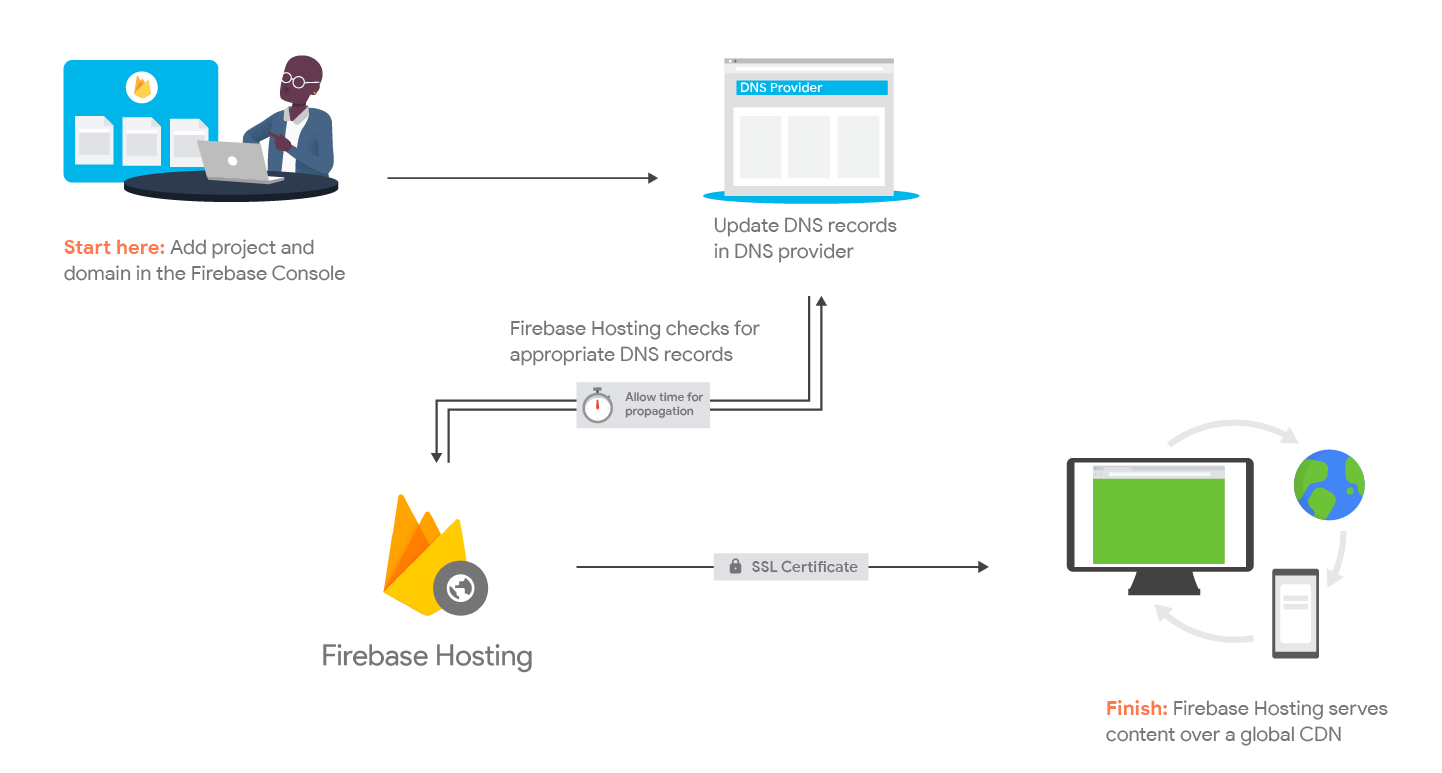
The rest of this document walks you through these steps to connect your custom
domain.
> [!NOTE]
> Note the following about connecting custom domains:
>
> - Each custom domain can only be connected to one Hosting site.
> - Each custom domain is limited to having 20 subdomains per apex domain, due to SSL certificate minting limits.
## Set up your domain for Hosting
Make sure that you've completed the "Get Started" wizard from your project's
[Firebase Hosting page](https://console.firebase.google.com/project/_/hosting/sites)
so that you have a Firebase Hosting site in your Firebase project.
### **Step 1**: Add custom domain
1. From your project's
[Hosting page](https://console.firebase.google.com/project/_/hosting/sites/_/domains),
enter the wizard for connecting a custom domain:
- If you have only one Hosting site, click **Add custom domain**.
- If you have [more than one Hosting site](https://firebase.google.com/docs/hosting/multisites.md.txt), click **View** for the desired site, then click **Add custom domain**.
2. Enter the custom domain name that you'd like to connect to your Hosting
site.
3. *(Optional)* Check the box to redirect all requests on the custom domain to
a second specified domain (such that `example.com` and
`www.example.com` redirect to the same content).
4. Click **Continue** to configure your DNS records and finish setting up your custom domain.
### **Step 2**: Setup custom domain
If requested in the **Connect Domain** setup wizard,
verify your apex domain.
These steps ensure that your domain is not already linked with a
Firebase project and that you own the specified domain.
1. In your domain provider's site, locate the DNS management page.
2. Add and save a new record with the following inputs:
- **Type**: Add a TXT record.
Firebase Hosting requires that you keep this TXT record continually
present in your DNS settings to prove your ownership of the domain and to
authorize Firebase to assign and renew SSL certificates for your site.
Your domain provider may list this term as "Record Type".
- **Host** : Enter your
[apex domain key](https://firebase.google.com/docs/hosting/custom-domain.md.txt#domain-key).
Proving your ownership of an apex domain, or root domain, proves your
ownership of all its subdomains.
Your domain provider may list this term as "Host Name", "Name",
or "Domain".
- **Value**: Copy the unique verification value into the field.
Firebase Hosting checks for this value to prove your domain ownership.
Your domain provider may list this term as "Data".
3. Allow up to 24 hours for propagation of your updated TXT records, then click
**Verify**.
Note that you may click **Cancel** to safely close the **Connect Domain**
window and reopen at a later time. This does not affect the propagation
time, but you will be prompted to
[re-enter your domain name](https://firebase.google.com/docs/hosting/custom-domain.md.txt#add-domain) when
you reopen the window.
After ample propagation time, clicking **Verify** in the **Connect Domain**
window of the Firebase console allows you to begin the SSL certificate
provisioning process.
In most cases, propagation of your records and verification of your domain
will happen within a few hours, depending on your domain provider. Refer to
your domain provider's documentation for detailed instructions for adding
TXT records and propagation times.
If clicking **Verify** prompts an error message, your records have not
propagated or your values may be incorrect.
> [!NOTE]
> **Note:** At any point you can check whether your DNS records have updated correctly with the Google Admin Toolbox [Dig service](https://toolbox.googleapps.com/apps/dig/#A/). Note that even if your records have updated, more time may be needed for propagation or provisioning of the SSL certificate.
In the **Add Custom Domain** wizard of the Firebase console, select **Quick
Setup** or **Advanced Setup**.
**Quick Setup** can be used for new domains that are not currently receiving
traffic or domains that you are attempting to transfer from another Hosting
site. **Advanced Setup** can be used if you already have a domain receiving
requests on another hosting provider and need a zero-downtime migration.
The **Advanced Setup** wizard will help you establish an SSL certificate and
ownership claim to allow Hosting to serve traffic on the domain before
receiving traffic.
#### Quick Setup
1. The **Add Custom Domain** wizard of the Firebase console will show the necessary records that need to be updated to point your page to Firebase Hosting. Add, remove, and save records from your domain in your DNS provider with the following inputs:
- **Type** : Add the provided DNS record.
- **Host** : Enter your [custom domain key](https://firebase.google.com/docs/hosting/custom-domain.md.txt#domain-key) for the records.
- The host you indicate is the domain on which you want to serve content; this domain can be an apex domain or subdomain.
Your domain provider may list this term as "Host Name", "Name", or "Domain".
- **Value**: Assign the provided IP addresses to the value of the records.
- Your domain provider may list this term as "Data", "Points To", "Content", "Address", or "IP Address".
2. Allow time for your [SSL certificate to be provisioned](https://firebase.google.com/docs/hosting/custom-domain.md.txt#ssl-provisioning). This may take up to 24 hours after you point your DNS to Firebase Hosting. In most cases, propagation of your records and provisioning of your SSL certificate will happen within a few hours, depending on your domain provider.
> [!CAUTION]
> Make sure to remove any A records or CNAME records that point to other providers. Also remove any AAAA records. If any of these record types exist, Firebase cannot provision an SSL certificate.
#### Advanced Setup
The **Add Custom Domain**
wizard's **Advanced** setup mode allows you to configure Hosting to
securely serve your domain before you direct traffic to its servers. In
general, Hosting needs three things to successfully serve traffic on a
domain:
- Ownership record: a TXT record tells Hosting which Site to serve on the domain
- SSL certificate: a domain-specific certificate that enables encrypted communication between Hosting servers and end-users
- Hosting IP records: one or more A and AAAA records that direct all requests for the domain to Hosting servers
The **Advanced** setup guides you through configuring your domain
to allow Hosting to take care of the first two requirements in advance, so
that it's ready to serve the correct content before it starts receiving
traffic for your domain.
This wizard represents this process as a two-step workflow:
1. **Prepare domain**
- **Update DNS record(s)** : Add one or more records to your domain:
- Ownership: A TXT record in the form \`hosting-site=\[site_id\]\`.
- CAA (optional): A pair of CAA records that allow Hosting's [Certificate
Authorities](https://en.wikipedia.org/wiki/Certificate_authority) to mint an SSL certificate for your domain. Only present if Hosting discovers existing CAA records that prevent it from provisioning a cert.
- **Setup SSL certificate** : The wizard supplies an [ACME
challenge](https://en.wikipedia.org/wiki/Automatic_Certificate_Management_Environment) that Hosting's Certificate Authorities will use to mint an SSL certificate for your domain. You can choose between a DNS or HTTP challenge:
- **DNS challenge**: Visit your domain provider's DNS management sites. Add a TXT record with the ACME challenge subdomain key and the provided value. Allow up to 24 hours for propagation of your TXT records.
- **HTTP challenge**: Upload the provided text file to your existing site at the specified URL and verify its existence.
- Hosting will attempt to validate the ACME challenges itself before requesting verification from its CA. If the CA fails to validate your challenges for any reason, for example intermittent service issues. Hosting will have to generate a new set of challenges for you. Upon successful verification, it can take up to a few hours for Hosting to provision an SSL certificate and allow it to propagate.
2. **Direct to Hosting**
3. After Hosting establishes your domain ownership and provisions an SSL certificate, return to your DNS provider and add DNS A/AAAA records directing requests to Hosting:
- **Type**: Add requested DNS A/AAAA records.
- **Host** : Enter your custom domain key for both records.
The host you indicate
is the domain on which you want to serve content; this domain can be an
apex domain or subdomain. Your domain provider may list this term as
"Host name", "Name", or "Domain".
- **Value** : Assign one value to each DNS A/AAAA record to point your domain to the specified IP addresses.
Your domain provider may list this term as "Data", "Points
To", "Content", "Address", or "IP Address".
## Wait for SSL certificate provisioning
After we verify domain ownership, we provision an SSL certificate for your
domain and deploy it across our global CDN within 24 hours after you point your
DNS A records to Firebase Hosting.
Your domain will be listed as one of the Subject Alternative Names (SAN) in the
FirebaseApp SSL certificate. You can view this certificate using the browser's
security tools. While the domain is provisioning, you might see an invalid
certificate that does not include your domain name. This is a normal part of the
process and will resolve after your domain's certificate is available.
For **Advanced Setup** users, your website will be hosted by your previous hosting
provider until the
[setup status](https://firebase.google.com/docs/hosting/custom-domain.md.txt#status-descriptions) in your
project's
[Firebase Hosting page](https://console.firebase.google.com/project/_/hosting/sites)
updates to **Connected**.
> [!NOTE]
> **Note:** Firebase Hosting automatically reprovisions SSL certs, as needed, for custom domains.
## Your custom domain key
When adding or editing DNS records, different domain providers expect you
to enter different inputs for the **Host** field within their DNS management
sites. We've compiled common inputs from popular providers below.
Refer to your domain provider's documentation for detailed instructions.
| Domain type | Custom domain key |
|---|---|
| **Apex domain** | Common inputs include: - `@` - The apex domain name (for example, `example.com`) - Leaving the **Host** field blank |
| **Subdomain** | Common inputs include: - The full subdomain name (for example, `app.example.com`) - Only the subdomain portion (for example, `app` only, and leaving out `.example.com`) - Only `www` for the subdomain of `www.example.com` |
### Common domain providers
Here are some common domain providers and the types of input each might require.
This information is kept up-to-date as much as possible, but refer to your
domain provider's documentation for detailed instructions.
#### Cloudflare
| Type | | |
|---|---|---|
| DNS TXT record inputs |||
| TXT | example.com | verification value provided in Firebase console |
| DNS A records inputs |||
| A | example.com | 199.36.158.100 |
| A | www | 199.36.158.100 |
#### Google Cloud DNS
| Type | | |
|---|---|---|
| DNS TXT record inputs |||
| TXT | example.com | verification value provided in Firebase console |
| DNS A records inputs |||
| A | example.com | 199.36.158.100 |
| A | www | 199.36.158.100 |
#### NameCheap
| Type | | |
|---|---|---|
| DNS TXT record inputs |||
| TXT | @ | verification value provided in Firebase console |
| DNS A records inputs |||
| A | @ | 199.36.158.100 |
| A | www | 199.36.158.100 |
#### Squarespace
| Type | | |
|---|---|---|
| DNS TXT record inputs |||
| TXT | @ | verification value provided in Firebase console |
| DNS A records inputs |||
| A | @ | 199.36.158.100 |
| A | www | 199.36.158.100 |
## Setup status descriptions for custom domains
| Status | Description |
|---|---|
| **Needs setup** | You may need to change a configuration with your DNS records. - In most cases, your DNS A records haven't propagated from your domain name provider to Firebase Hosting servers. Troubleshooting tip: If it's been more than 24 hours, check that you've pointed your records to Firebase Hosting. - In rarer cases, especially if you're using the Advanced Setup flow, SSL challenges might be failing because: - SSL certificate challenges failed, and the token (DNS TXT records or uploaded file provided to your site) is now invalid. Troubleshooting tip: Click **View** for the domain, then provide the new token to your existing domain. |
| **Pending** | You correctly set up your custom domain, but Firebase Hosting hasn't provisioned an SSL certificate. Occasionally, the following issues can stall the minting of an SSL certificate for a custom domain: - Your CAA records are too restrictive. Troubleshooting tip: Ensure that the certificate authorities \`letsencrypt.org\` and \`pki.goog\` are allowed to create SSL certs for your domain. - Your challenge code is invalid. If you're using the Advanced Setup flow and migration failed, your token (and its challenge code) are now invalid. Troubleshooting tip: Click **View** for the domain, then provide the new token to your existing domain. - You requested certs for too many subdomains. Troubleshooting tip: Generally, Firebase Hosting recommends no more than 20 subdomains on one apex custom domain, due to SSL certificate minting limits. |
| **Minting Certificate** | An SSL certificate is being produced for your domain. |
| **Connected** | Your custom domain has the proper DNS records and has an SSL certificate. You can serve your site's content. |