This quickstart gets you up and running with Firebase SQL Connect to
connect your web and mobile apps to a PostgreSQL database. You will:
- Set up your local Firebase SQL Connect project directory with VS Code and the Firebase CLI.
- Generate SQL Connect schemas, queries and mutations based on your app ideas in natural language.
- Use the strongly-typed SDKs in your apps to run SQL Connect queries and mutations.
- Provision a Cloud SQL for PostgreSQL instance, a SQL Connect schema, queries, and mutations.
## Set up the local project directory
You can install local development tools for SQL Connect in two ways.
1. In a project directory, run the following command.
The script installs the Firebase CLI and the
SQL Connect VS Code extension, and guides you through `firebase init
dataconnect` to set up your project. If you don't have VS Code desktop
installed, the script opens it in a browser.
```bash
curl -sL https://firebase.tools/init/dataconnect | editor=true bash
```
2. Open the SQL Connect VS Code extension screen by clicking the Firebase
icon in the Visual Studio Code left panel.
3. Click **Start emulators** to run the emulator with a local PGlite database.
### Review schema
Firebase SQL Connect uses GraphQL to define your data model. The
[`@table`](https://firebase.google.com/docs/reference/sql-connect/gql/directive.md.txt#table) directive maps a
GraphQL type to a PostgreSQL table. Fields in the type map to PostgreSQL
columns. You can define relationships between tables using fields that reference
other `@table` types, including many-to-many relationships using join tables
with composite primary keys.
In the default setup, you can find the SQL Connect schema files in
the `dataconnect/schema/` directory. Here are two example tables from the movie
template schema. Your schema may be different if you used Gemini to generate it.
```graphql
type Movie @table {
# Every table has an implicit primary key field that looks something like:
# id: UUID! @default(expr: "uuidV4()")
title: String!
imageUrl: String!
genre: String
}
type Review @table(key: ["movie", "user"]) {
user: User!
movie: Movie!
rating: Int
reviewText: String
reviewDate: Date! @default(expr: "request.time")
}
```
[Learn more about SQL Connect schemas](https://firebase.google.com/docs/sql-connect/schemas-guide.md.txt)
## Develop queries and mutations
Firebase SQL Connect uses GraphQL for queries and mutations. You define
these in `.gql` files and call them by name from your app. GraphQL syntax
provides strongly-typed SDKs and a flexible API to fetch the exact data your app
needs.
### Seed data in your database
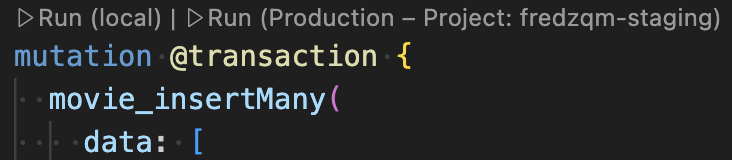
With the emulator running, you can seed it with initial data. You can use the
provided `dataconnect/seed_data.gql` file or write your own mutations.
Use the **Run (local)** Code Lens button in VS Code to execute the mutations and
populate your local PGlite database.
### Review queries and mutations
In the default setup, you can find the SQL Connect queries and mutations in
`dataconnect/example/` directory.
You can query relational data precisely with nested queries.
```graphql
query ListMovies @auth(level: PUBLIC, insecureReason: "Anyone can list all movies and their reviews.") {
movies {
title imageUrl genre
reviews_on_movie {
rating reviewDate
user { username }
}
}
}
```
SQL Connect helps you build secure queries and mutations with
Firebase Auth.
To keep your app secure, web and mobile apps can only access
SQL Connect queries and mutations with
[`@auth`](https://firebase.google.com/docs/reference/sql-connect/gql/directive.md.txt#auth)
directives. Queries and mutations can securely access the Firebase Auth UID
using an expression like `{field}_expr: "auth.uid"`.
```graphql
mutation AddReview($movieId: UUID!, $rating: Int!, $reviewText: String!) @auth(level: USER) {
review_upsert(
data: {
userId_expr: "auth.uid"
movieId: $movieId
rating: $rating
reviewText: $reviewText
}
)
}
```
[Learn more about SQL Connect queries](https://firebase.google.com/docs/sql-connect/queries-guide.md.txt)
[Learn more about SQL Connect mutations](https://firebase.google.com/docs/sql-connect/mutations-guide.md.txt)
[Learn more about SQL Connect Auth](https://firebase.google.com/docs/sql-connect/authorization-and-security.md.txt)
### Generate queries and mutations
You don't need to be a GraphQL expert to use SQL Connect effectively.
You can generate SQL Connect queries and mutations from natural
language descriptions.
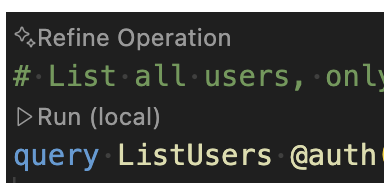
In any `.gql` file, type `#` to start a comment and describe a query or
mutation. Then, use the **Generate/Refine Operation** Code Lens button to
generate the GraphQL operation.
> [!TIP]
> **Tip:** Operation Generation is also available in [Firebase Console and Firebase
> MCP
> server](https://firebase.google.com/docs/sql-connect/ai-assistance#generate-graphql-queries-and-mutations).
## Use generated SDK in your app
`firebase init dataconnect` automatically sets up type-safe SDKs for apps in
your project. If needed, you can add the SDK manually with the **Add SDK to
app** button in the SQL Connect VS Code extension or by running `firebase init
dataconnect:sdk`.
### Web
1. Add Firebase to your [web](https://firebase.google.com/docs/web/setup.md.txt) app.
2. In your React app's main file:
- Import your generated SDK:
```javascript
// Update as needed with the path to your generated SDK.
import { listMovies, ListMoviesData } from '@dataconnect/generated';
```
- Instrument your app to connect to the SQL Connect emulator:
```javascript
import { connectDataConnectEmulator } from 'firebase/data-connect';
const dataConnect = getDataConnect(connectorConfig);
connectDataConnectEmulator(dataConnect, 'localhost', 9399);
```
- Call SQL Connect methods.
```javascript
function App() {
const \[movies, setMovies\] = useState\(\[\]);
useEffect(() => {
listMovies.then(res =\> setMovies(res.data));
}, []);
return (
movies.map(movie =\> \{movie.title}\);
);
}
const root = ReactDOM.createRoot(document.getElementById('root'));
root.render();
```
> [!NOTE]
> **Note:** In this sample, the React app calls your query using the Firebase JavaScript SDK. SQL Connect also provides special bindings to work with SQL Connect asynchronously in [React](https://firebase.google.com/docs/sql-connect/web-sdk.md.txt#react).
### Swift
1. Add Firebase to your [iOS](https://firebase.google.com/docs/ios/setup.md.txt) app.
2. To use the generated SDK, configure it as a dependency in Xcode.
In the Xcode top navigation bar, select
**File \> Add Package Dependencies \> Add Local** , and choose the folder
containing the generated `Package.swift`.
3. In your app's main delegate:
- Import the SQL Connect SDK and your generated SDK:
```swift
import FirebaseDataConnect
// Generated queries.
// Update as needed with the package name of your generated SDK.
import
let connector = DataConnect.moviesConnector
```
- Instrument your app to connect to the SQL Connect emulator:
```swift
// Connect to the emulator on "127.0.0.1:9399"
connector.useEmulator()
// (alternatively) if you're running your emulator on non-default port:
// connector.useEmulator(port: 9999)
```
- Call SQL Connect methods:
```swift
struct ListMovieView: View {
@StateObject private var queryRef = connector.listMovies.ref()
var body: some View {
VStack {
Button {
Task {
do {
try await refresh()
} catch {
print("Failed to refresh: \(error)")
}
}
} label: {
Text("Refresh")
}
// use the query results in a view
ForEach(queryRef.data?.movies ?? \[\]) { movie in
Text(movie.title)
}
}
}
}
@MainActor
func refresh() async throws {
_ = try await queryRef.execute()
}
struct ContentView_Previews: PreviewProvider {
static var previews: some View {
ListMovieView()
}
}
```
### Kotlin Android
1. Add Firebase to your [Android](https://firebase.google.com/docs/android/setup.md.txt) app.
2. To use the generated SDK, configure SQL Connect as a dependency
in Gradle.
Update `plugins` and `dependencies` in your `app/build.gradle.kts`.
```kotlin
plugins {
// Use whichever versions of these dependencies suit your application.
// The versions shown here were the latest as of March 14, 2025.
// Note, however, that the version of kotlin("plugin.serialization") must,
// in general, match the version of kotlin("android").
id("com.android.application") version "8.9.0"
id("com.google.gms.google-services") version "4.4.2"
val kotlinVersion = "2.1.10"
kotlin("android") version kotlinVersion
kotlin("plugin.serialization") version kotlinVersion
}
dependencies {
// Use whichever versions of these dependencies suit your application.
// The versions shown here were the latest versions as of March 14, 2025.
implementation("com.google.firebase:firebase-dataconnect:16.0.0-beta04")
implementation("org.jetbrains.kotlinx:kotlinx-coroutines-core:1.10.1")
implementation("org.jetbrains.kotlinx:kotlinx-serialization-core:1.7.3")
// These dependencies are not strictly required, but will very likely be used
// when writing modern Android applications.
implementation("org.jetbrains.kotlinx:kotlinx-coroutines-android:1.9.0")
implementation("androidx.appcompat:appcompat:1.7.0")
implementation("androidx.activity:activity-ktx:1.10.1")
implementation("androidx.lifecycle:lifecycle-viewmodel-ktx:2.8.7")
implementation("com.google.android.material:material:1.12.0")
}
```
3. In your app's main activity:
- Get a connector instance from your generated SDK:
```kotlin
private val connector = com.myapplication.MoviesConnector.instance
```
- Instrument your app to connect to the SQL Connect emulator:
```kotlin
private val connector = com.myapplication.MoviesConnector.instance.apply {
// Connect to the emulator on "10.0.2.2:9399" (default port)
dataConnect.useEmulator()
// (alternatively) if you're running your emulator on non-default port:
// dataConnect.useEmulator(port = 9999)
}
```
- Call SQL Connect methods.
```kotlin
class MainActivity : AppCompatActivity() {
override fun onCreate(savedInstanceState: Bundle?) {
super.onCreate(savedInstanceState)
setContentView(R.layout.activity_main)
val textView: TextView = findViewById(R.id.text_view)
lifecycleScope.launch {
lifecycle.repeatOnLifecycle(Lifecycle.State.STARTED) {
val result = connector.listMovies.runCatching { execute { } }
val newTextViewText = result.fold(
onSuccess = {
val titles = it.data.movies.map { it.title }
"${titles.size} movies: " + titles.joinToString(", ")
},
onFailure = { "ERROR: ${it.message}" }
)
textView.text = newTextViewText
}
}
}
}
```
### Flutter
1. Add Firebase to your [Flutter](https://firebase.google.com/docs/flutter/setup.md.txt) app.
2. Install the flutterfire CLI `dart pub global activate flutterfire_cli`.
3. Run `flutterfire configure`.
4. In your app's main function:
- Import your generated SDK:
```dart
// Generated queries.
// Update as needed with the path to your generated SDK
import 'movies_connector/movies.dart';
```
- Instrument your app to connect to the SQL Connect emulator:
```dart
void main() async {
WidgetsFlutterBinding.ensureInitialized();
await Firebase.initializeApp(
options: DefaultFirebaseOptions.currentPlatform,
);
MoviesConnector.instance.dataConnect
.useDataConnectEmulator(Uri.base.host, 443, isSecure: true);
runApp(const MyApp());
}
```
- Call SQL Connect methods.
```dart
class MyApp extends StatelessWidget {
const MyApp({super.key});
@override
Widget build(BuildContext context) {
return MaterialApp(
home: Scaffold(
body: Column(children: [
ConstrainedBox(
constraints: const BoxConstraints(maxHeight: 200),
child: FutureBuilder(future: MoviesConnector.instance.listMovies().execute(),
builder: (context, snapshot) {
if (snapshot.connectionState == ConnectionState.done) {
return ListView.builder(
scrollDirection: Axis.vertical,
itemBuilder: (context, index) => Card(
child: Text(snapshot.data!.data.movies\[index\].title,
)),itemCount: snapshot.data!.data.movies.length,
);
}
return const CircularProgressIndicator();
}),
)
])));
}
}
```
## Deploy to production
To deploy your **schema, queries and mutations** to production:
1. Review the pricing and no-cost trial information on the [Pricing](https://firebase.google.com/docs/sql-connect/pricing.md.txt)
page. Your project might be eligible for one of the
Firebase SQL Connect trial options.
2. Click the **Deploy to production** button in
SQL Connect VS Code extension or run in a terminal:
```bash
firebase deploy --only dataconnect
```
After deploying, you can view your schema and run queries and mutations
in the Firebase console (go to **Databases \& Storage** \>
[**SQL Connect**](https://console.firebase.google.com/project/_/dataconnect)).
> [!TIP]
> **Tip:** You can configure Cloud SQL region, instance name and PostgreSQL database name in `dataconnect.yaml` before deploy.
[Learn more about dataconnect.yaml](https://firebase.google.com/docs/sql-connect/configuration-reference.md.txt)
[Learn more about how SQL Connect works with Cloud SQL](https://firebase.google.com/docs/sql-connect/manage-services-and-databases.md.txt)
## Next steps
Now that you've completed the quickstart, here are some next steps:
- Explore a quickstart app repository and build a fully-featured SQL Connect app by following our [codelab for web](https://firebase.google.com/codelabs/firebase-dataconnect-web), [codelab for iOS](https://firebase.google.com/codelabs/firebase-dataconnect-ios), or [codelab for Android](https://firebase.google.com/codelabs/firebase-dataconnect-android).
- Add data to your database, inspect your schemas, and monitor your SQL Connect service in the [Firebase console](https://console.firebase.google.com/project/_/dataconnect).
- Set up the [Firebase MCP server](https://firebase.google.com/docs/sql-connect/ai-assistance.md.txt#mcp-server) with AI-powered development tools like Antigravity, Claude Code, or Cursor.
- Learn more about [schema](https://firebase.google.com/docs/sql-connect/schemas-guide.md.txt), [query](https://firebase.google.com/docs/sql-connect/queries-guide.md.txt) and [mutation](https://firebase.google.com/docs/sql-connect/mutations-guide.md.txt) development.
- Learn more about how SQL Connect [manages PostgreSQL
schema](https://firebase.google.com/docs/sql-connect/manage-schemas-and-connectors).
- Learn more about client SDKs for [web](https://firebase.google.com/docs/sql-connect/web-sdk.md.txt), [Android](https://firebase.google.com/docs/sql-connect/android-sdk.md.txt), [iOS](https://firebase.google.com/docs/sql-connect/ios-sdk.md.txt), and [Flutter](https://firebase.google.com/docs/sql-connect/flutter-sdk.md.txt) as well as Admin SDKs for [Node.js](https://firebase.google.com/docs/sql-connect/admin-sdk.md.txt).