
### **Solution tutorial**
Optimizing ad frequency while keeping a high-quality user experience can be
tricky, but Firebase offers tools that help you test and then make data-driven
decisions about optimal ad frequency.
- Using Firebase, you can A/B test the performance of various ad frequencies
with a *small subset* of users.
- You can observe the test results and review recommendations from Firebase
about which ad frequency is performing better with minimal impact on
retention.
- Once you're confident that the changes will likely have a positive impact,
you can roll out the changes to more of your users with a click of a button.
## What you'll learn
[Video](https://www.youtube.com/watch?v=xfiLOzk01bo)
In this multistep tutorial, you'll learn **how to use Firebase to test various
frequency caps for Google AdMob ads in your app** . It uses
[interstitial ads](https://support.google.com/admob/answer/7311435)
as the example test case, but you can extrapolate and use these same steps to
test frequency capping for
[other ad formats](https://support.google.com/admob/answer/6128738).
This tutorial assumes that you already use AdMob in your app and that you'd
like to test whether changing the *frequency* of an interstitial ad unit will
have an impact on your app's revenue or other metrics. However, if you don't already
use AdMob in your app, that's ok! The steps in this tutorial can also help
you understand what ad frequency you should use in your app.
> [!NOTE]
> **Tip:** If there's a term that you're not familiar with, check out the [glossary](https://firebase.google.com/docs/tutorials/optimize-ad-frequency.md.txt#glossary) at the bottom of this page.
Learn more about the business case and value for this solution in our
[*Optimize AdMob ad frequency* solution overview](https://firebase.google.com/docs/tutorials/optimize-ad-frequency/solution-overview.md.txt).
## Products and features used in this tutorial
|---|---|
| Google AdMob > [Google AdMob](https://firebase.google.com/docs/admob.md.txt) enables you to create ad units with various ad frequencies or refresh rates that will be served within your app. When you link AdMob with Firebase, AdMob sends ad revenue information to Firebase to improve ad strategy optimization. Google Analytics > [Google Analytics](https://firebase.google.com/docs/analytics.md.txt) gives you insight into user engagement, retention, and monetization metrics like total revenue, AdMob revenue, purchase revenue, and much more. It also allows you to create user audiences and segments. | Firebase Remote Config > [Firebase Remote Config](https://firebase.google.com/docs/remote-config.md.txt) enables you to dynamically change and customize the behavior and appearance of your app for desired user segments --- *all without publishing a new version of your > app* . In this tutorial, you'll use Remote Config parameters to control which ad unit is shown to your users. Firebase A/B Testing > [Firebase A/B Testing](https://firebase.google.com/docs/ab-testing.md.txt) provides the interface and infrastructure to run product and marketing experiments in your app. It takes care of distributing experiment variants to users, and then performs statistical analysis to determine if an experiment variant is outperforming the control group based on your selected key metric, such as revenue or user retention. |
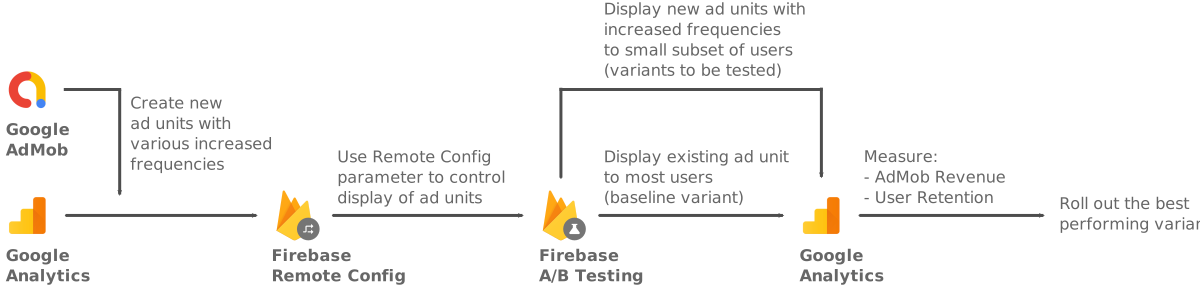

## Tutorial overview
[Go
directly to the step-by-step tutorial](https://firebase.google.com/docs/tutorials/optimize-ad-frequency/step-1)
1. [**Use AdMob to
create new ad unit variants for testing**](https://firebase.google.com/docs/tutorials/optimize-ad-frequency/step-1)
1. Create two new interstitial ad units in AdMob.
2. Set the *Frequency capping* of each ad unit to an impressions per user
value that you want to test.
3. Implement the ad unit placements within your app's code.
2. [**Set up an A/B test
in the Firebase console**](https://firebase.google.com/docs/tutorials/optimize-ad-frequency/step-2)
1. Define testing basics, targeting, and the goals that the test will run
against.
2. Define test variants and set up the Remote Config parameter that
will control which ad unit is shown to users in the test.
3. [**Handle
Remote Config parameter values in your app's code**](https://firebase.google.com/docs/tutorials/optimize-ad-frequency/step-3)
1. Use the Remote Config parameter in your app.
2. Implement the logic for displaying the ad unit based on the parameter's
value.
4. [**Start the A/B test
and review the test results in the Firebase console**](https://firebase.google.com/docs/tutorials/optimize-ad-frequency/step-4)
1. After starting the test and allowing it to run for a few days or weeks,
check the Firebase console for whether the A/B test has a winning
variant based on the primary goal of the A/B test.
2. Review the impact on secondary metrics for each variant to ensure the
variants didn't cause unintended negative impacts to those metrics.
5. [**Decide whether to
roll out the new ad unit with the updated ad frequency**](https://firebase.google.com/docs/tutorials/optimize-ad-frequency/step-5)
1. If A/B Testing determines that the variant showing the new ad format
is the winner, you can start showing the ad format to all users targeted
in the experiment, all users of your app, or to a subset of your users.
2. If a clear winner isn't yet determined, you can either continue running
the experiment to gather more data, or end the experiment if it's
already been running for a long period with inconclusive results.
## What you'll need
- Your own app (iOS, Android, or Unity project)
- Your app registered as a Firebase App that's linked to an AdMob App
([learn more](https://support.google.com/admob/answer/6383165))
- Access to your app's associated AdMob account, with permissions to create
new ad units
- Access to your app's associated Firebase project, with permissions to create
and manage Remote Config and A/B Testing as well as to view
Google Analytics
- Your preferred IDE
## Glossary
View a list of common terms for this solution
- **AdMob revenue** : AdMob network and open bidding revenue
- **IAP revenue**: In app purchases revenue
- **Total revenue**: Total revenue
- **Retention**: Retention as a key metric in A/B tests is tracked as 1 day,
2-3 days, 4-7 days, 8-14 days, or 15+ days user retention
- **Remote Config parameter**: The configurable parameter used to control
which ad unit is show to users. In this guide, it will be an ad unit ID.
- **Baseline configuration** : The as-is configuration in any particular A/B test
--- also known as the control. The control usually uses the default value for
the Remote Config parameter, but it can be configured to use a new control
value if needed.
- **Variant configurations** : The variant configurations are the alternative
configurations with different Remote Config parameter values that we would
like to test against the baseline configuration.
*** ** * ** ***
[**Step 1** : Use AdMob to create new ad unit variants](https://firebase.google.com/docs/tutorials/optimize-ad-frequency/step-1.md.txt)
*** ** * ** ***