
Grounding with
Grounding with
- Increase factual accuracy: Reduce model hallucinations by basing responses on Google's database of over 250 million real-world places and businesses.
- Access real-time information: Answer questions using live data, such as current business hours and the real-time status of EV charging stations.
- Provide sources: Build user trust by showing
Google Maps place sources and links directly alongside the model's location-based claims.
Supported models
gemini-4-argongemini-3.8-flash(and the oldergemini-3.7-flash,gemini-3.6-flash, andgemini-3.5-flash)gemini-3.5-flash-lite(and the oldergemini-3.1-flash-lite)
The gemini-3.1-pro-preview and general-use Gemini 2.5 models (which
are deprecated) also support this capability.
Supported languages
See supported languages for Gemini models.
Ground the model with Google Maps
|
Click your Gemini API provider to view provider-specific content and code on this page. |
When you create the GenerativeModel instance, provide GoogleMaps as a tool
that the model can use to generate its response.
Swift
import CoreLocation
import FirebaseAILogic
// Initialize the Gemini Developer API backend service.
let ai = FirebaseAI.firebaseAI(backend: .googleAI())
// Example: Coordinates for New York City
let latAndLong = CLLocationCoordinate2D(latitude: 40.7128, longitude: -74.0060)
// (Optional) Define a RetrievalConfig to configure the Grounding with Google Maps tool.
// You can optionally provide a location's coordinates and/or a language code
// for more relevant and personalized Google Maps results.
let retrievalConfig = RetrievalConfig(
location: latAndLong,
// Example: Language code for English (US).
languageCode: "en-US"
)
// Wrap the RetrievalConfig inside a ToolConfig.
let toolConfig = ToolConfig(retrievalConfig: retrievalConfig)
// Create a `GenerativeModel` instance with a model that supports your use case.
let model = ai.generativeModel(
modelName: "GEMINI_MODEL_NAME",
// Provide Google Maps as a tool that the model can use to generate its response.
tools: [.googleMaps()],
// Add the configuration for the Grounding with Google Maps tool
// (if this optional config was defined above).
toolConfig: toolConfig
)
let response = try await model.generateContent("restaurants near me?")
print(response.text ?? "No text in response.")
// Make sure to comply with the "Grounding with Google Maps " usage requirements,
// which includes how you meet service usage requirements
Kotlin
// (Optional) Define a RetrievalConfig to configure the Grounding with Google Maps tool.
// You can optionally provide a location's coordinates and/or a language code
// for more relevant and personalized Google Maps results.
val retrievalConfig = RetrievalConfig(
// Example: Coordinates for New York City
latLng = LatLng(latitude = 40.7128, longitude = -74.0060),
// Example: Language code for English (US)
languageCode = "en-US"
)
// Wrap the RetrievalConfig inside a ToolConfig.
val toolConfig = ToolConfig(
retrievalConfig = retrievalConfig
)
// Initialize the Gemini Developer API backend service.
// Create a `GenerativeModel` instance with a model that supports your use case.
val model = Firebase.ai(backend = GenerativeBackend.googleAI()).generativeModel(
modelName = "GEMINI_MODEL_NAME",
// Add the configuration for the Grounding with Google Maps tool
// (if this optional config was defined above).
toolConfig = toolConfig,
// Provide Google Maps as a tool that the model can use to generate its response.
tools = listOf(Tool.googleMaps())
)
val response = model.generateContent("restaurants near me?")
print(response.text)
// Make sure to comply with the "Grounding with Google Maps " usage requirements,
// which includes how you meet service usage requirements
Java
// (Optional) Define a ToolConfig to configure the Grounding with Google Maps tool.
// You can optionally provide a location's coordinates and/or a language code
// for more relevant and personalized Google Maps results.
ToolConfig toolConfig = new ToolConfig(
null,
new RetrievalConfig(
// Example: Coordinates for New York City.
new LatLng(40.7128, -74.0060),
// Example: Language code for English (US).
"en-US"
)
);
// Initialize the Gemini Developer API backend service.
// Create a `GenerativeModel` instance with a model that supports your use case.
GenerativeModel ai = FirebaseAI.getInstance(GenerativeBackend.googleAI())
.generativeModel("GEMINI_MODEL_NAME",
null,
null,
// Provide Google Maps as a tool that the model can use to generate its response.
List.of(Tool.googleMaps()),
// Add the configuration for the Grounding with Google Maps tool
// (if this optional config was defined above).
toolConfig);
// Use the GenerativeModelFutures Java compatibility layer which offers
// support for ListenableFuture and Publisher APIs.
GenerativeModelFutures model = GenerativeModelFutures.from(ai);
ListenableFuture response = model.generateContent("restaurants near me?");
Futures.addCallback(response, new FutureCallback() {
@Override
public void onSuccess(GenerateContentResponse result) {
String resultText = result.getText();
System.out.println(resultText);
}
@Override
public void onFailure(Throwable t) {
t.printStackTrace();
}
}, executor);
// Make sure to comply with the "Grounding with Google Maps " usage requirements,
// which includes how you meet service usage requirements
Web
import { initializeApp } from "firebase/app";
import { getAI, getGenerativeModel, GoogleAIBackend } from "firebase/ai";
// TODO(developer): Replace the following with your app's Firebase configuration
// See: https://firebase.google.com/docs/web/learn-more#config-object
const firebaseConfig = {
// ...
};
// Initialize FirebaseApp
const firebaseApp = initializeApp(firebaseConfig);
// Initialize the Gemini Developer API backend service.
const ai = getAI(firebaseApp, { backend: new GoogleAIBackend() });
// (Optional) Define a toolConfig to configure the Grounding with Google Maps tool.
// You can optionally provide a location's coordinates and/or a language code
// for more relevant and personalized Google Maps results.
const toolConfig = {
retrievalConfig: {
// Example: Coordinates for New York City
latLng: {
latitude: 40.7128,
longitude: -74.0060
},
// Example: Language code for English (US)
languageCode: 'en-US'
}
};
// Create a `GenerativeModel` instance with a model that supports your use case
const model = getGenerativeModel(
ai,
{
model: "GEMINI_MODEL_NAME",
// Provide Google Maps as a tool that the model can use to generate its response.
tools: [ { googleMaps: {} } ],
// Add the configuration for the Grounding with Google Maps tool
// (if this optional config was defined above).
toolConfig
}
);
const result = await model.generateContent("restaurants near me?");
console.log(result.response.text());
// Make sure to comply with the "Grounding with Google Maps " usage requirements,
// which includes how you meet service usage requirements
Dart
import 'package:firebase_core/firebase_core.dart';
import 'package:firebase_ai/firebase_ai.dart';
import 'firebase_options.dart';
// Initialize FirebaseApp.
await Firebase.initializeApp(
options: DefaultFirebaseOptions.currentPlatform,
);
// (Optional) Define a ToolConfig to configure the Grounding with Google Maps tool.
// You can optionally provide a location's coordinates and/or a language code
// for more relevant and personalized Google Maps results.
final toolConfig = ToolConfig(
retrievalConfig: RetrievalConfig(
// Example: Coordinates for New York City.
latLng: LatLng(latitude: 40.712728, longitude: -74.006015),
// Example: Language code for English (US).
languageCode: 'en-US',
),
);
// Initialize the Gemini Developer API backend service.
// Create a `GenerativeModel` instance with a model that supports your use case.
final model = FirebaseAI.googleAI().generativeModel(
model: 'GEMINI_MODEL_NAME',
// Provide Google Maps as a tool that the model can use to generate its response.
tools: [
Tool.googleMaps(),
],
// Add the configuration for the Grounding with Google Maps tool
// (if this optional config was defined above).
toolConfig: toolConfig,
);
final response = await model.generateContent([Content.text("restaurants near me?")]);
print(response.text);
// Make sure to comply with the "Grounding with Google Maps " usage requirements,
// which includes how you meet service usage requirements
Unity
using Firebase;
using Firebase.AI;
// Initialize the Gemini Developer API backend service.
var ai = FirebaseAI.GetInstance(FirebaseAI.Backend.GoogleAI());
// Example: Coordinates for New York City
var latLng = new LatLng(40.7128, -74.0060);
// (Optional) Define a RetrievalConfig to configure the Grounding with Google Maps tool.
// You can optionally provide a location's coordinates and/or a language code
// for more relevant and personalized Google Maps results.
var retrievalConfig = new RetrievalConfig(latLng, languageCode: "en");
// Wrap the RetrievalConfig inside a ToolConfig.
var toolConfig = new ToolConfig(retrievalConfig: retrievalConfig);
// Create a `GenerativeModel` instance with a model that supports your use case.
var model = ai.GetGenerativeModel(
modelName: "GEMINI_MODEL_NAME",
// Provide Google Maps as a tool that the model can use to generate its response.
tools: new[] { new Tool(new GoogleMaps()) },
// Add the configuration for the Grounding with Google Maps tool
// (if this optional config was defined above).
toolConfig: toolConfig
);
var response = await model.GenerateContentAsync("restaurants near me?");
UnityEngine.Debug.Log(response.Text ?? "No text in response.");
// Make sure to comply with the "Grounding with Google Maps " usage requirements,
// which includes how you meet service usage requirements
Learn how to choose a model appropriate for your use case and app.
Best practices and tips to improve results
This section describes some general best practices for using Grounding with
General best practices
Only provide the tool when needed: To optimize performance and cost, provide the model with access to the Grounding with
Google Maps tool only when the use case has a clear geographical context.Provide user location: For the most relevant and personalized responses (and when the user's location is known), include the user's location (using latitude and longitude via
latLng) in the Grounding withGoogle Maps tool configuration.Inform end users: Clearly inform your end users that
Google Maps data is being used to answer their queries. Providing end users with the sources fromGoogle Maps is a service usage requirement for the Grounding withGoogle Maps tool.
Use place properties in prompts
This section lists place properties that are used to describe locations
and used by Grounding with
Sample place properties
This list provides an alphabetized sampling of properties about places that can be used by your model to generate responses.
- Address
- Curbside pickup
- Debit card
- Distance
- Free parking lot
- Live music
- Menu for children
- Opening hours
- Payment options (such as cash or credit card)
- Place answer
- Pet friendly
- Serves beer
- Serves vegetarian food
- Wheelchair accessible
- Wifi
Place answers are a response from Grounding with
Example prompts that use place properties
The following examples use
place properties
in prompts about different types of places. Grounding with
Plan a family dinner: Determine if a restaurant is suitable for a family and if the restaurant offers a convenient service.
- Example prompt: Is "The Italian Place" good for children, and do they offer takeout? What is their rating?
Check accessibility for a friend: Determine if the location meets specific accessibility needs.
- Example prompt: I need a restaurant that has a wheelchair accessible entrance.
Find a location for a late-night snack: Find an open establishment serving a specific meal during a particular time.
- Example prompt: Is "Burger Joint" open now? Do they serve dinner? What are their opening hours for Friday?
Meet a client for coffee: Assess the suitability of a cafe for a business meeting based on amenities, offerings, and payment options.
- Example prompt: Does "Cafe Central" have Wifi? Do they serve coffee? What is their price level, and do they accept credit cards?
Note that information in the
How Grounding with Google Maps works
When you provide the model with the GoogleMaps tool, the model handles the
entire workflow of searching, processing, and citing information automatically.
Here's the workflow of the model:
Receives prompt: Your app sends a prompt to the Gemini model with the
GoogleMapstool enabled.Analyzes prompt: The model analyzes the prompt and determines if
Google Maps can improve its response, for example, if the prompt contains geographical context (like "coffee shops near me," "museums in San Francisco").Invokes the tool: The model, recognizing the geographical intent, invokes the Grounding with
Google Maps tool.Sends queries to
Google Maps : The Grounding withGoogle Maps service queriesGoogle Maps for relevant information (for example, places, reviews, photos, addresses, opening hours).You can optionally include latitude and longitude in the tool's config (or even just in the prompt directly) for more relevant and personalized
Google Maps results. The tool is a textual search tool and behaves similarly to searching onGoogle Maps , in that local queries ("near me") will use the coordinates, while specific or non-local queries are unlikely to be influenced by the explicit location.Processes the
Google Maps results: The model processes theGoogle Maps results and formulates a response to the original prompt.Returns a
Google Maps Grounded Result: The model returns a final, user-friendly response that is grounded in theGoogle Maps results. This response includes:- The model's text answer.
- A
groundingMetadataobject with theGoogle Maps results and sources.
Note that providing groundingMetadata object and thus
it's not a
Understand the grounded result
If the model grounds its response in groundingMetadata object that contains structured data that's
essential for verifying claims and building a rich source experience in your
application.
The groundingMetadata object in a
groundingChunks: An array of objects containing themapssources (uri,placeId, andtitle).groundingSupports: An array of chunks to connect model responsetextto the sources ingroundingChunks. Each chunk links a textsegment(defined bystartIndexandendIndex) to one or moregroundingChunkIndices. This field helps you build inline source links. Learn how to meet service usage requirements later on this page.
Here's an example response that includes a groundingMetadata object:
{
  "candidates": [
    {
      "content": {
        "parts": [
          {
            "text": "CanteenM is an American restaurant with..."
          }
        ],
        "role": "model"
      },
      "groundingMetadata": {
        "groundingChunks": [
          {
            "maps": {
              "uri": "https://maps.google.com/?cid=13100894621228039586",
              "title": "Heaven on 7th Marketplace",
              "placeId": "places/ChIJ0-zA1vBZwokRon0fGj-6z7U"
            }
          }
        ],
        "groundingSupports": [
          {
            "segment": {
              "startIndex": 0,
              "endIndex": 79,
              "text": "CanteenM is an American restaurant with a 4.6-star rating and is open 24 hours."
            },
            "groundingChunkIndices": [0]
          }
        ]
      }
    }
  ]
}
Service usage requirements
This section describes the service usage requirements for Grounding with
Inform users of Google Maps sources
With each groundingChunks that support each response. The following metadata is also
returned:
- source uri
- title
- ID
In your app, when presenting results from Grounding with
The
Google Maps sources must immediately follow the generated content that the sources support. This generated content is also referred to asGoogle Maps Grounded Result.The
Google Maps sources must be viewable within one user interaction.
Here's how to get values for displaying sources from the
Swift
// ...

// Get the model's response
let text = response.text

// Get the grounding metadata
if let candidate = response.candidates.first,
   let groundingMetadata = candidate.groundingMetadata {

  // Get sources
  let groundingChunks = groundingMetadata.groundingChunks
  for chunk in groundingChunks {
    if let maps = chunk.maps {
      let title = maps.title  // for example, "Heaven on 7th Marketplace"
      let url = maps.url  // for example, "https://maps.google.com/?cid=13100894621228039586"
      let placeID = maps.placeID  // for example, "places/ChIJ0-zA1vBZwokRon0fGj-6z7U"
      // TODO(developer): show source in the UI
    }
  }
}
Kotlin
// ...

// Get the model's response
val text = response.text

// Get the grounding metadata
val groundingMetadata = response.candidates.firstOrNull()?.groundingMetadata

// Get sources
val groundingChunks = groundingMetadata?.groundingChunks
groundingChunks?.let { chunks ->
  for (chunk in chunks) {
    val title = chunk.maps?.title  // for example, "Heaven on 7th Marketplace"
    val uri = chunk.maps?.uri  // for example, "https://maps.google.com/?cid=13100894621228039586"
    val placeId = chunk.maps?.placeId  // for example, "places/ChIJ0-zA1vBZwokRon0fGj-6z7U"
    // TODO(developer): show source in the UI
  }
}
Java
// ...

Futures.addCallback(response, new FutureCallback() {
  @Override
  public void onSuccess(GenerateContentResponse result) {
    // Get the model's response
    String text = result.getText();

    // Get the grounding metadata
    GroundingMetadata groundingMetadata =
        result.getCandidates()[0].getGroundingMetadata();

    if (groundingMetadata != null) {
      // Get sources
      List chunks = groundingMetadata.getGroundingChunks();
      if (chunks != null) {
        for(GroundingChunk chunk : chunks) {
          GoogleMapsGroundingChunk maps = chunk.getMaps();
          if (maps != null) {
            String title = maps.getTitle();  // for example, "Heaven on 7th Marketplace"
            String uri = maps.getUri();  // for example, "https://maps.google.com/?cid=13100894621228039586"
            String placeId = maps.getPlaceId();  // for example, "places/ChIJ0-zA1vBZwokRon0fGj-6z7U"
            // TODO(developer): show sources in the UI
          }
        }
      }
    }
  }

  @Override
  public void onFailure(Throwable t) {
    t.printStackTrace();
  }
}, executor);
Web
// ...

// Get the model's text response
const text = result.response.text();

// Get the grounding metadata
const groundingMetadata = result.response.candidates?.[0]?.groundingMetadata;

// Get sources
const groundingChunks = groundingMetadata?.groundingChunks;
if (groundingChunks) {
  for (const chunk of groundingChunks) {
    const title = chunk.maps?.title;  // for example, "Heaven on 7th Marketplace"
    const uri = chunk.maps?.uri;  // for example, "https://maps.google.com/?cid=13100894621228039586"
    const placeId = chunk.maps?.placeId;  // for example, "places/ChIJ0-zA1vBZwokRon0fGj-6z7U"
    // TODO(developer): show sources in the UI
  }
}
Dart
// ...

// Get the model's response
final text = response.text;

// Get the grounding metadata
final groundingMetadata = response.candidates.first.groundingMetadata;

// Get sources
final groundingChunks = groundingMetadata?.groundingChunks;
if (groundingChunks != null) {
  for (var chunk in groundingChunks) {
    final title = chunk.maps?.title;  // for example, "Heaven on 7th Marketplace"
    final uri = chunk.maps?.uri;  // for example, "https://maps.google.com/?cid=13100894621228039586"
    final placeId = chunk.maps?.placeId;  // for example, "places/ChIJ0-zA1vBZwokRon0fGj-6z7U"
    // TODO(developer): show sources in the UI
  }
}
Unity
// ...

// Get the model's response.
var text = response.Text;

// Get the grounding metadata.
var groundingMetadata = response.Candidates.First().GroundingMetadata;

// Get sources.
if (groundingMetadata != null) {
  foreach(GroundingChunk chunk in groundingMetadata?.GroundingChunks) {
    if (chunk.Maps != null) {
      var title = chunk.Maps?.Title;  // for example, "Heaven on 7th Marketplace"
      var uri = chunk.Maps?.Uri;  // for example, "https://maps.google.com/?cid=13100894621228039586"
      var placeId = chunk.Maps?.PlaceId;  // for example, "places/ChIJ0-zA1vBZwokRon0fGj-6z7U"
      // TODO(developer): show sources in the UI
    }
  }
}
Display Google Maps sources with Google Maps links
For each source in groundingChunks,
a link preview must be generated following these requirements:
- Attribute each source to
Google Maps following theGoogle Maps text attribution guidelines. - Display the source title provided in the response.
- Link to the source using the
urifrom the response.
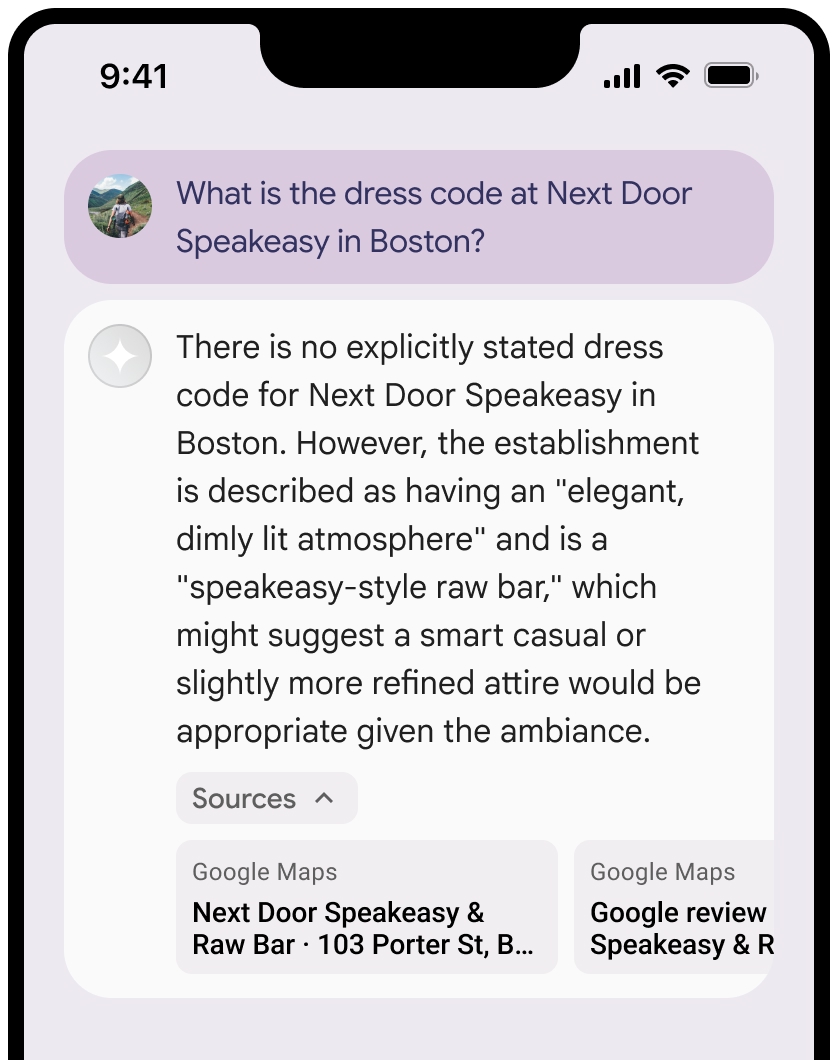
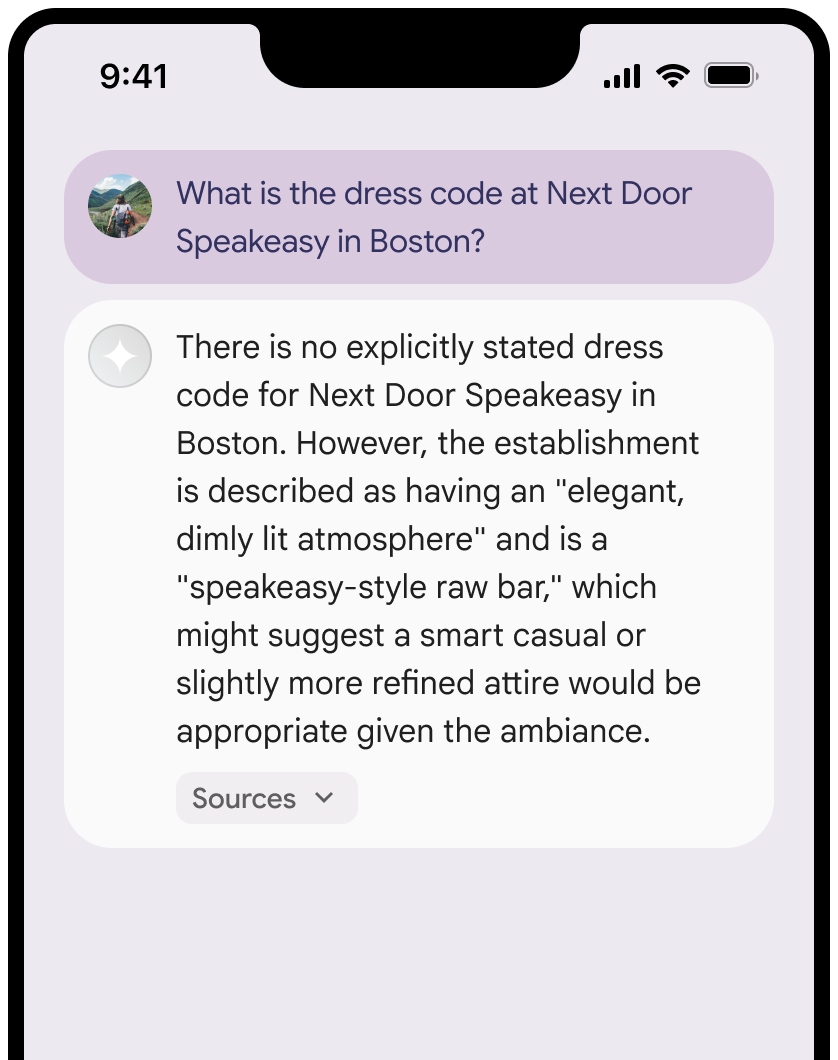
You can collapse the view of the sources.
Optionally, you can enhance the link preview with additional content, such as:
- A
Google Maps favicon inserted before theGoogle Maps text attribution. - A photo from the source URL (
og:image).
For more information about some of the
Google Maps text attribution guidelines
When you attribute sources to
Don't modify the text
Google Mapsin any way:- Don't change the capitalization of the text
Google Maps. - Don't wrap the text
Google Mapsonto multiple lines. - Don't localize the text
Google Mapsinto another language. - Prevent browsers from translating the text
Google Mapsby using the HTML attributetranslate="no".
- Don't change the capitalization of the text
Style the text
Google Mapsas described in the following table:Property Style Font family Roboto. Loading the font is optional. Fallback font family Any sans serif body font already used in your product or "Sans-Serif" to invoke the default system font Font style Normal Font weight 400 Font color White, black (#1F1F1F), or gray (#5E5E5E). Maintain accessible (4.5:1) contrast against the background. Font size Minimum font size: 12sp
Maximum font size: 16sp
To learn about sp, see Font size units on the Material Design website.Spacing Normal
Example CSS
The following CSS renders the text Google Maps with the appropriate
typographic style and color on a white or light background.
@import url('https://fonts.googleapis.com/css2?family=Roboto&display=swap');

.GMP-attribution {
  font-family: Roboto, Sans-Serif;
  font-style: normal;
  font-weight: 400;
  font-size: 1rem;
  letter-spacing: normal;
  white-space: nowrap;
  color: #5e5e5e;
}
Caching of place ID
The
placeId
The restrictions against caching in the Grounding with Google Maps Terms don't apply to this data.
Prohibited activity and territories
Grounding with
You won't use Grounding with
Google Maps for high risk activities including emergency response services.You won't distribute or market your application that offers Grounding with
Google Maps in a Prohibited Territory. For more information, see Google Maps Platform Prohibited Territories. The list of Prohibited Territories may be updated from time to time.
Grounded results and AI monitoring in the Firebase console
If you've enabled AI monitoring in the Firebase console, responses are stored in Cloud Logging. By default, this data has a 30-day retention period.
It's your responsibility to ensure that this retention period, or any custom period you set, fully aligns with your specific use case and any additional compliance requirements for your chosen Gemini API provider: Gemini Developer API or Agent Platform Gemini API (formerly Vertex AI) (see Service Terms section within the Service Specific Terms). You may need to adjust the retention period in Cloud Logging to meet these requirements.
Pricing and rate limits
Grounding with
Make sure to review details about pricing, model availability, and limits for
Grounding with