

การกราวด์ด้วย
การอ้างอิงด้วย
- เพิ่มความถูกต้องตามข้อเท็จจริง: ลดอาการหลอนของโมเดลโดยอิงคำตอบจากฐานข้อมูลของ Google ซึ่งมีสถานที่และธุรกิจในโลกแห่งความเป็นจริงกว่า 250 ล้านแห่ง
- เข้าถึงข้อมูลแบบเรียลไทม์: ตอบคำถามโดยใช้ข้อมูลสด เช่น เวลาทำการปัจจุบันและสถานะแบบเรียลไทม์ของสถานีชาร์จ EV
- ให้บริบทภาพ: สร้างความน่าเชื่อถือของผู้ใช้ด้วยการผสานรวมวิดเจ็ตแผนที่แบบอินเทอร์แอกทีฟ รูปภาพ และ Street View ไว้ข้างๆ การอ้างอิงตามตำแหน่งของโมเดลโดยตรง
รุ่นที่รองรับ
gemini-3.1-pro-previewgemini-3.6-flash(และgemini-3.5-flashรุ่นเก่า)gemini-3.5-flash-lite(และgemini-3.1-flash-liteรุ่นเก่า)gemini-2.5-progemini-2.5-flashgemini-2.5-flash-lite
ภาษาที่สนับสนุน
ดูภาษาที่รองรับ สำหรับโมเดล Gemini
อ้างอิงโมเดลด้วย Google Maps
|
คลิกผู้ให้บริการ Gemini API เพื่อดูเนื้อหาและโค้ดเฉพาะของผู้ให้บริการ ในหน้านี้ |
เมื่อสร้างอินสแตนซ์ GenerativeModel ให้ระบุ GoogleMaps เป็น tool
ที่โมเดลใช้สร้างคำตอบได้
Swift
import FirebaseAILogic
// Initialize the Gemini Developer API backend service.
let ai = FirebaseAI.firebaseAI(backend: .googleAI())
// Example: Coordinates for New York City
let latAndLong = CLLocationCoordinate2D(latitude: 40.7128, longitude: -74.0060)
// (Optional) Define a RetrievalConfig to configure the Grounding with Google Maps tool.
// You can optionally provide a location's coordinates and/or a language code
// for more relevant and personalized Google Maps results.
let retrievalConfig = RetrievalConfig(
location: latAndLong,
// Example: Language code for English (US).
languageCode: "en_US"
)
// Wrap the RetrievalConfig inside a ToolConfig.
let toolConfig = ToolConfig(retrievalConfig: retrievalConfig)
// Create a `GenerativeModel` instance with a model that supports your use case.
let model = ai.generativeModel(
modelName: "GEMINI_MODEL_NAME",
// Provide Google Maps as a tool that the model can use to generate its response.
tools: [Tool.googleMaps()],
// Add the configuration for the Grounding with Google Maps tool
// (if this optional config was defined above).
toolConfig: toolConfig
)
let response = try await model.generateContent("restaurants near me?")
print(response.text ?? "No text in response.")
// Make sure to comply with the "Grounding with Google Maps " usage requirements,
// which includes how you meet service usage requirements
Kotlin
// (Optional) Define a RetrievalConfig to configure the Grounding with Google Maps tool.
// You can optionally provide a location's coordinates and/or a language code
// for more relevant and personalized Google Maps results.
val retrievalConfig = RetrievalConfig(
// Example: Coordinates for New York City
latLng = LatLng(latitude = 40.7128, longitude = -74.0060),
// Example: Language code for English (US)
languageCode = "en_US"
)
// Wrap the RetrievalConfig inside a ToolConfig.
val toolConfig = ToolConfig(
retrievalConfig = retrievalConfig
)
// Initialize the Gemini Developer API backend service.
// Create a `GenerativeModel` instance with a model that supports your use case.
val model = Firebase.ai(backend = GenerativeBackend.googleAI()).generativeModel(
modelName = "GEMINI_MODEL_NAME",
// Add the configuration for the Grounding with Google Maps tool
// (if this optional config was defined above).
toolConfig = toolConfig,
// Provide Google Maps as a tool that the model can use to generate its response.
tools = listOf(Tool.googleMaps())
)
val response = model.generateContent("restaurants near me?")
print(response.text)
// Make sure to comply with the "Grounding with Google Maps " usage requirements,
// which includes how you meet service usage requirements
Java
// (Optional) Define a ToolConfig to configure the Grounding with Google Maps tool.
// You can optionally provide a location's coordinates and/or a language code
// for more relevant and personalized Google Maps results.
ToolConfig toolConfig = new ToolConfig(
null,
new RetrievalConfig(
// Example: Coordinates for New York City.
new LatLng(40.7128, -74.0060),
// Example: Language code for English (US).
"en_US"
)
);
// Initialize the Gemini Developer API backend service.
// Create a `GenerativeModel` instance with a model that supports your use case.
GenerativeModel ai = FirebaseAI.getInstance(GenerativeBackend.googleAI())
.generativeModel("GEMINI_MODEL_NAME",
null,
null,
// Provide Google Maps as a tool that the model can use to generate its response.
List.of(Tool.googleMaps()),
// Add the configuration for the Grounding with Google Maps tool
// (if this optional config was defined above).
toolConfig);
// Use the GenerativeModelFutures Java compatibility layer which offers
// support for ListenableFuture and Publisher APIs.
GenerativeModelFutures model = GenerativeModelFutures.from(ai);
ListenableFuture response = model.generateContent("restaurants near me?");
Futures.addCallback(response, new FutureCallback() {
@Override
public void onSuccess(GenerateContentResponse result) {
String resultText = result.getText();
System.out.println(resultText);
}
@Override
public void onFailure(Throwable t) {
t.printStackTrace();
}
}, executor);
// Make sure to comply with the "Grounding with Google Maps " usage requirements,
// which includes how you meet service usage requirements
Web
import { initializeApp } from "firebase/app";
import { getAI, getGenerativeModel, GoogleAIBackend } from "firebase/ai";
// TODO(developer) Replace the following with your app's Firebase configuration
// See: https://firebase.google.com/docs/web/learn-more#config-object
const firebaseConfig = {
// ...
};
// Initialize FirebaseApp
const firebaseApp = initializeApp(firebaseConfig);
// Initialize the Gemini Developer API backend service.
const ai = getAI(firebaseApp, { backend: new GoogleAIBackend() });
// (Optional) Define a toolConfig to configure the Grounding with Google Maps tool.
// You can optionally provide a location's coordinates and/or a language code
// for more relevant and personalized Google Maps results.
const toolConfig = {
retrievalConfig: {
// Example: Coordinates for New York City
latLng: {
latitude: 40.7128,
longitude: -74.0060
},
// Example: Language code for English (US)
languageCode: 'en-US'
}
};
// Create a `GenerativeModel` instance with a model that supports your use case
const model = getGenerativeModel(
ai,
{
model: "GEMINI_MODEL_NAME",
// Provide Google Maps as a tool that the model can use to generate its response.
// (Optional) Set `enableWidget` to control whether the response contains a `googleMapsWidgetContextToken`.
tools: [ { googleMaps: { enableWidget: true } } ],
// Add the configuration for the Grounding with Google Maps tool
// (if this optional config was defined above).
toolConfig
}
);
const result = await model.generateContent("restaurants near me?");
console.log(result.response.text());
// Make sure to comply with the "Grounding with Google Maps " usage requirements,
// which includes how you meet service usage requirements
Dart
import 'package:firebase_core/firebase_core.dart';
import 'package:firebase_ai/firebase_ai.dart';
import 'firebase_options.dart';
// Initialize FirebaseApp.
await Firebase.initializeApp(
options: DefaultFirebaseOptions.currentPlatform,
);
// (Optional) Define a ToolConfig to configure the Grounding with Google Maps tool.
// You can optionally provide a location's coordinates and/or a language code
// for more relevant and personalized Google Maps results.
final toolConfig = ToolConfig(
retrievalConfig: RetrievalConfig(
// Example: Coordinates for New York City.
latLng: LatLng(latitude: 40.712728, longitude: -74.006015),
// Example: Language code for English (US).
languageCode: 'en',
),
);
// Initialize the Gemini Developer API backend service.
// Create a `GenerativeModel` instance with a model that supports your use case.
final model = FirebaseAI.googleAI().generativeModel(
model: 'GEMINI_MODEL_NAME',
// Provide Google Maps as a tool that the model can use to generate its response.
tools: [
Tool.googleMaps(),
],
// Add the configuration for the Grounding with Google Maps tool
// (if this optional config was defined above).
toolConfig: toolConfig,
);
final response = await model.generateContent([Content.text("restaurants near me?")]);
print(response.text);
// Make sure to comply with the "Grounding with Google Maps " usage requirements,
// which includes how you meet service usage requirements
Unity
using Firebase;
using Firebase.AI;
// Initialize the Gemini Developer API backend service.
var ai = FirebaseAI.GetInstance(FirebaseAI.Backend.GoogleAI());
// Example: Coordinates for New York City
var latLng = new LatLng(40.7128, -74.0060);
// (Optional) Define a RetrievalConfig to configure the Grounding with Google Maps tool.
// You can optionally provide a location's coordinates and/or a language code
// for more relevant and personalized Google Maps results.
var retrievalConfig = new RetrievalConfig(latLng, languageCode: "en");
// Wrap the RetrievalConfig inside a ToolConfig.
var toolConfig = new ToolConfig(retrievalConfig: retrievalConfig);
// Create a `GenerativeModel` instance with a model that supports your use case
var model = ai.GetGenerativeModel(
modelName: "GEMINI_MODEL_NAME",
// Provide Google Maps as a tool that the model can use to generate its response.
tools: new[] { new Tool(new GoogleMaps()) },
// Add the configuration for the Grounding with Google Maps tool
// (if this optional config was defined above).
toolConfig: toolConfig
);
var response = await model.GenerateContentAsync("restaurants near me?");
UnityEngine.Debug.Log(response.Text ?? "No text in response.");
// Make sure to comply with the "Grounding with Google Maps " usage requirements,
// which includes how you meet service usage requirements
ดูวิธีเลือกโมเดล (ไม่บังคับ) ที่เหมาะสมกับกรณีการใช้งานและแอปของคุณ
แนวทางปฏิบัติแนะนำและเคล็ดลับในการปรับปรุงผลลัพธ์
ส่วนนี้จะอธิบายแนวทางปฏิบัติแนะนำทั่วไปบางส่วนสำหรับการใช้การอ้างอิงกับ
แนวทางปฏิบัติแนะนำทั่วไป
ให้เครื่องมือเมื่อจำเป็นเท่านั้น: เพื่อเพิ่มประสิทธิภาพและต้นทุน ให้สิทธิ์เข้าถึงเครื่องมือการเชื่อมโยงกับ
Google Maps แก่โมเดลเมื่อ กรณีการใช้งานมีบริบททางภูมิศาสตร์ที่ชัดเจนเท่านั้นระบุตำแหน่งของผู้ใช้: เพื่อให้ได้คำตอบที่เกี่ยวข้องและปรับเปลี่ยนในแบบของคุณมากที่สุด (และเมื่อทราบตำแหน่งของผู้ใช้) ให้ระบุตำแหน่งของผู้ใช้ (โดยใช้ ละติจูดและลองจิจูดผ่าน
latLng) ในการกำหนดค่าเครื่องมือGoogle Maps การอ้างอิงแจ้งให้ผู้ใช้ปลายทางทราบ: แจ้งให้ผู้ใช้ปลายทางทราบอย่างชัดเจนว่ามีการใช้
Google Maps ข้อมูล เพื่อตอบคำถามของผู้ใช้ การระบุแหล่งที่มาให้ผู้ใช้ปลายทาง จากGoogle Maps เป็น ข้อกำหนดในการใช้บริการ สำหรับเครื่องมือการอ้างอิงกับGoogle Maps (SDK เว็บเท่านั้น) แสดงผล
Google Maps วิดเจ็ตตามบริบท: ระบบจะแสดงผลวิดเจ็ตตามบริบทโดยใช้โทเค็นบริบทgoogleMapsWidgetContextTokenซึ่งจะแสดงในGemini API การตอบกลับ และสามารถใช้เพื่อแสดงเนื้อหาภาพจากGoogle Maps ดูข้อมูลเพิ่มเติมเกี่ยวกับวิดเจ็ตตามบริบทได้ที่การอ้างอิงด้วยวิดเจ็ตGoogle Maps ในเอกสารประกอบของGoogle Maps
ใช้พร็อพเพอร์ตี้สถานที่ในพรอมต์
ส่วนนี้แสดงพร็อพเพอร์ตี้สถานที่ที่ใช้เพื่ออธิบายสถานที่ตั้ง
และใช้โดย Grounding with
ตัวอย่างพร็อพเพอร์ตี้ของสถานที่
รายการนี้แสดงตัวอย่างพร็อพเพอร์ตี้เกี่ยวกับสถานที่ต่างๆ ที่เรียงตามตัวอักษร ซึ่งโมเดลของคุณใช้เพื่อสร้างคำตอบได้
- ที่อยู่
- การรับสินค้าโดยไม่ต้องลงจากรถ
- บัตรเดบิต
- ระยะทาง
- ที่จอดรถแบบไม่เสียค่าใช้จ่าย
- ดนตรีสด
- เมนูสำหรับเด็ก
- เวลาทำการ
- ตัวเลือกการชำระเงิน (เช่น เงินสดหรือบัตรเครดิต)
- คำตอบเกี่ยวกับสถานที่
- นำสัตว์เลี้ยงเข้าพักได้
- เสิร์ฟเบียร์
- มีบริการอาหารมังสวิรัติ
- รองรับเก้าอี้รถเข็น
- Wifi
คำตอบเกี่ยวกับสถานที่คือคำตอบจาก Grounding with
ตัวอย่างพรอมต์ที่ใช้พร็อพเพอร์ตี้สถานที่
ตัวอย่างต่อไปนี้ใช้พร็อพเพอร์ตี้สถานที่
ในพรอมต์เกี่ยวกับสถานที่ประเภทต่างๆ การอ้างอิงด้วย
วางแผนมื้อค่ำกับครอบครัว: ตรวจสอบว่าร้านอาหารเหมาะสำหรับครอบครัวหรือไม่และร้านอาหารมีบริการที่สะดวกหรือไม่
- ตัวอย่างพรอมต์: "The Italian Place" เหมาะสำหรับเด็กไหม และมีบริการ สั่งกลับบ้านไหม วิดีโอเหล่านั้นได้รับการจัดประเภทอย่างไร
ตรวจสอบความสามารถในการเข้าถึงสำหรับเพื่อน: ดูว่าสถานที่นั้นตรงกับ ความต้องการด้านการช่วยเหลือพิเศษที่เฉพาะเจาะจงหรือไม่
- ตัวอย่างพรอมต์: ฉันอยากได้ร้านอาหารที่มีทางเข้าสำหรับเก้าอี้รถเข็น
ค้นหาสถานที่สำหรับทานของว่างยามดึก: ค้นหาสถานประกอบการที่เปิดให้บริการ ซึ่งเสิร์ฟอาหารมื้อที่ต้องการในช่วงเวลาที่กำหนด
- พรอมต์ตัวอย่าง: "ร้านเบอร์เกอร์" เปิดอยู่ไหม ร้านนี้เสิร์ฟอาหารเย็นไหม เวลาทำการของร้านในวันศุกร์คือเวลาใด
นัดลูกค้าดื่มกาแฟ: ประเมินความเหมาะสมของคาเฟ่สำหรับการ ประชุมทางธุรกิจตามสิ่งอำนวยความสะดวก ข้อเสนอ และตัวเลือกการชำระเงิน
- ตัวอย่างพรอมต์: "Cafe Central" มี Wi-Fi ไหม ที่นี่เสิร์ฟกาแฟไหม ร้านค้ามีระดับราคาเท่าใด และรับบัตรเครดิตหรือไม่
โปรดทราบว่าข้อมูลใน
วิธีการทำงานของการจำกัดการใช้งานด้วย Google Maps
เมื่อคุณให้GoogleMapsเครื่องมือแก่โมเดล โมเดลจะจัดการ
เวิร์กโฟลว์ทั้งหมดของการค้นหา ประมวลผล และอ้างอิงข้อมูลโดยอัตโนมัติ
ขั้นตอนการทำงานของโมเดลมีดังนี้
รับพรอมต์: แอปของคุณจะส่งพรอมต์ไปยังโมเดล Gemini พร้อมเปิดใช้เครื่องมือ
GoogleMapsวิเคราะห์พรอมต์: โมเดลจะวิเคราะห์พรอมต์และพิจารณาว่า
Google Maps สามารถปรับปรุงคำตอบได้หรือไม่ เช่น หากพรอมต์ มีบริบททางภูมิศาสตร์ (เช่น "ร้านกาแฟใกล้ฉัน" "พิพิธภัณฑ์ใน กรุงเทพฯ")เรียกใช้เครื่องมือ: โมเดลที่รับรู้ถึงเจตนาทางภูมิศาสตร์ จะเรียกใช้เครื่องมือการอ้างอิงกับ
Google Maps ส่งคำค้นหาไปยัง
Google Maps : การกราวด์ด้วยGoogle Maps บริการจะค้นหาGoogle Maps ข้อมูลที่เกี่ยวข้อง (เช่น สถานที่ รีวิว รูปภาพ ที่อยู่ เวลาทำการ)คุณอาจรวมละติจูดและลองจิจูดไว้ในการกำหนดค่าของเครื่องมือ (หรือแม้แต่ในพรอมต์โดยตรง) เพื่อให้ได้ผลลัพธ์ที่เกี่ยวข้องและปรับเปลี่ยนในแบบของคุณมากขึ้น
Google Maps เครื่องมือนี้เป็นเครื่องมือค้นหาแบบข้อความและทำงาน คล้ายกับการค้นหาในGoogle Maps โดยที่คำค้นหาในพื้นที่ ("ใกล้ฉัน") จะใช้พิกัด ส่วนคำค้นหาที่เฉพาะเจาะจงหรือคำค้นหาที่ไม่ได้อยู่ในพื้นที่นั้นจะไม่ ได้รับผลกระทบจากตำแหน่งที่ระบุอย่างชัดเจนประมวลผล
Google Maps ผลลัพธ์: โมเดลจะประมวลผลGoogle Maps ผลลัพธ์และสร้างคำตอบสำหรับพรอมต์เดิมแสดง
Google Maps ผลลัพธ์ที่อิงตามข้อมูล: โมเดลจะแสดงคำตอบสุดท้ายที่ใช้งานง่ายซึ่งอิงตามGoogle Maps ผลลัพธ์ คำตอบนี้ประกอบด้วยข้อมูลต่อไปนี้- คำตอบที่เป็นข้อความของโมเดล
- ออบเจ็กต์
groundingMetadataที่มีผลลัพธ์Google Maps และแหล่งที่มา - (SDK ของเว็บเท่านั้น) อาจเป็น googleMapsWidgetContextToken ที่ช่วยให้คุณแสดงวิดเจ็ต
Google Maps ตามบริบทในแอปเพื่อการโต้ตอบด้วยภาพ ดูข้อมูลเพิ่มเติมเกี่ยวกับวิดเจ็ตตามบริบทได้ที่ การอ้างอิงด้วยวิดเจ็ตGoogle Maps ในเอกสารประกอบของGoogle Maps
โปรดทราบว่าการระบุ groundingMetadata และจึงไม่ใช่
ทำความเข้าใจผลลัพธ์ที่อิงตามข้อมูล
หากโมเดลอ้างอิงคำตอบจากgroundingMetadata ซึ่งมี Structured Data ที่จำเป็นต่อการยืนยันการกล่าวอ้างและสร้างประสบการณ์การใช้งานแหล่งข้อมูลที่สมบูรณ์ในแอปพลิเคชันของคุณ
ออบเจ็กต์ groundingMetadata ใน
groundingChunks: อาร์เรย์ของออบเจ็กต์ที่มีแหล่งที่มาของmaps(uri,placeIdและtitle)groundingSupports: อาร์เรย์ของก้อนข้อมูลเพื่อเชื่อมต่อคำตอบของโมเดลtextกับแหล่งที่มาในgroundingChunksแต่ละก้อนจะลิงก์ข้อความsegment(กำหนดโดยstartIndexและendIndex) กับgroundingChunkIndicesอย่างน้อย 1 รายการ ฟิลด์นี้ช่วยคุณสร้างลิงก์แหล่งที่มาในบรรทัด ดูวิธี ปฏิบัติตามข้อกำหนดการใช้งานบริการ ในภายหลังในหน้านี้- (SDK ของเว็บเท่านั้น)
googleMapsWidgetContextToken: โทเค็นข้อความที่ใช้แสดงวิดเจ็ตสถานที่ตามบริบทได้ ระบบจะแสดงฟิลด์นี้เมื่อใช้ Web SDK และหากคุณตั้งค่าพารามิเตอร์enableWidgetเป็นtrueเท่านั้น
นี่คือตัวอย่างการตอบกลับที่มีออบเจ็กต์ groundingMetadata
{
  "candidates": [
    {
      "content": {
        "parts": [
          {
            "text": "CanteenM is an American restaurant with..."
          }
        ],
        "role": "model"
      },
      "groundingMetadata": {
        "groundingChunks": [
          {
            "maps": {
              "uri": "https://maps.google.com/?cid=13100894621228039586",
              "title": "Heaven on 7th Marketplace",
              "placeId": "places/ChIJ0-zA1vBZwokRon0fGj-6z7U"
            }
          }
        ],
        "groundingSupports": [
          {
            "segment": {
              "startIndex": 0,
              "endIndex": 79,
              "text": "CanteenM is an American restaurant with a 4.6-star rating and is open 24 hours."
            },
            "groundingChunkIndices": [0]
          }
        ],
        "googleMapsWidgetContextToken": "widgetcontent/..."
      }
    }
  ]
}
ข้อกำหนดในการใช้งานบริการ
ส่วนนี้อธิบายข้อกำหนดในการใช้บริการสำหรับการกราวด์ด้วย
แจ้งให้ผู้ใช้ทราบเกี่ยวกับแหล่งที่มาของ Google Maps
groundingChunksที่สนับสนุนคำตอบแต่ละรายการ นอกจากนี้ ระบบยังแสดงข้อมูลเมตาต่อไปนี้ด้วย
- URI ต้นทาง
- ตำแหน่ง
- รหัส
เมื่อแสดงผลลัพธ์จากการกราวด์ด้วย
แหล่งที่มา
Google Maps ต้องอยู่ต่อจากเนื้อหาที่สร้างขึ้น ซึ่งแหล่งที่มานั้นๆ สนับสนุน เนื้อหาที่สร้างขึ้นนี้เรียกอีกอย่างว่าGoogle Maps ผลการค้นหาที่อิงตามข้อมูลแหล่งที่มาของ
Google Maps ต้องดูได้ภายใน 1 การโต้ตอบของผู้ใช้
ต่อไปนี้คือวิธีรับค่าเพื่อแสดงแหล่งที่มาจาก
Swift
// ...

// Get the model's response
let text = response.text

// Get the grounding metadata
if let candidate = response.candidates.first,
   let groundingMetadata = candidate.groundingMetadata {

  // Get sources
  let groundingChunks = groundingMetadata.groundingChunks
  for chunk in groundingChunks {
    if let maps = chunk.maps {
      let title = maps.title  // for example, "Heaven on 7th Marketplace"
      let url = maps.url  // for example, "https://maps.google.com/?cid=13100894621228039586"
      let placeId = maps.placeId  // for example, "places/ChIJ0-zA1vBZwokRon0fGj-6z7U"
      // TODO(developer): show source in the UI
    }
  }
}
Kotlin
// ...

// Get the model's response
val text = response.text

// Get the grounding metadata
val groundingMetadata = response.candidates.firstOrNull()?.groundingMetadata

// Get sources
val groundingChunks = groundingMetadata?.groundingChunks
groundingChunks?.let { chunks ->
  for (chunk in chunks) {
    val title = chunk.maps?.title  // for example, "Heaven on 7th Marketplace"
    val uri = chunk.maps?.uri  // for example, "https://maps.google.com/?cid=13100894621228039586"
    val placeId = chunk.maps?.placeId  // for example, "places/ChIJ0-zA1vBZwokRon0fGj-6z7U"
    // TODO(developer): show source in the UI
  }
}
Java
// ...

Futures.addCallback(response, new FutureCallback() {
  @Override
  public void onSuccess(GenerateContentResponse result) {
    // Get the model's response
    String text = result.getText();

    // Get the grounding metadata
    GroundingMetadata groundingMetadata =
        result.getCandidates()[0].getGroundingMetadata();

    if (groundingMetadata != null) {
      // Get sources
      List chunks = groundingMetadata.getGroundingChunks();
      if (chunks != null) {
        for(GroundingChunk chunk : chunks) {
          GoogleMapsGroundingChunk maps = chunk.getMaps();
          if (maps != null) {
            String title = maps.getTitle();  // for example, "Heaven on 7th Marketplace"
            String uri = maps.getUri();  // for example, "https://maps.google.com/?cid=13100894621228039586"
            String placeId = maps.getPlaceId();  // for example, "places/ChIJ0-zA1vBZwokRon0fGj-6z7U"
            // TODO(developer): show sources in the UI
          }
        }
      }
    }
  }

  @Override
  public void onFailure(Throwable t) {
    t.printStackTrace();
  }
}, executor);
Web
// ...

// Get the model's text response
const text = result.response.text();

// Get the grounding metadata
const groundingMetadata = result.response.candidates?.[0]?.groundingMetadata;

// Get sources
const groundingChunks = groundingMetadata?.groundingChunks;
if (groundingChunks) {
  for (const chunk of groundingChunks) {
    const title = chunk.maps?.title;  // for example, "Heaven on 7th Marketplace"
    const uri = chunk.maps?.uri;  // for example, "https://maps.google.com/?cid=13100894621228039586"
    const placeId = chunk.maps?.placeId;  // for example, "places/ChIJ0-zA1vBZwokRon0fGj-6z7U"
    // TODO(developer): show sources in the UI
  }
}
Dart
// ...

// Get the model's response
final text = response.text;

// Get the grounding metadata
final groundingMetadata = response.candidates.first.groundingMetadata;

// Get sources
final groundingChunks = groundingMetadata?.groundingChunks;
if (groundingChunks != null) {
  for (var chunk in groundingChunks) {
    final title = chunk.maps?.title;  // for example, "Heaven on 7th Marketplace"
    final uri = chunk.maps?.uri;  // for example, "https://maps.google.com/?cid=13100894621228039586"
    final placeId = chunk.maps?.placeId;  // for example, "places/ChIJ0-zA1vBZwokRon0fGj-6z7U"
    // TODO(developer): show sources in the UI
  }
}
Unity
// ...

// Get the model's response
var text = response.Text;

// Get the grounding metadata
var groundingMetadata = response.Candidates.First().GroundingMetadata;

// Get sources
if (groundingMetadata != null) {
  foreach(GroundingChunk chunk in groundingMetadata?.GroundingChunks) {
    if (chunk.Maps != null) {
      var title = chunk.Maps?.Title;  // for example, "Heaven on 7th Marketplace"
      var uri = chunk.Maps?.Uri;  // for example, "https://maps.google.com/?cid=13100894621228039586"
      var placeId = chunk.Maps?.PlaceId;  // for example, "places/ChIJ0-zA1vBZwokRon0fGj-6z7U"
      // TODO(developer): show sources in the UI
    }
  }
}
แสดงแหล่งที่มา Google Maps พร้อมลิงก์ Google Maps
สำหรับแหล่งที่มาแต่ละแหล่งใน groundingChunks
ต้องสร้างตัวอย่างลิงก์ตามข้อกำหนดต่อไปนี้
- ระบุแหล่งที่มาแต่ละแหล่งเป็น
Google Maps ตามGoogle Maps หลักเกณฑ์การระบุแหล่งที่มาของข้อความ - แสดงชื่อแหล่งข้อมูลที่ระบุไว้ในการตอบกลับ
- ลิงก์ไปยังแหล่งที่มาโดยใช้
uriจากคำตอบ
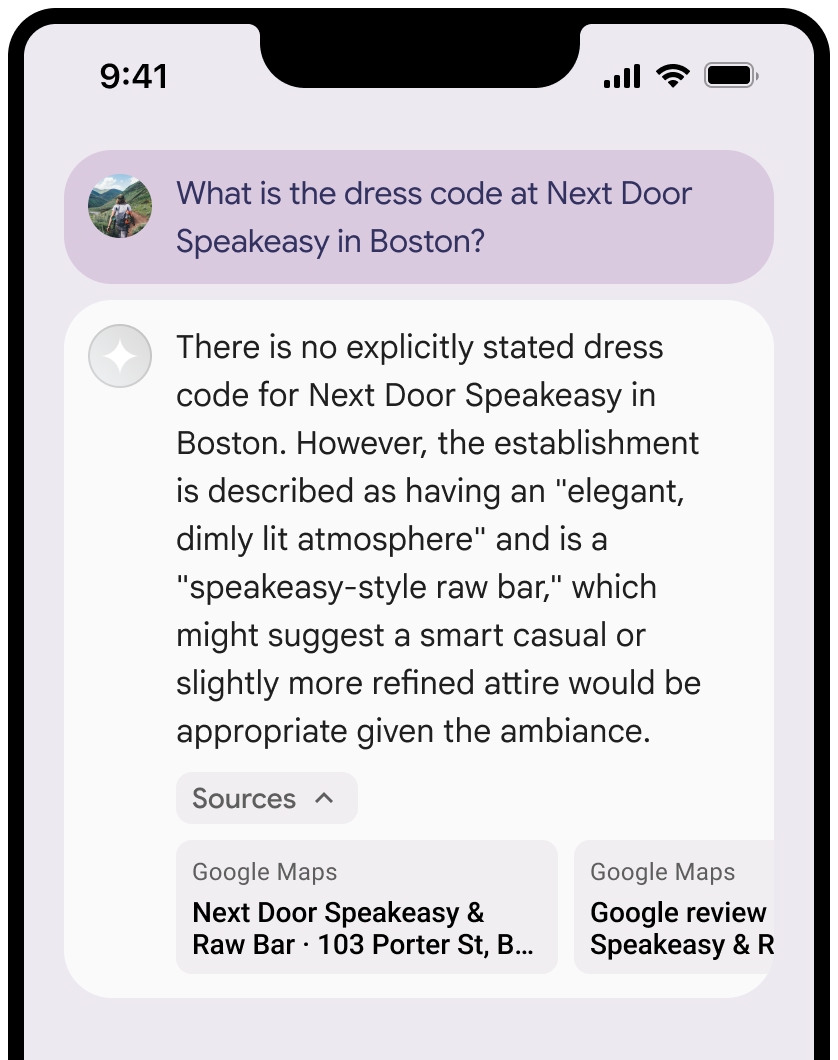
คุณยุบมุมมองของแหล่งที่มาได้
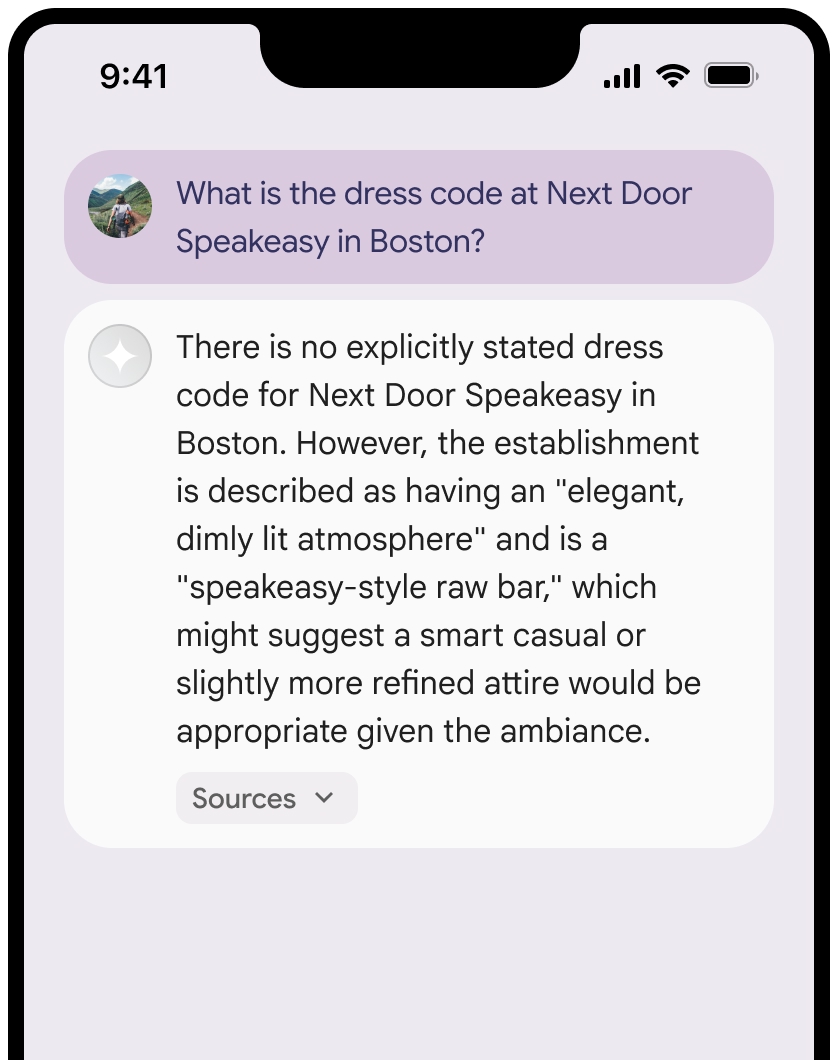
คุณจะปรับปรุงตัวอย่างลิงก์ด้วยเนื้อหาเพิ่มเติม เช่น
- A
Google Maps ไอคอน Fav แทรกก่อนGoogle Maps การแสดงที่มาของข้อความ - รูปภาพจาก URL แหล่งที่มา (
og:image)
ดูข้อมูลเพิ่มเติมเกี่ยวกับ
Google Maps หลักเกณฑ์การระบุแหล่งที่มาของข้อความ
เมื่อระบุแหล่งที่มาของ
อย่าแก้ไขข้อความ
Google Mapsในลักษณะใดๆ- อย่าเปลี่ยนการใช้อักษรตัวพิมพ์ใหญ่ของข้อความ
Google Maps - อย่าตัดข้อความ
Google Mapsขึ้นบรรทัดใหม่ - อย่าแปลข้อความ
Google Mapsเป็นภาษาอื่น - ป้องกันไม่ให้เบราว์เซอร์แปลข้อความ
Google Mapsโดยใช้แอตทริบิวต์ HTMLtranslate="no"
- อย่าเปลี่ยนการใช้อักษรตัวพิมพ์ใหญ่ของข้อความ
จัดรูปแบบข้อความ
Google Mapsตามที่อธิบายไว้ในตารางต่อไปนี้พร็อพเพอร์ตี้ รูปแบบ ชุดแบบอักษร Roboto คุณจะโหลดฟอนต์หรือไม่ก็ได้ ชุดแบบอักษรสำรอง แบบอักษรเนื้อหาแบบ Sans Serif ที่ใช้ในผลิตภัณฑ์อยู่แล้ว หรือ "Sans-Serif" เพื่อเรียกใช้แบบอักษรเริ่มต้นของระบบ รูปแบบตัวอักษร ปกติ น้ำหนักแบบอักษร 400 สีแบบอักษร สีขาว สีดำ (#1F1F1F) หรือสีเทา (#5E5E5E) รักษาระดับความแตกต่างที่เข้าถึงได้ (4.5:1) กับพื้นหลัง ขนาดตัวอักษร ขนาดแบบอักษรขั้นต่ำ: 12sp
ขนาดแบบอักษรสูงสุด: 16sp
ดูข้อมูลเกี่ยวกับ sp ได้ที่หน่วยขนาดแบบอักษรใน เว็บไซต์ Material Designระยะห่าง ปกติ
ตัวอย่าง CSS
CSS ต่อไปนี้จะแสดงข้อความ Google Maps โดยมี
รูปแบบการพิมพ์และสีที่เหมาะสมบนพื้นหลังสีขาวหรือสีอ่อน
@import url('https://fonts.googleapis.com/css2?family=Roboto&display=swap');

.GMP-attribution {
  font-family: Roboto, Sans-Serif;
  font-style: normal;
  font-weight: 400;
  font-size: 1rem;
  letter-spacing: normal;
  white-space: nowrap;
  color: #5e5e5e;
}
การแคชโทเค็นบริบทและรหัสสถานที่
- (Web SDK เท่านั้น)
googleMapsWidgetContextToken placeId
ข้อจำกัดในการแคชในข้อกำหนดการเชื่อมต่อแหล่งข้อมูลกับ Google Maps ไม่มีผลกับข้อมูลนี้
กิจกรรมและเขตแดนที่ไม่อนุญาต
การอ้างอิงกับ
คุณจะไม่ใช้ Grounding กับ
Google Maps สำหรับกิจกรรมที่มีความเสี่ยงสูง รวมถึงบริการตอบสนองต่อเหตุฉุกเฉินคุณจะไม่จัดจำหน่ายหรือทำการตลาดแอปพลิเคชันที่เสนอการจำกัดการใช้งาน ด้วย
Google Maps ในเขตแดนที่ถูกห้าม ดูข้อมูลเพิ่มเติมได้ที่เขตแดนที่ไม่อนุญาตของ Google Maps Platform รายชื่อเขตแดนที่ไม่อนุญาตอาจมีการอัปเดตเป็นครั้งคราว
ผลการค้นหาที่อิงตามข้อมูลจริงและการตรวจสอบ AI ในFirebaseคอนโซล
หากเปิดใช้ การตรวจสอบ AI ในFirebaseคอนโซล ระบบจะจัดเก็บคำตอบไว้ใน Cloud Logging โดยค่าเริ่มต้น ข้อมูลนี้มีระยะเวลาเก็บรักษา 30 วัน
คุณมีหน้าที่รับผิดชอบในการตรวจสอบว่าระยะเวลาเก็บรักษานี้หรือระยะเวลาที่กำหนดเองใดๆ สอดคล้องกับกรณีการใช้งานเฉพาะของคุณและข้อกำหนดด้านการปฏิบัติตามข้อกำหนดเพิ่มเติมสำหรับGemini APIผู้ให้บริการที่คุณเลือกอย่างครบถ้วน Gemini Developer API หรือ Vertex AI Gemini API (ดูส่วนข้อกำหนดในการให้บริการ ภายในข้อกำหนดเฉพาะบริการ) คุณอาจต้องปรับระยะเวลาเก็บรักษาใน Cloud Logging ให้เป็นไปตามข้อกำหนดเหล่านี้
ราคาและขีดจำกัดอัตรา
การอ้างอิงราคา
โปรดอ่านรายละเอียดเกี่ยวกับราคา ความพร้อมใช้งานของโมเดล และขีดจำกัดสำหรับการ
อ้างอิงกับ