
One way you can use personalization is to optimize for ad impression revenue. For this use case, let us say you have a game with optional mini-games gated behind a full-page ad and you want to optimize the mini-game experience for each user, providing the most ad revenue without impacting user engagement.
We'll walk through one way you might accomplish this:
In your game, implement custom event logging for the
ad_impressionevent specific to the ad providers you use, making sure thatcurrencyandvalueparameters are included and that revenue is being added in the reported value parameter.Measure ad revenue describes how to automatically log ad_impression events with Admob and also provides a few other implementation examples for other ad serving platforms, like AppLovin and ironSource.
Determine the Remote Config parameter you'll use and the alternative values to choose from and ensure that the logic in your game can handle the different values.
This example describes implementing a Remote Config parameter as a feature flag to enable several different mini-games.
In the Firebase console, go to DevOps & Engagement > Remote Config.
Click Add parameter.
Name the Remote Config parameter
minigamewith a default value ofno_game.
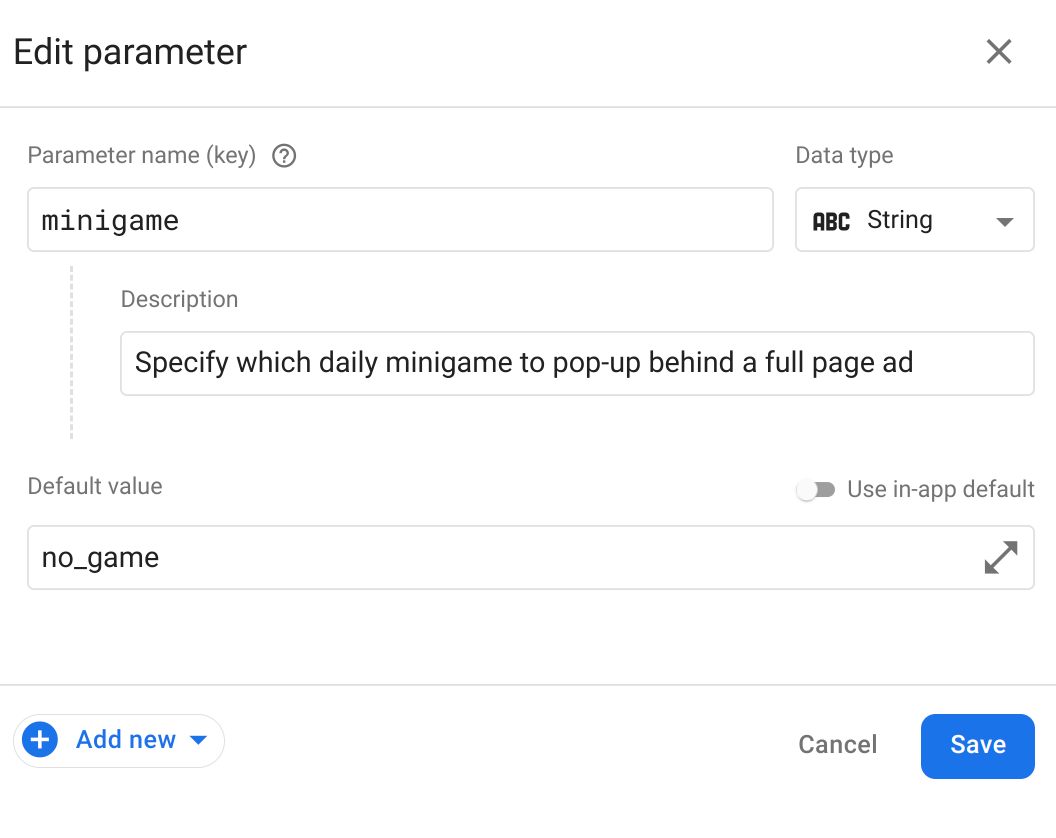
Now, add a personalization by clicking Add new and selecting Personalization.
Add up to five alternative values, and then click Next.
For this minigame example, you can use
tictactoe,word_scramble, andrace.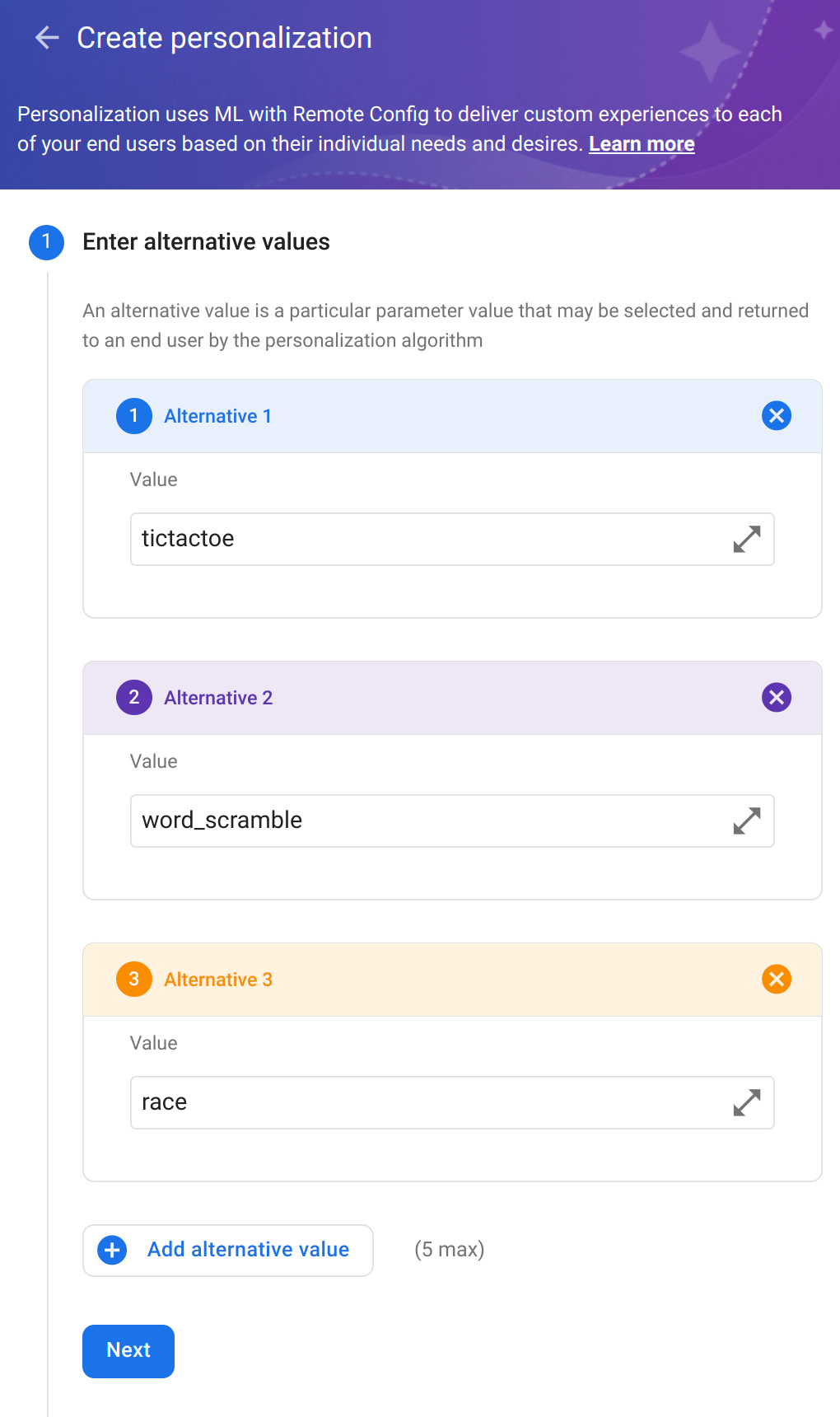
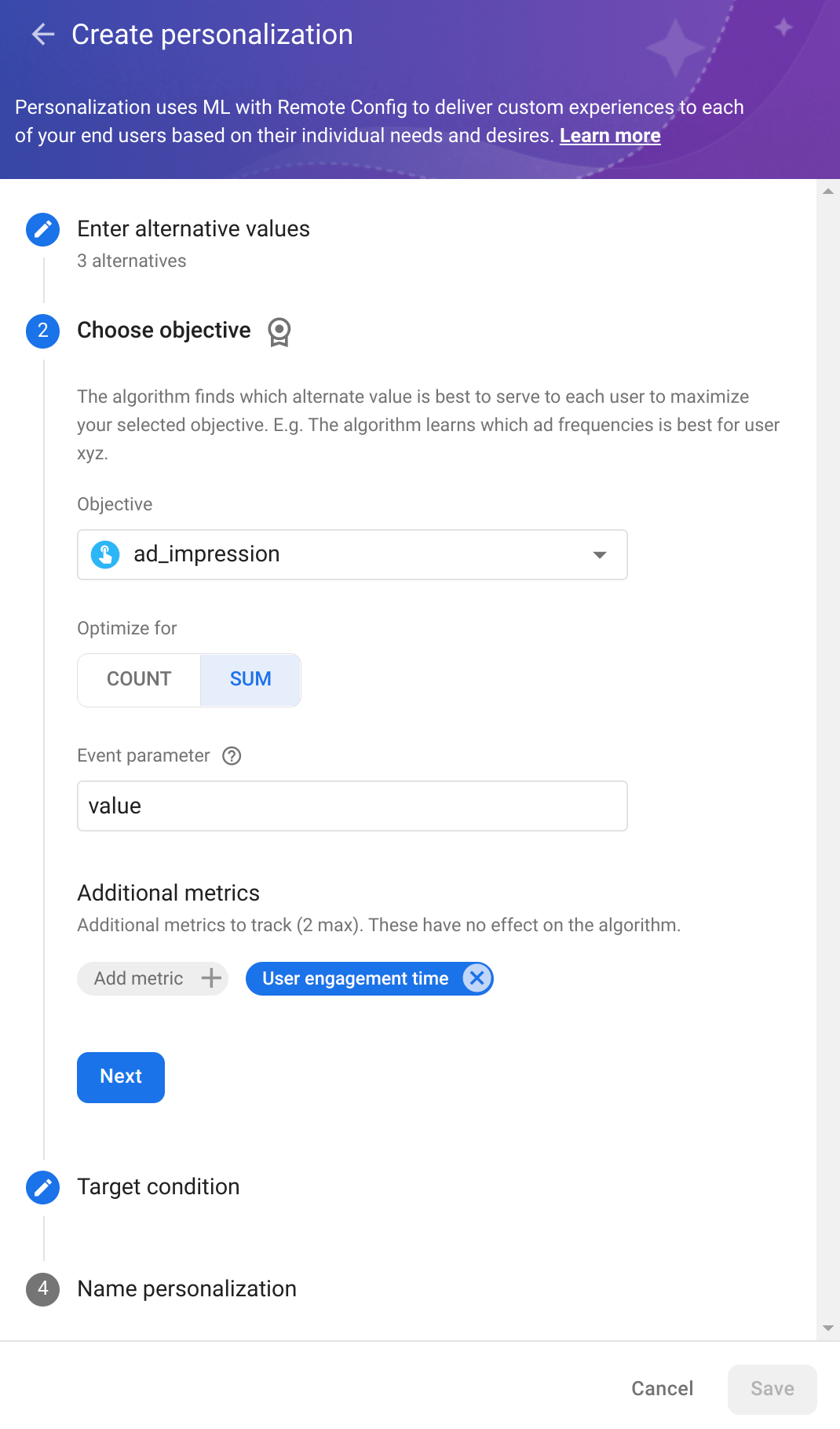
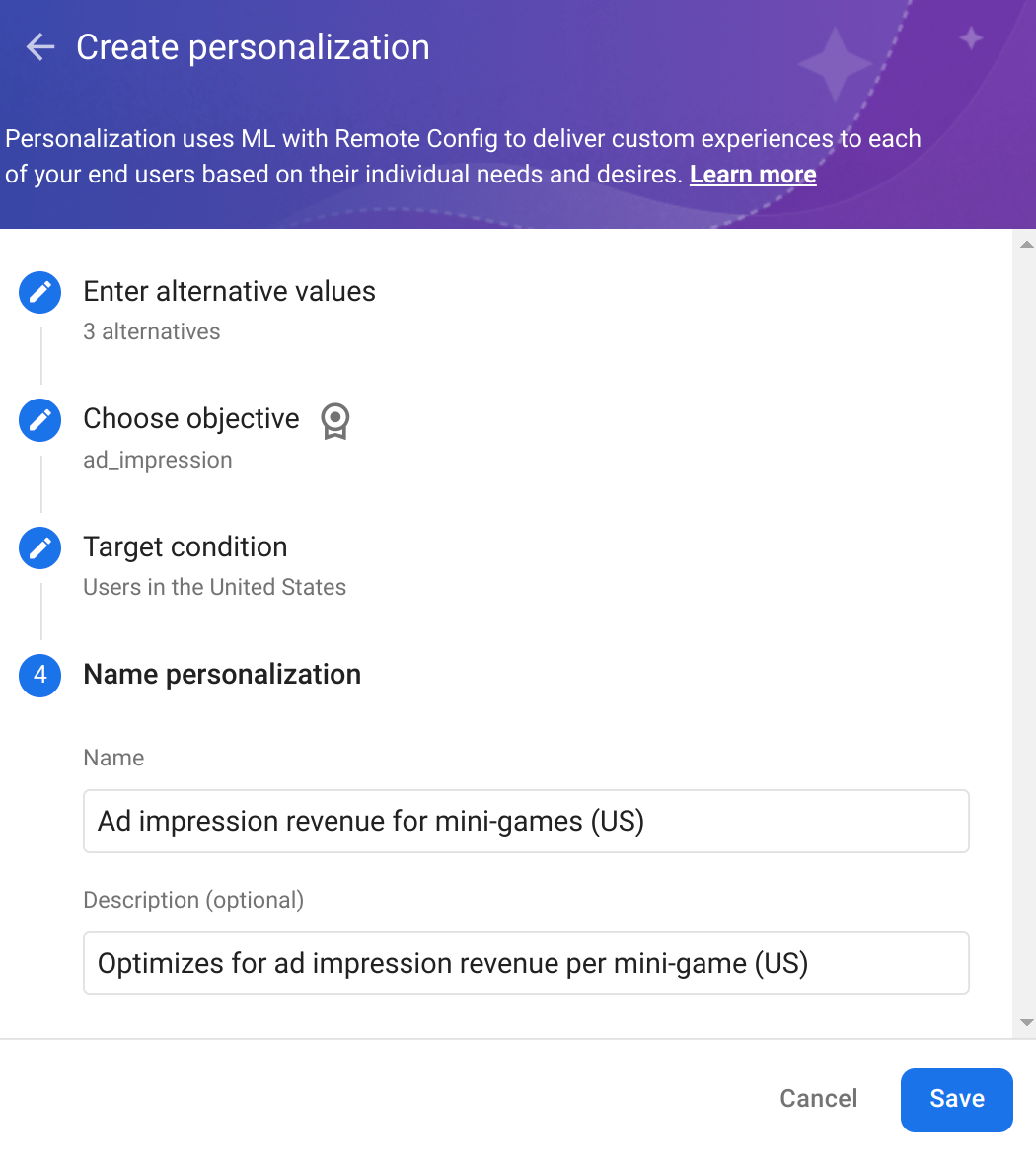
Next, choose an objective. Because you are now logging ad impression events that contain revenue values, select Ad Impression as the objective, choose SUM and value as the parameter to aggregate, and add an additional tracking metric for User engagement time. This lets you see how it compares in personalization results.
You can select one other event as a custom metric here, too, if you find it relevant.
Click Next to choose a target condition. Because you are optimizing on the aggregated value of ad impression revenue, if you are not converting your event revenue value into the same currency, you may want to create a condition based on users in a specific region to improve consistency.
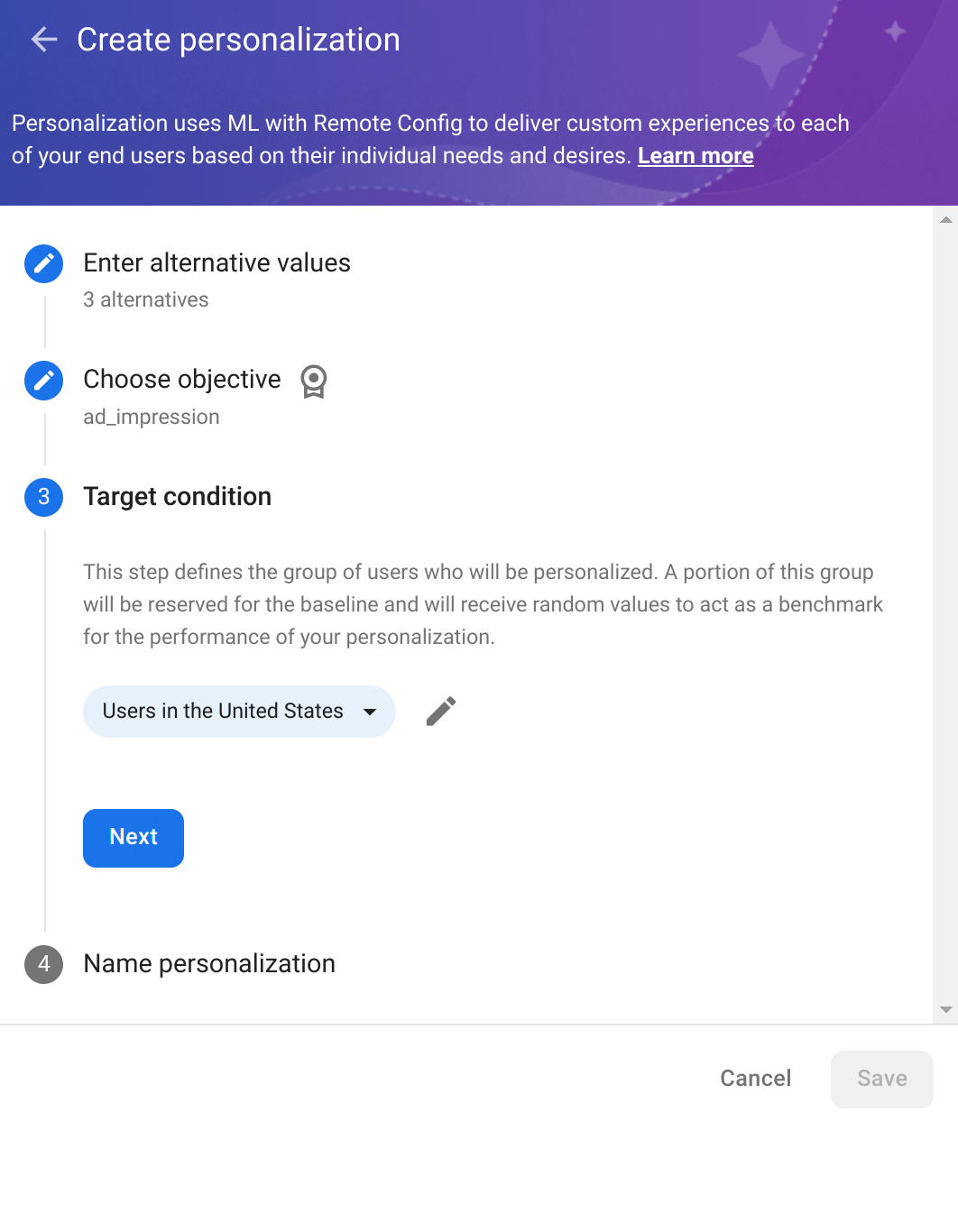
Click Next and name your personalization, then click Save.
Click Publish changes to launch the personalization. Users will begin to receive personalized parameter values in a few hours (depending on the Remote Config fetch interval). Because the amount of time a value is applied to a user (the stickiness window) is 24 hours, we recommend that you let your personalizations run for 14 days (or perpetually) so that they continually learn and improve, providing an optimal experience for each user.
You can see how your personalizations are performing by clicking on the parameter targeting condition on the Remote Config page.
Now that you've learned how to create a personalization, explore other use cases to discover how to implement them.