
Config templates using the Admin SDK, REST API, and Firebase CLI. page_type: guide
This document describes how you can programmatically read and modify the set of JSON-formatted parameters and conditions known as the Remote Config template. This lets you make template changes on the backend that the client app can fetch using the client library.
Using the Remote Config REST API, the Admin SDKs, or the Firebase CLI described in this guide, you can bypass managing the template in the Firebase console to directly integrate Remote Config changes into your own processes. For example, with Remote Config backend APIs, you could:
- Schedule Remote Config updates. Use API calls in conjunction with a cron job, you can change Remote Config values on a regular schedule.
- Batch import config values to transition efficiently from your own proprietary system to Firebase Remote Config.
- Use Remote Config with Cloud Functions for Firebase, changing values in your app based on events that happen server-side. For example, you can use Remote Config to promote a new feature in your app, and then turn off that promotion automatically once you detect enough people have interacted with the new feature.
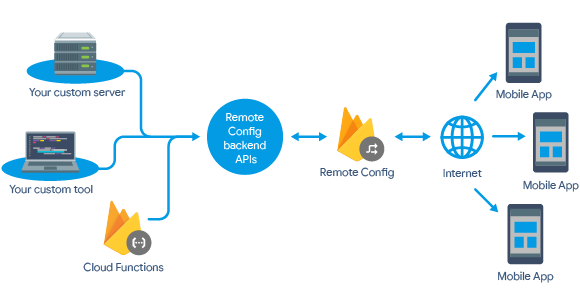
The following sections of this guide describe operations you can perform using the Remote Config backend APIs.
Modify Remote Config using the Firebase Admin SDK
The Admin SDK is a set of server libraries that let you interact with Firebase from privileged environments. In addition to performing updates to Remote Config, the Admin SDK enables generation and verification of Firebase auth tokens, and reading and writing from Realtime Database. To learn more about Admin SDK prerequisites and setup, see Add the Firebase Admin SDK to your server.
To review sample code that performs these tasks using the Admin SDK, see one of the following quickstart apps:
- Firebase Remote Config Java Quickstart
- Firebase Remote Config Node.js Quickstart
- Firebase Remote Config Python Quickstart
In a typical Remote Config flow, you might get the current template, modify some of the parameters or parameter groups and conditions, validate the template, and then publish it. Before making those API calls, you must authorize requests from the SDK.
Initialize the SDK and authorize API requests
When you initialize the Admin SDK with no parameters, the SDK uses
Google Application Default Credentials
and reads options from the FIREBASE_CONFIG environment variable.
If the content of the FIREBASE_CONFIG variable begins with a {, it'll
be parsed as a JSON object. Otherwise, the SDK assumes that the string is the
name of a JSON file containing the options.
For example:
Node.js
const admin = require('firebase-admin');
admin.initializeApp();
Java
FileInputStream serviceAccount = new FileInputStream("service-account.json");
FirebaseOptions options = FirebaseOptions.builder()
        .setCredentials(GoogleCredentials.fromStream(serviceAccount))
        .build();
FirebaseApp.initializeApp(options);
Get the current Remote Config template
When working with Remote Config templates, keep in mind that they are versioned, and that each version has a limited lifetime from its time of creation to the time you replace it with an update: 90 days, with a total limit of 300 stored versions. See Templates and Versioning for more information.
You can use the backend APIs to get the current active version of the Remote Config template in JSON format.
Parameters and parameter values created specifically as variants in an A/B Testing experiment are not included in exported templates.
To get the template:
Node.js
function getTemplate() {
  var config = admin.remoteConfig();
  config.getTemplate()
      .then(function (template) {
        console.log('ETag from server: ' + template.etag);
        var templateStr = JSON.stringify(template);
        fs.writeFileSync('config.json', templateStr);
      })
      .catch(function (err) {
        console.error('Unable to get template');
        console.error(err);
      });
}
Java
Template template = FirebaseRemoteConfig.getInstance().getTemplateAsync().get();
// See the ETag of the fetched template.
System.out.println("ETag from server: " + template.getETag());
Modify Remote Config parameters
You can programmatically modify and add Remote Config parameters and parameter groups. For example, to an existing parameter group named "new_menu" you could add a parameter to control the display of seasonal information:
Node.js
function addParameterToGroup(template) {
  template.parameterGroups['new_menu'].parameters['spring_season'] = {
    defaultValue: {
      useInAppDefault: true
    },
    description: 'spring season menu visibility.',
  };
}
Java
template.getParameterGroups().get("new_menu").getParameters()
        .put("spring_season", new Parameter()
                .setDefaultValue(ParameterValue.inAppDefault())
                .setDescription("spring season menu visibility.")
        );
The API lets you create new parameters and parameter groups, or modify default values, conditional values, and descriptions. In all cases, you must explicitly publish the template after making modifications.
Modify Remote Config conditions
You can programmatically modify and add Remote Config conditions and conditional values. For example, to add a new condition:
Node.js
function addNewCondition(template) {
  template.conditions.push({
    name: 'android_en',
    expression: 'device.os == \'android\' && device.country in [\'us\', \'uk\']',
    tagColor: 'BLUE',
  });
}
Java
template.getConditions().add(new Condition("android_en",
        "device.os == 'android' && device.country in ['us', 'uk']", TagColor.BLUE));
In all cases, you must explicitly publish the template after making modifications.
The Remote Config backend APIs provide several conditions and comparison operators that you can use to change the behavior and appearance of your app. To learn more about conditions and the operators supported for these conditions, see the conditional expression reference.
Validate the Remote Config template
Optionally, you can validate your updates before publishing them, as shown:
Node.js
function validateTemplate(template) {
  admin.remoteConfig().validateTemplate(template)
      .then(function (validatedTemplate) {
        // The template is valid and safe to use.
        console.log('Template was valid and safe to use');
      })
      .catch(function (err) {
        console.error('Template is invalid and cannot be published');
        console.error(err);
      });
}
Java
try {
  Template validatedTemplate = FirebaseRemoteConfig.getInstance()
          .validateTemplateAsync(template).get();
  System.out.println("Template was valid and safe to use");
} catch (ExecutionException e) {
  if (e.getCause() instanceof FirebaseRemoteConfigException) {
    FirebaseRemoteConfigException rcError = (FirebaseRemoteConfigException) e.getCause();
    System.out.println("Template is invalid and cannot be published");
    System.out.println(rcError.getMessage());
  }
}
This validation process checks for errors such as duplicate keys for
parameters and conditions, invalid condition names or nonexistent conditions,
or misformatted etags. For example, a request containing more than the
allowed number of keys—2000—would return the error message,
Param count too large.
Publish the Remote Config template
Having retrieved a template and revised it with your updates, you can then publish it. Publishing a template as described in this section replaces the entire existing config template with the updated file, and the new active template is assigned a version number one number greater than the template it replaced.
If necessary, you can use the REST API to roll back to the previous version. To mitigate the risk of errors in an update, you can validate before publishing.
Remote Config personalizations and conditions are included in downloaded templates, so it's important to be aware of the following limitations when attempting to publish to a different project:
Personalizations cannot be imported from project to project.
For example, if you have personalizations enabled in your project and download and edit a template, you can publish it to the same project, but you can't publish it to a different project unless you delete the personalizations from the template.
Conditions can be imported from project to project, but note that any specific conditional values (like app IDs or audiences), should exist in the target project before publishing.
For example, if you have a Remote Config parameter that uses a condition that specifies a platform value of
iOS, the template can be published to another project, because platform values are the same for any project. However, if it contains a condition that relies on a specific app ID or user audience that doesn't exist in the target project, validation will fail.If the template you plan to publish contains conditions that rely on Google Analytics, Analytics must be enabled in the target project.
Node.js
function publishTemplate() {
  var config = admin.remoteConfig();
  var template = config.createTemplateFromJSON(
      fs.readFileSync('config.json', 'UTF8'));
  config.publishTemplate(template)
      .then(function (updatedTemplate) {
        console.log('Template has been published');
        console.log('ETag from server: ' + updatedTemplate.etag);
      })
      .catch(function (err) {
        console.error('Unable to publish template.');
        console.error(err);
      });
}
Java
try {
  Template publishedTemplate = FirebaseRemoteConfig.getInstance()
          .publishTemplateAsync(template).get();
  System.out.println("Template has been published");
  // See the ETag of the published template.
  System.out.println("ETag from server: " + publishedTemplate.getETag());
} catch (ExecutionException e) {
  if (e.getCause() instanceof FirebaseRemoteConfigException) {
    FirebaseRemoteConfigException rcError = (FirebaseRemoteConfigException) e.getCause();
    System.out.println("Unable to publish template.");
    System.out.println(rcError.getMessage());
  }
}
Modify Remote Config using the REST API
This section describes the main capabilities of the Remote Config REST
API at https://firebaseremoteconfig.googleapis.com. For full detail, see the
API reference.
Get an access token to authenticate and authorize API requests
Firebase projects support Google service accounts, which you can use to call Firebase server APIs from your app server or trusted environment. If you're developing code locally or deploying your application on-premises, you can use credentials obtained using this service account to authorize server requests.
You can view all service accounts for your Firebase project in the
To authenticate a service account and authorize it to access Firebase services, you must generate a private key file in JSON format.
To generate a private key file for your service account:
In the Firebase console, go to the
Settings > Service accounts tab.Click Generate New Private Key, then confirm by clicking Generate Key.
Securely store the JSON file containing the key.
When authorizing via a service account, you have two choices for providing the credentials to your application. You can either set the GOOGLE_APPLICATION_CREDENTIALS environment variable, or you can explicitly pass the path to the service account key in code. The first option is more secure and is strongly recommended.
To set the environment variable:
Set the environment variable GOOGLE_APPLICATION_CREDENTIALS to the file path of the JSON file that contains your service account key. This variable only applies to your current shell session, so if you open a new session, set the variable again.
Linux or macOS
export GOOGLE_APPLICATION_CREDENTIALS="/home/user/Downloads/service-account-file.json"
Windows
With PowerShell:
$env:GOOGLE_APPLICATION_CREDENTIALS="C:\Users\username\Downloads\service-account-file.json"
After you've completed the above steps, Application Default Credentials (ADC) is able to implicitly determine your credentials, allowing you to use service account credentials when testing or running in non-Google environments.
Use your Firebase credentials together with the Google Auth Library for your preferred language to retrieve a short-lived OAuth 2.0 access token:
node.js
function getAccessToken() {
return admin.credential.applicationDefault().getAccessToken()
.then(accessToken => {
return accessToken.access_token;
})
.catch(err => {
console.error('Unable to get access token');
console.error(err);
});
}
In this example, the Google API client library authenticates the request with a JSON web token, or JWT. For more information, see JSON web tokens.
Python
def _get_access_token():
"""Retrieve a valid access token that can be used to authorize requests.
:return: Access token.
"""
credentials = ServiceAccountCredentials.from_json_keyfile_name(
'service-account.json', SCOPES)
access_token_info = credentials.get_access_token()
return access_token_info.access_token
Java
public static String getAccessToken() throws IOException {
GoogleCredentials googleCredentials = GoogleCredentials
.fromStream(new FileInputStream("service-account.json"))
.createScoped(Arrays.asList(SCOPES));
googleCredentials.refreshAccessToken();
return googleCredentials.getAccessToken().getTokenValue();
}
After your access token expires, the token refresh method is called automatically to retrieve an updated access token.
To authorize access to Remote Config, request the scope
https://www.googleapis.com/auth/firebase.remoteconfig.
Modify the Remote Config template
When working with Remote Config templates, keep in mind that they are versioned, and that each version has a limited lifetime from its time of creation to the time you replace it with an update: 90 days, with a total limit of 300 stored versions. See Templates and Versioning for more information.
Get the current Remote Config template
You can use the backend APIs to get the current active version of the Remote Config template in JSON format.
Parameters and parameter values created specifically as variants in an A/B Testing experiment are not included in exported templates.
Use the following commands:
cURL
curl --compressed -D headers -H "Authorization: Bearer token" -X GET https://firebaseremoteconfig.googleapis.com/v1/projects/my-project-id/remoteConfig -o filenameThis command outputs the JSON payload to one file, and the headers (including the Etag) to a separate file.
Raw HTTP request
Host: firebaseremoteconfig.googleapis.com

GET /v1/projects/my-project-id/remoteConfig HTTP/1.1
Authorization: Bearer token
Accept-Encoding: gzip
This API call returns the following JSON, along with a separate header which includes an ETag that you use for the subsequent request.
Validate the Remote Config template
Optionally, you can validate your updates before publishing them.
Validate template updates by appending
to your publish request the URL parameter ?validate_only=true.
In the response, a status code 200 and an updated etag with the suffix -0
means that your update was successfully validated. Any non-200 response
indicates that the JSON data contains errors that you must correct before
publishing.
Update the Remote Config template
Having retrieved a template and revised the JSON content with your updates, you can then publish it. Publishing a template as described in this section replaces the entire existing config template with the updated file, and the new active template is assigned a version number one number greater than the template it replaced.
If necessary, you can use the REST API to roll back to the previous version. To mitigate the risk of errors in an update, you can validate before publishing.
Remote Config personalizations and conditions are included in downloaded templates, so it's important to be aware of the following limitations when attempting to publish to a different project:
Personalizations cannot be imported from project to project.
For example, if you have personalizations enabled in your project and download and edit a template, you can publish it to the same project, but you can't publish it to a different project unless you delete the personalizations from the template.
Conditions can be imported from project to project, but note that any specific conditional values (like app IDs or audiences), should exist in the target project before publishing.
For example, if you have a Remote Config parameter that uses a condition that specifies a platform value of
iOS, the template can be published to another project, because platform values are the same for any project. However, if it contains a condition that relies on a specific app ID or user audience that doesn't exist in the target project, validation will fail.If the template you plan to publish contains conditions that rely on Google Analytics, Analytics must be enabled in the target project.
cURL
curl --compressed -H "Content-Type: application/json; UTF8" -H "If-Match: last-returned-etag" -H "Authorization: Bearer token" -X PUT https://firebaseremoteconfig.googleapis.com/v1/projects/my-project-id/remoteConfig -d @filenameFor this curl command, you can specify the content by using the "@"
character, followed by the filename.
Raw HTTP request
Host: firebaseremoteconfig.googleapis.com
PUT /v1/projects/my-project-id/remoteConfig HTTP/1.1
Content-Length: size
Content-Type: application/json; UTF8
Authorization: Bearer token
If-Match: expected ETag
Accept-Encoding: gzip
JSON_HERE
Because this is a write request, the
ETag is modified by this command and an
updated ETag is provided in the response headers of the next PUT command.
Modify Remote Config conditions
You can programmatically modify Remote Config conditions and conditional values. With the REST API, you must edit the template directly to modify conditions before publishing the template.
{
  "conditions": [{
    "name": "android_english",
    "expression": "device.os == 'android' && device.country in ['us', 'uk']",
    "tagColor": "BLUE"
  }, {
    "name": "tenPercent",
    "expression": "percent <= 10",
    "tagColor": "BROWN"
  }],
  "parameters": {
    "welcome_message": {
      "defaultValue": {
        "value": "Welcome to this sample app"
      },
      "conditionalValues": {
        "tenPercent": {
          "value": "Welcome to this new sample app"
        }
      },
      "description": "The sample app's welcome message"
    },
    "welcome_message_caps": {
      "defaultValue": {
        "value": "false"
      },
      "conditionalValues": {
        "android_english": {
          "value": "true"
        }
      },
      "description": "Whether the welcome message should be displayed in all
      capital letters."
    }
  }
}
The modifications in the preceding snippet first define a set of conditions, and then define default values and condition-based parameter (conditional values) values for each parameter. They also add an optional description for each element; like code comments, these are for developer use and aren't displayed in the app. An ETag is also provided for version control purposes.
The Remote Config backend APIs provide several conditions and comparison operators that you can use to change the behavior and appearance of your app. To learn more about conditions and the operators supported for these conditions, see the conditional expression reference.
HTTP Error codes
| Status Code | Meaning |
|---|---|
| 200 | Successfully Updated |
| 400 | A validation error occurred. For example, a request containing more than the
allowed number of keys—2000—would return 400 (Bad Request) with
the error message, Param count too large.
Also, this HTTPS Status Code can occur in these two situations:
|
| 401 | An authorization error occurred (no access token was provided or the Firebase Remote Config REST API has not been added to your project in the Cloud Developer Console) |
| 403 | An authentication error occurred (the wrong access token was provided) |
| 500 | An internal error occurred. If this error occurs, file a Firebase support ticket |
A status code of 200 means that the Remote Config template (parameters, values and conditions for the project) has been updated and is now available to apps that use this project. Other status codes indicate that the Remote Config template that existed previously is still in effect.
After you submit updates to your template, go to the Firebase console to
verify that your changes appear as expected. This is critical because the
ordering of conditions affects how they are evaluated (the first condition that
evaluates true takes effect).
ETag usage and forced updates
The Remote Config REST API uses an entity tag (ETag) to prevent race conditions and overlapping updates to resources. To learn more about ETags, see ETag - HTTP.
For the REST API, Google recommends that you cache the ETag provided by the
most recent GET command, and use that ETag value in the If-Match request
header when issuing PUT commands. If your PUT command results in an HTTPS
Status Code 409, you should issue a fresh GET command to acquire a new ETag
and template to use with your next PUT command.
You can circumvent the ETag, and the protection that it provides, by
forcing the Remote Config template to be updated as follows:
If-Match: *. However, this approach isn't recommended because it risks
causing the loss of updates to your Remote Config template if multiple
clients are updating the Remote Config template. This kind of conflict
could occur with multiple clients using the API, or with conflicting updates
from API clients and Firebase console users.
For guidance on managing Remote Config template versions, see Remote Config templates and versioning.
Modify Remote Config using the Firebase CLI
The Firebase CLI lets you inspect, manage, and roll back Remote Config templates, as well as list, inspect, and delete Remote Config experiments and rollouts directly from the command line.
Prerequisites and setup
Sign in to Firebase:
firebase loginSet your active project or specify
--project PROJECT_IDwith each command:firebase use PROJECT_ID
Ensure that your account or service account has the required IAM permissions:
- To inspect, download, or roll back Remote Config templates and manage
rollouts, you need the
Firebase Remote Config Admin role (
roles/cloudconfig.admin) (or permissionscloudconfig.configs.get,cloudconfig.configs.update,cloudconfig.rollouts.get,cloudconfig.rollouts.list, andcloudconfig.rollouts.archive). For view-only operations, the Firebase Remote Config Viewer role (roles/cloudconfig.viewer) (cloudconfig.configs.get,cloudconfig.rollouts.get, andcloudconfig.rollouts.list) is sufficient. - To manage A/B Testing experiments, you need the
Firebase A/B Testing Admin role (
roles/firebaseabt.admin) (or permissionsfirebaseabt.experiments.get,firebaseabt.experiments.list, andfirebaseabt.experiments.delete). For view-only operations, the Firebase A/B Testing Viewer role (roles/firebaseabt.viewer) is sufficient.
CLI command summary
| Command | Description |
|---|---|
firebase remoteconfig:versions:list |
Lists recent Remote Config template versions. |
firebase remoteconfig:get |
Gets a Remote Config template (optionally writing to a file). |
firebase remoteconfig:rollback |
Rolls back the Remote Config template to a previous version. |
firebase remoteconfig:experiments:list |
Lists all Remote Config experiments in the project. |
firebase remoteconfig:experiments:get |
Gets details of a specific Remote Config experiment. |
firebase remoteconfig:experiments:delete |
Deletes a specific Remote Config experiment. |
firebase remoteconfig:rollouts:list |
Lists all Remote Config rollouts in the project. |
firebase remoteconfig:rollouts:get |
Gets details of a specific Remote Config rollout. |
firebase remoteconfig:rollouts:delete |
Deletes a specific Remote Config rollout. |
Modify Remote Config templates and versions
Use the following commands to inspect, download, and roll back Remote Config templates and their version history:
List template versions
Lists the most recent 10 versions of the Remote Config template by
default, including the version number, update time, update origin, update
type, and updateUser.
firebase remoteconfig:versions:list [--limit NUMBER_OF_VERSIONS]--limit NUMBER_OF_VERSIONS: The maximum number of versions to return. Specify0to return all existing versions (up to the 300 stored versions limit).
Examples:
List the 10 most recent versions:
firebase remoteconfig:versions:listList all available versions:
firebase remoteconfig:versions:list --limit 0List the 5 most recent versions:
firebase remoteconfig:versions:list --limit 5
Get a template
Gets the Remote Config template and outputs the parameter groups, parameters, condition names, and version. By default, it retrieves the latest active version and prints a formatted summary to the terminal.
firebase remoteconfig:get [-v, --version_number VERSION_NUMBER] [-o, --output FILENAME]-v, --version_number VERSION_NUMBER: The version number of the template to retrieve. If omitted, defaults to the latest version.-o, --output FILENAME: Writes the template JSON payload directly to the specified path instead of printing to stdout.
Examples:
Display the current active template in the terminal:
firebase remoteconfig:getDownload the current active template to a JSON file:
firebase remoteconfig:get -o remote_config_template.jsonDownload a specific historical version (for example, version 12) to a file:
firebase remoteconfig:get -v 12 -o remote_config_v12.json
Roll back a template
Rolls back the active Remote Config template to a previous version. This creates a new active version whose content is identical to the target version.
firebase remoteconfig:rollback [-v, --version_number VERSION_NUMBER] [--force]-v, --version_number VERSION_NUMBER: The target version number to roll back to. If omitted, defaults to the immediately preceding version (current version minus 1).--force: Performs the rollback immediately without prompting for interactive confirmation (Y/N). Useful for CI/CD pipelines and automated scripts.
Examples:
Roll back to the previous version with interactive confirmation:
firebase remoteconfig:rollbackRoll back to version 8 without prompting:
firebase remoteconfig:rollback -v 8 --force
Modify A/B Testing experiments
Use the following commands to list, inspect, and delete Remote Config A/B Testing experiments directly with the CLI:
List experiments
Lists all Remote Config experiments for the project, with optional filtering and pagination.
firebase remoteconfig:experiments:list [--filter EXPRESSION] [--pageSize NUMBER] [--pageToken TOKEN]--filter EXPRESSION: Filter expression to apply to the experiment list.--pageSize NUMBER: Number of experiments to return per page (defaults to 10).--pageToken TOKEN: Token for the page offset when retrieving paginated results.
Example:
firebase remoteconfig:experiments:listGet experiment details
Gets full details for a specified Remote Config experiment.
firebase remoteconfig:experiments:get EXPERIMENT_IDExample:
firebase remoteconfig:experiments:get exp_promo_discount_2026Delete an experiment
Deletes the specified Remote Config experiment.
firebase remoteconfig:experiments:delete EXPERIMENT_IDExample:
firebase remoteconfig:experiments:delete exp_promo_discount_2026Modify Remote Config rollouts
Use the following commands to list, inspect, and delete Remote Config rollouts directly with the CLI:
List rollouts
Lists all Remote Config rollouts for the project, with optional filtering and pagination.
firebase remoteconfig:rollouts:list [--filter EXPRESSION] [--pageSize NUMBER] [--pageToken TOKEN]--filter EXPRESSION: Filter expression to apply to the rollout list.--pageSize NUMBER: Number of rollouts to return per page (defaults to 10).--pageToken TOKEN: Token for the page offset when retrieving paginated results.
Example:
firebase remoteconfig:rollouts:listGet rollout details
Gets full details for a specified Remote Config rollout.
firebase remoteconfig:rollouts:get ROLLOUT_IDExample:
firebase remoteconfig:rollouts:get rollout_new_checkout_flowDelete a rollout
Deletes the specified Remote Config rollout.
firebase remoteconfig:rollouts:delete ROLLOUT_IDExample:
firebase remoteconfig:rollouts:delete rollout_new_checkout_flowFor more general information on Firebase CLI commands, see the Firebase CLI reference.