
After App Check is enforced for a backend service, your app's features that depend on that backend service won't run in an emulator or from a continuous integration (CI) environment because these environments don't qualify as valid devices. To run your app in these environments during development and testing, you need to create a debug build of your app that uses the App Check debug provider instead of a production attestation provider.
Configuration via code
Here's how to use the debug provider while running your app in an emulator interactively (for example, during local development):
In the Firebase console, create a debug token:
In the Firebase console, go to the Security > App Check > Apps tab.
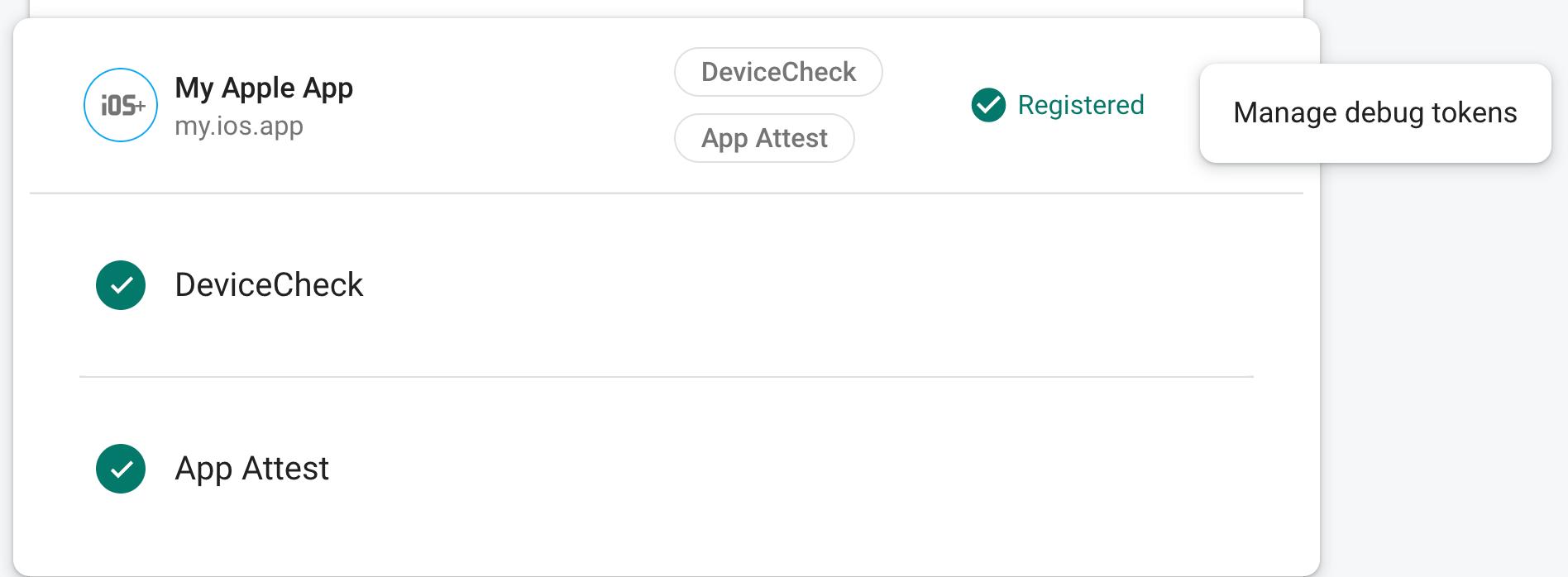
Find your app, click the three-dot overflow menu (), and then select Manage debug tokens.
Follow the on-screen instructions to create a new debug token.
This token allows access to your backend services without a valid device, so it's crucial that you keep it private. Do not commit it to a public repository or ship it in production builds of your app. If a registered token is ever compromised, delete it immediately using Manage debug tokens in the Firebase console.
In your app's initialization code, add the following:
using Firebase.AppCheck;

void InitializeFirebase() {
  // Configure the Debug Provider factory with your debug token.
  DebugAppCheckProviderFactory.Instance.SetDebugToken("YOUR_DEBUG_TOKEN");

  // Set App Check to use the debug provider factory
  FirebaseAppCheck.SetAppCheckProviderFactory(
    DebugAppCheckProviderFactory.Instance);

  // Proceed to initialize Firebase as normal
}
Other configuration options
Other configuration options are available based on platform, for example using the platforms environment variables. For more information, refer to the iOS+ or Android debug provider documentation.
This token allows access to your backend services without a valid device, so it's crucial that you keep it private. Do not commit it to a public repository or ship it in production builds of your app. If a registered token is ever compromised, delete it immediately using Manage debug tokens in the Firebase console.