
After App Check is enforced for a backend service, your app's features that
depend on that backend service won't run from localhost or from a
continuous integration (CI) environment because these environments don't qualify
as valid devices. To run your app in these environments during development and
testing, you need to create a debug build of your app that uses the
App Check debug provider instead of a production attestation provider.
Use the debug provider on localhost
Here's how to use the debug provider while running your app from localhost
(for example, during local development):
In your debug build, enable debug mode by setting
self.FIREBASE_APPCHECK_DEBUG_TOKENtotruebefore you initialize App Check. For example:Web
self.FIREBASE_APPCHECK_DEBUG_TOKEN = true;
initializeAppCheck(app, { /* App Check options */ });
Web
self.FIREBASE_APPCHECK_DEBUG_TOKEN = true; firebase.appCheck().activate(/* site key or provider */);Visit your web app locally and open the browser's developer tools. In the debug console, you'll see a debug token:
AppCheck debug token: "123a4567-b89c-12d3-e456-789012345678".
You will need to safelist it in the Firebase console for it to work.
Register your debug token with App Check:
In the Firebase console, go to the Security > App Check > Apps tab.
Find your app, click the three-dot overflow menu (), and then select Manage debug tokens.
Follow the on-screen instructions to register your debug token.
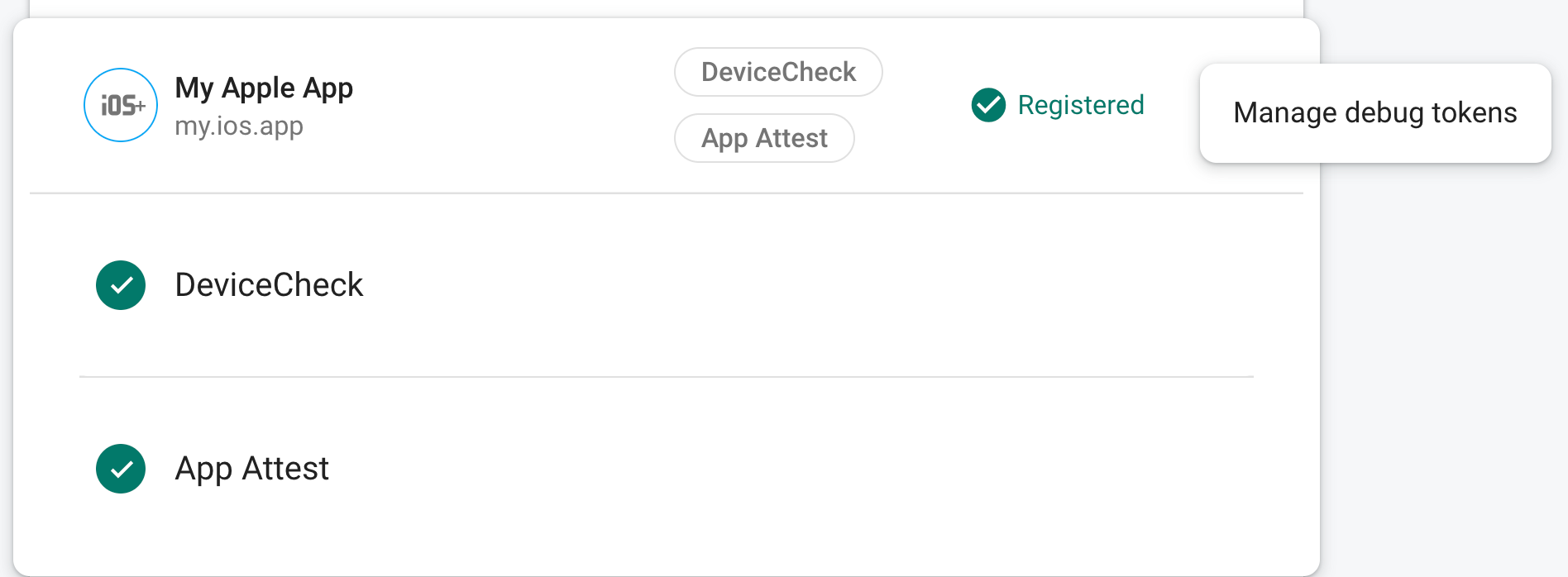
After you register the token with App Check, your backend services will accept it as valid.
This token allows access to your backend services without a valid device, so it's crucial that you keep it private. Do not commit it to a public repository or ship it in production builds of your app. If a registered token is ever compromised, delete it immediately using Manage debug tokens in the Firebase console.
This token is stored locally in your browser and will be used whenever you use
your app in the same browser on the same machine. If you want to use the
token in another browser or on another machine, set
self.FIREBASE_APPCHECK_DEBUG_TOKEN to the token string instead of true.
Use the debug provider in a CI environment
Here's how to use the debug provider in a continuous integration (CI) environment:
In the Firebase console, create a debug token:
In the Firebase console, go to the Security > App Check > Apps tab.
Find your app, click the three-dot overflow menu (), and then select Manage debug tokens.
Follow the on-screen instructions to create a new debug token.
This token allows access to your backend services without a valid device, so it's crucial that you keep it private. Do not commit it to a public repository or ship it in production builds of your app. If a registered token is ever compromised, delete it immediately using Manage debug tokens in the Firebase console.
Add the debug token you just created to your CI system's secure key store (for example, GitHub Actions' encrypted secrets or Travis CI's encrypted variables).
If necessary, configure your CI system to make your debug token available within the CI environment as an environment variable. Name the variable something like
APP_CHECK_DEBUG_TOKEN_FROM_CI.In your debug build, enable debug mode by setting
self.FIREBASE_APPCHECK_DEBUG_TOKENto the value of the debug token environment variable before you import App Check. For example:Web
self.FIREBASE_APPCHECK_DEBUG_TOKEN = process.env.APP_CHECK_DEBUG_TOKEN_FROM_CI;
initializeAppCheck(app, { /* App Check options */ });
Web
self.FIREBASE_APPCHECK_DEBUG_TOKEN = process.env.APP_CHECK_DEBUG_TOKEN_FROM_CI;
firebase.appCheck().activate(/* site key or provider */);
When your app runs in a CI environment, your backend services will accept the token it sends as valid.