
AI prompt for AI assistance
For AI assistance, copy the prompt below into your AI coding agent (like Gemini in Android Studio, Antigravity, Claude Code, Codex, and Cursor). You can customize the prompt and iterate with your agent. Visit Firebase agent skills for detailed installation info.
Help me use Firebase in my app.
1. Make sure that **Firebase agent skills** are installed and updated. For Claude Code, Codex, or Cursor agents, help me install the Firebase plugin. For other agents, run `npx skills add firebase/agent-skills`. Always try to use **Firebase agent skills** for Firebase-related tasks.
2. Help me write, validate, and deploy Firebase Security Rules to protect my app's data.
To quickly test your updated Firebase Security Rules in the Firebase console, use the Rules Playground.
The Rules Playground is a convenient tool to use as you're exploring new behaviors or quickly validating rules as you write them. It displays a message confirming that access was either allowed or denied according to the parameters you set for the simulation.
Use the Rules Playground
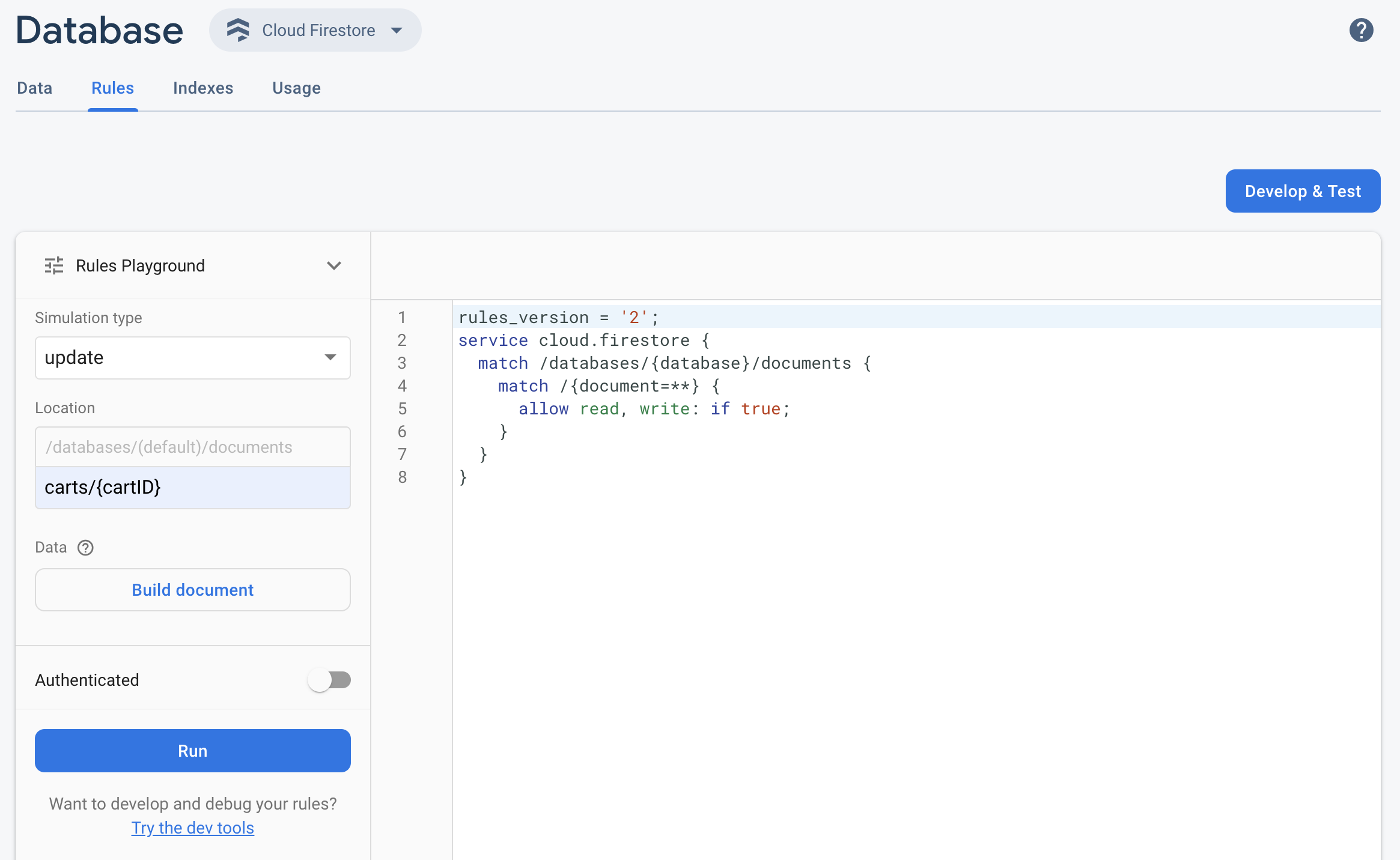
- Open the Firebase console and select your project.
- Then, from the product navigation, do one of the following:
- Select Realtime Database, Cloud Firestore, or Storage, as appropriate, then click Rules to navigate to the Security Rules editor.
- Once you've made your edits, click Rules Playground from the editor.
- In the Rules Playground settings, select options for your test, including:
- Testing reads or writes.
- A specific Location in your database or storage bucket, as a path.
- Authentication type — unauthenticated, authenticated anonymous user, or a specific user ID.
- Document-specific data that your rules specifically reference (for example, if your rules require the presence of a specific field before allowing a write).
- Click Run and look for the results in the banner above the editor.
Sample Rules Playground scenario
Test the Rules Playground behavior with the following sample scenario and basic rules.
Cloud Firestore
service cloud.firestore {
  match /databases/{database}/documents {
    // Allow only authenticated content owners access
    match /some_collection/{document} {
      allow read, write: if request.auth != null && request.auth.uid == request.resource.data.author_uid
      }
    }
  }
Realtime Database
 // These rules grant access to a node matching the authenticated
 // user's ID from the Firebase auth token
 {
   "rules": {
     "users": {
       "$uid": {
         ".read": "$uid === auth.uid",
         ".write": "$uid === auth.uid"
       }
     }
   }
 }
Cloud Storage
// Grants a user access to a node matching their user ID
service firebase.storage {
  match /b/{bucket}/o {
    // Files look like: "user/<UID>/file.txt"
    match /user/{userId}/{fileName} {
      allow read, write: if request.auth != null && request.auth.uid == userId;
    }
  }
}
In the Security Rules editor, add the rule given.
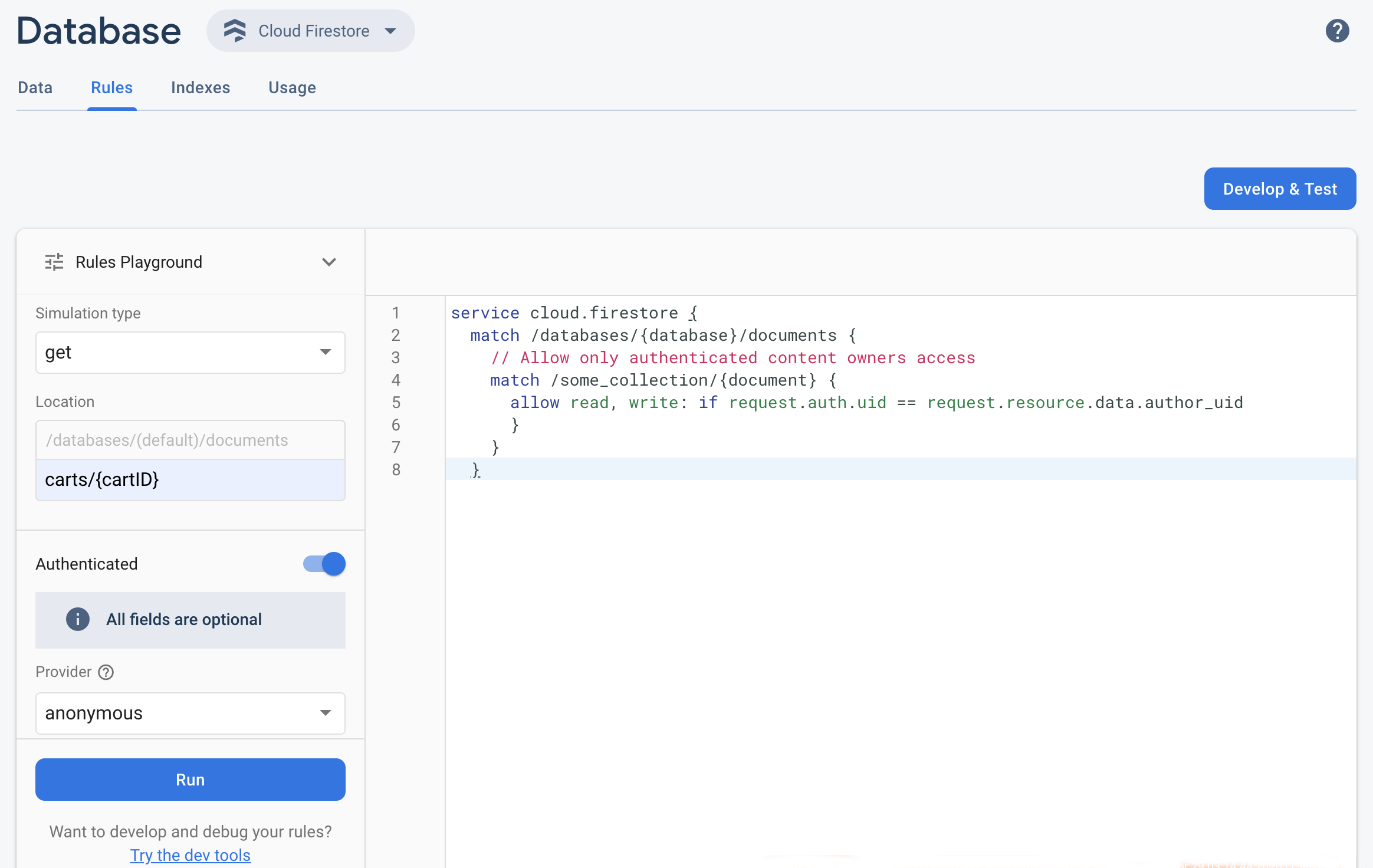 Select get from the Simulation type drop-down menu and enter a valid
path in the Location field.
Select get from the Simulation type drop-down menu and enter a valid
path in the Location field.Toggle on Authentication and select an authentication type from the Provider drop-down.
Enter the user ID details and click Run.
The results of the simulation appear at the top of the editor. Depending on the user ID details you entered, you should see a banner confirming the read was either successfully allowed or denied.